Configure secure remote access with SSH keys
This page describes how to manage SSH keys to securely access your instances.
Overview
SSH keys provide a secure way to authenticate to instances without using passwords. You can store one or more SSH keys in the CubeCMP key store for use with newly created instances.
Add an SSH key for remote access to instances
-
In the CubeCMP management interface, go to Settings.
-
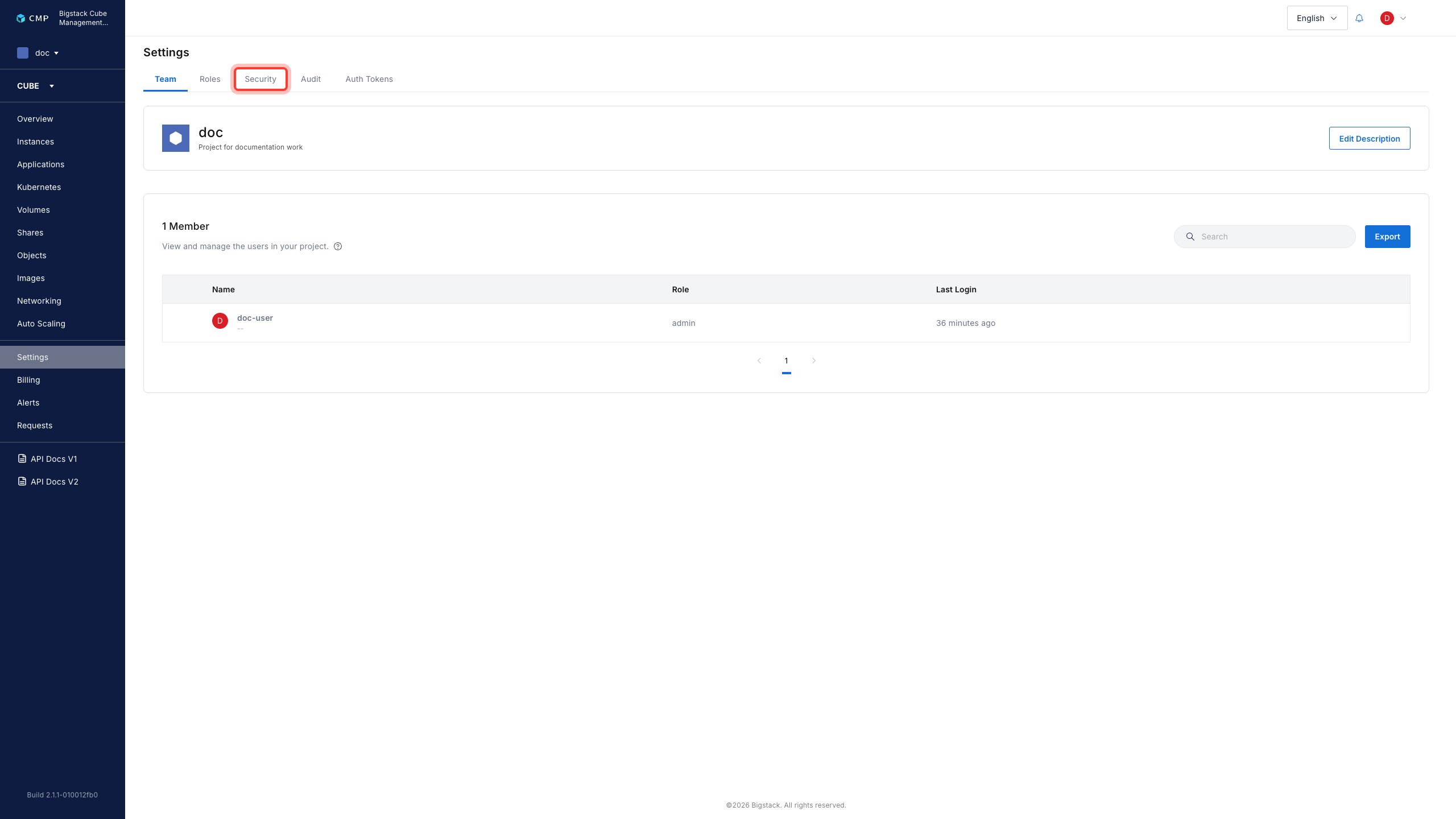
Click the Security tab.
-
To upload your SSH key, click + Add Key.
-
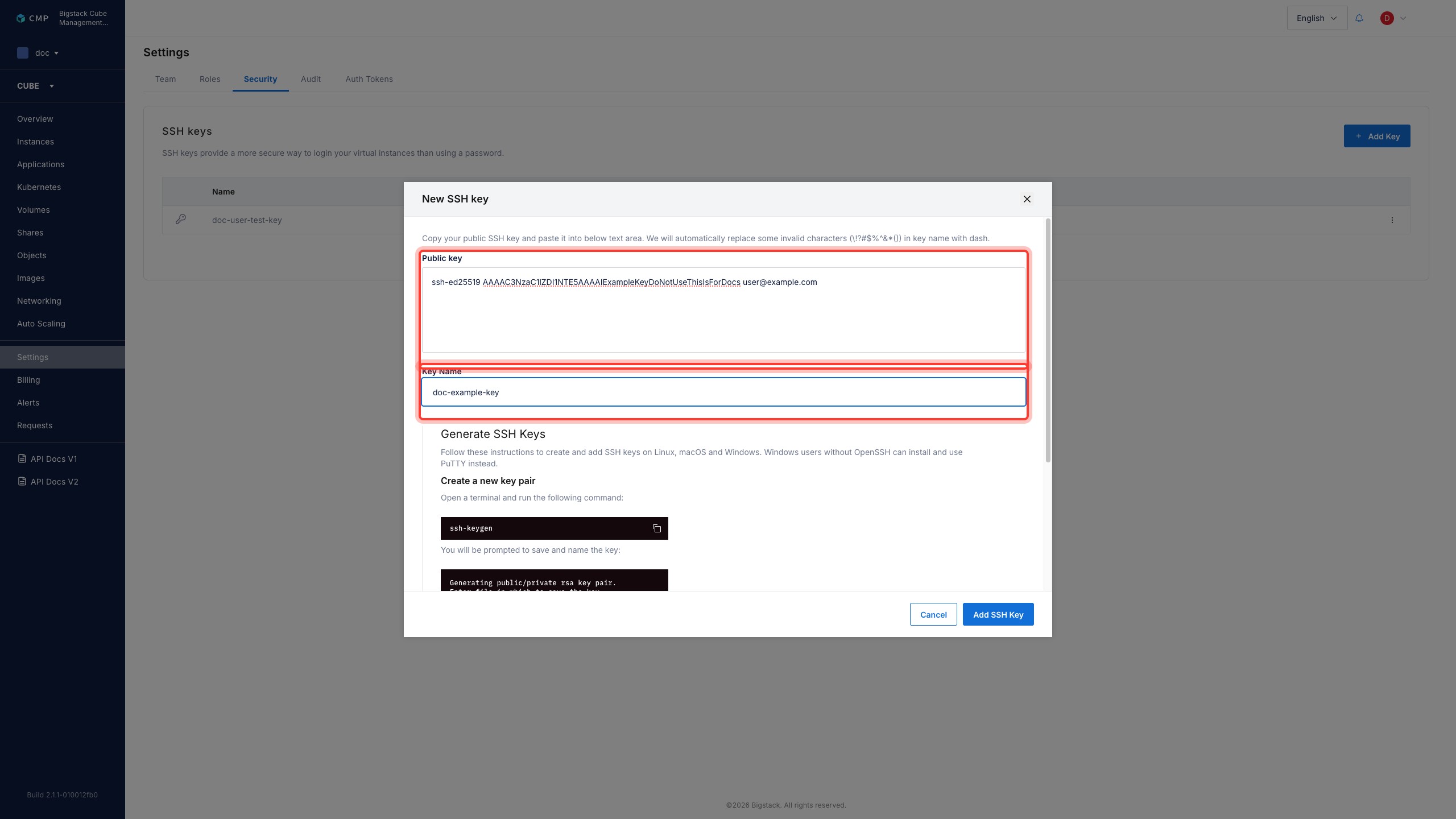
Choose to use an existing key or create a new one:
- To use an existing SSH key, copy the contents of the public key, and paste it into the Public key section.
- To generate a new SSH key, follow the on-screen procedures to generate and upload the new key.
-
To set the key name, enter a name for the key in the Key Name section.
-
To save and add the key, click Add SSH Key.
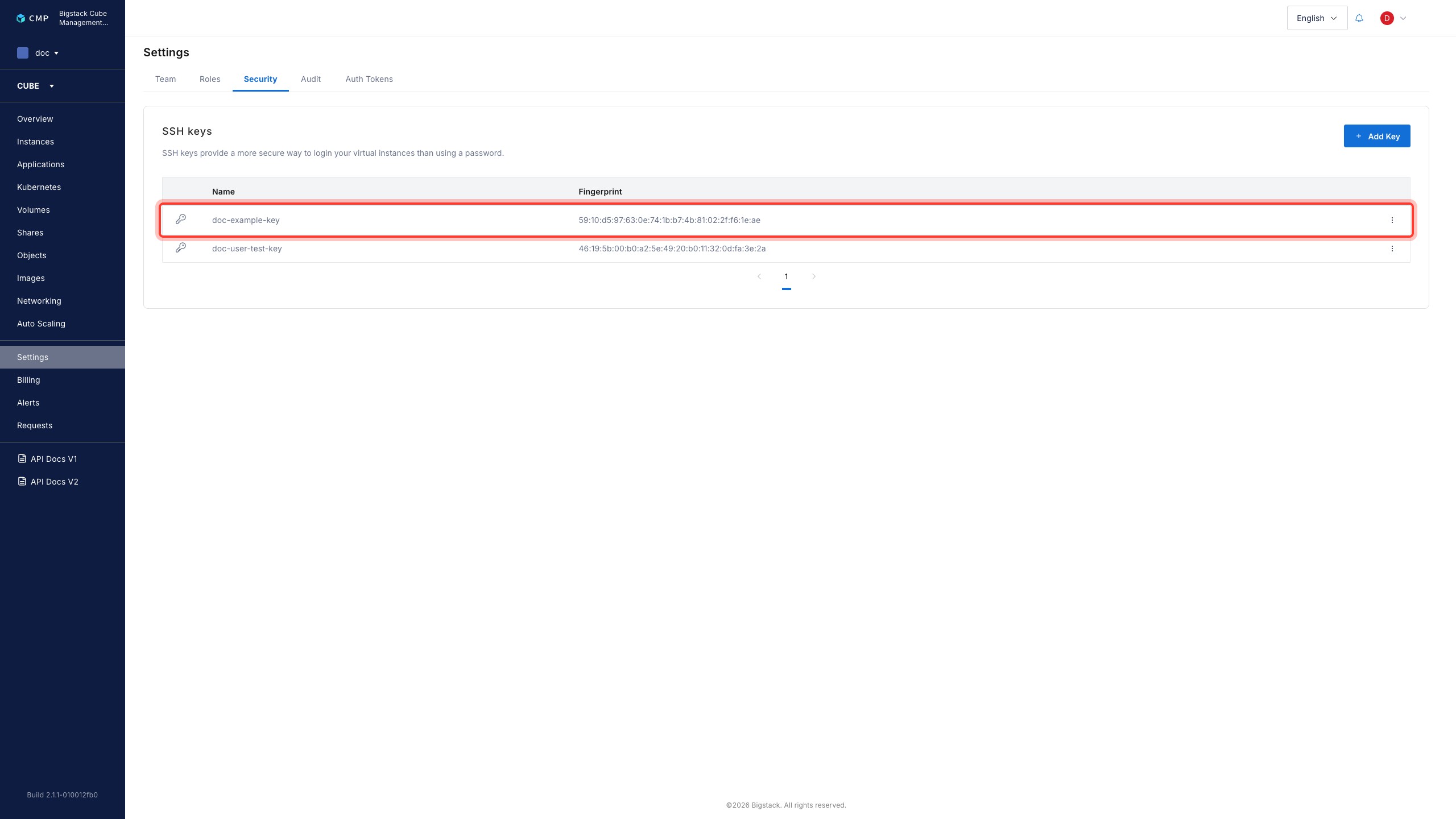
The key is now stored securely and is available for use when creating instances. Project administrators cannot access your stored keys.