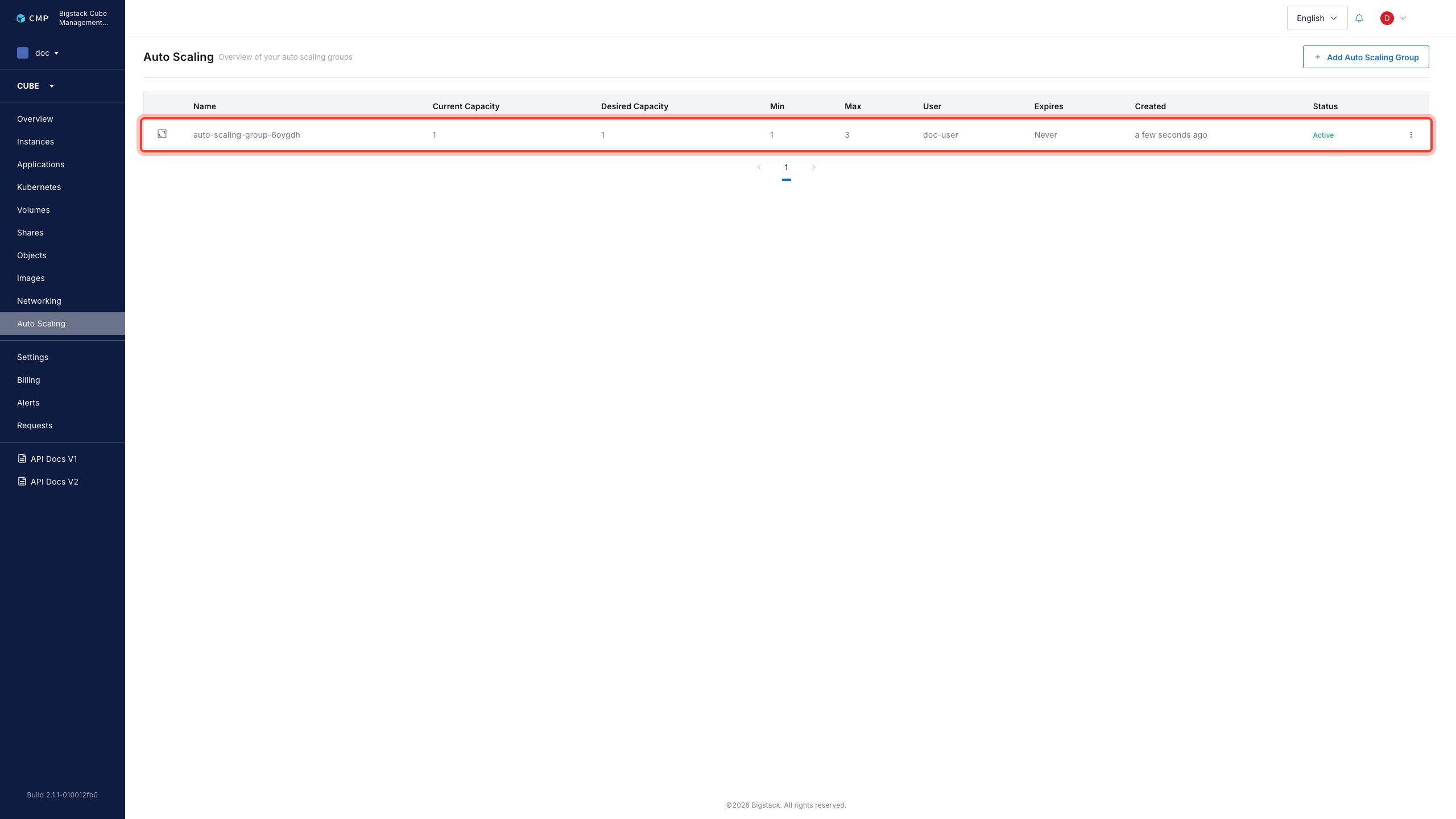
Launch Auto Scaling Group (ASG)
An Auto Scaling Group (ASG) automatically adds or removes instances in response to changing workload demand. This page describes how to create and configure an ASG.
Before you begin
- Ask an administrator to create a private network for the VMs in your ASG.
- Create a load balancer for the ASG.
- Identify the metrics that you want to track.
- Determine the scale-up and scale-down behavior that you want to configure.
Create an Auto Scaling Group
-
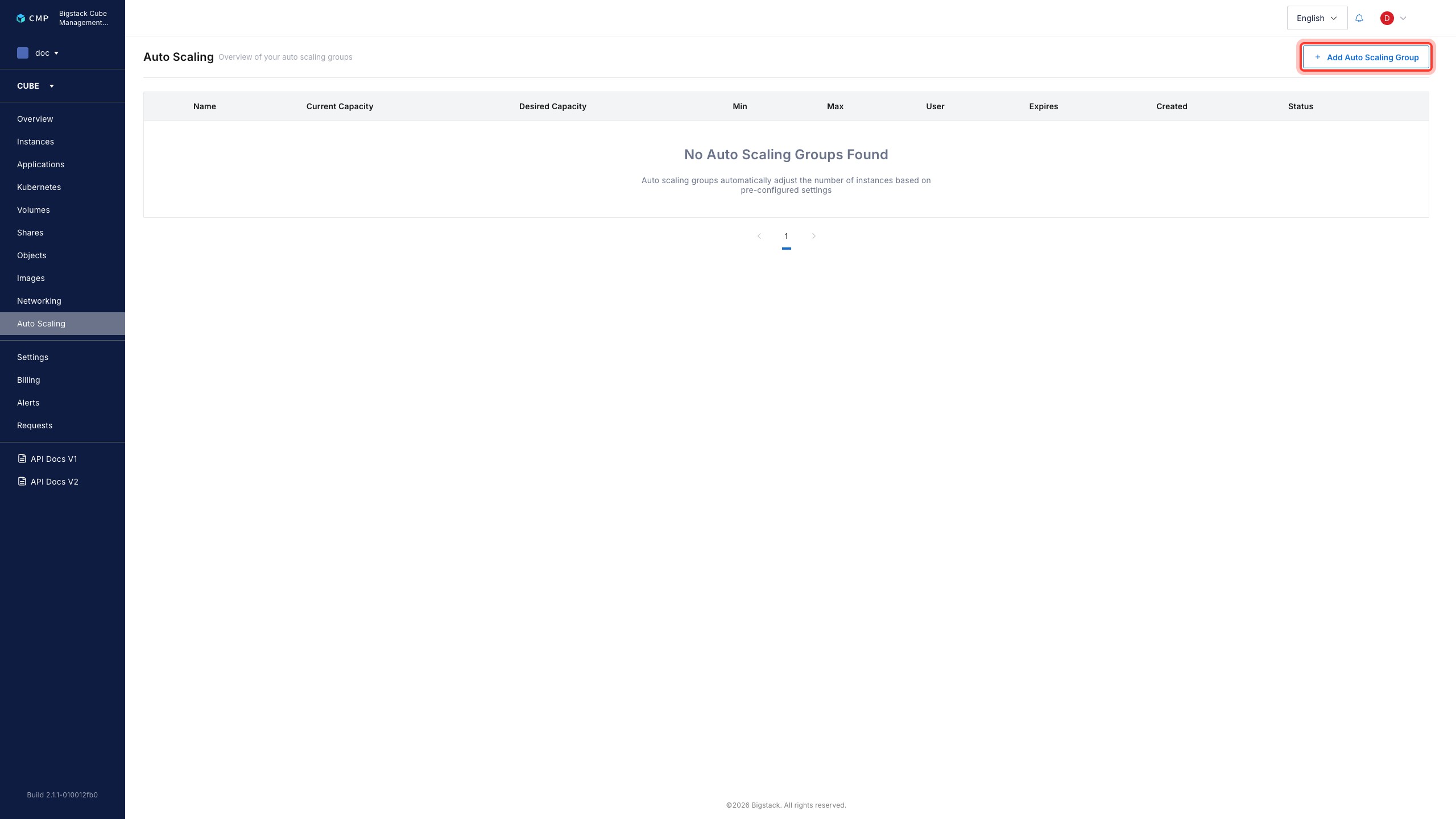
In the CubeCMP management console, go to Auto Scaling.
-
Click + Add Auto Scaling Group.
-
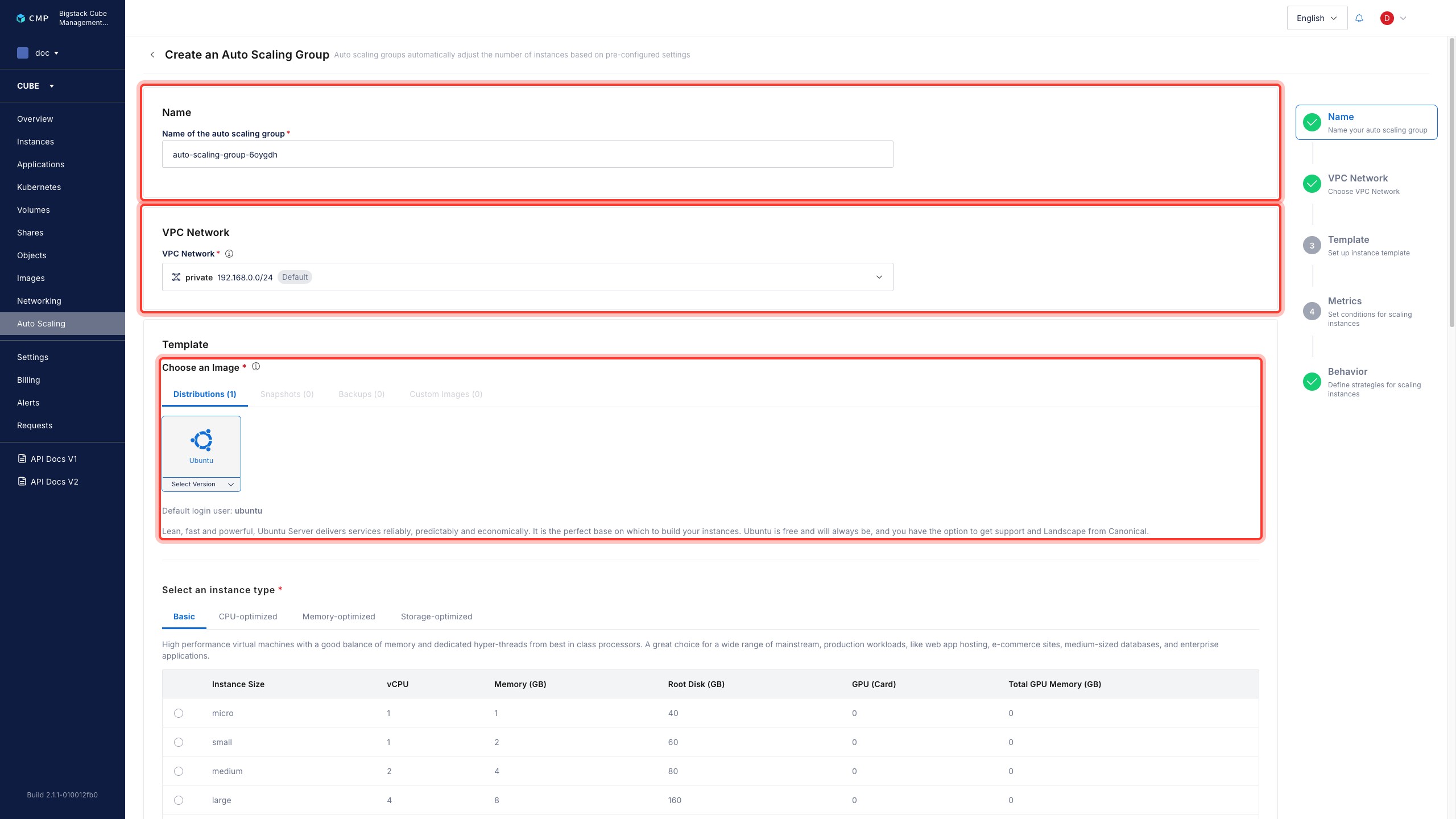
In the Name field, enter a descriptive name for the ASG.
-
Select a VPC Network to use with the ASG.
-
In the Choose an Image section, select an existing image, snapshot, backup, or custom image to use as the machine template.
-
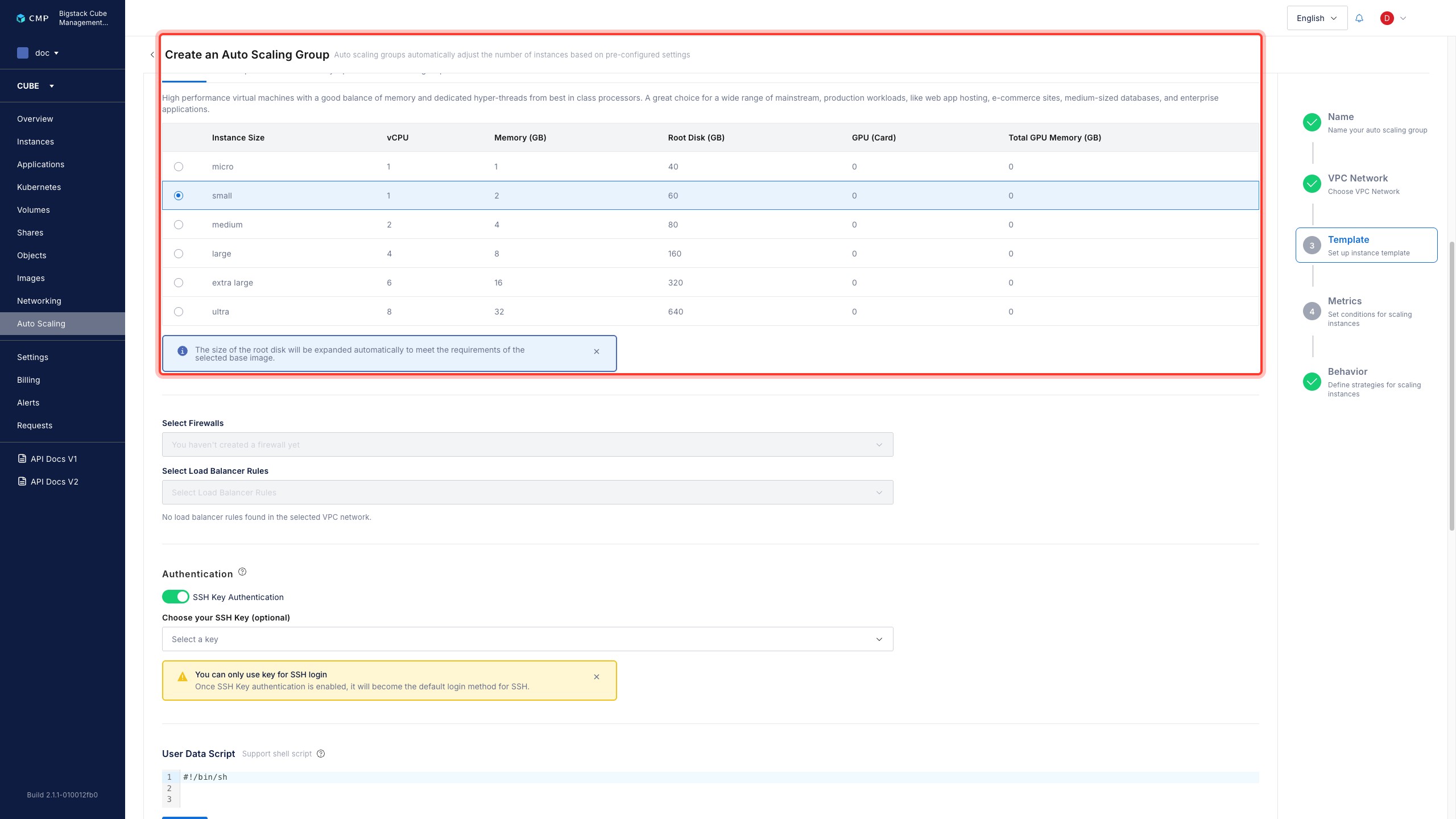
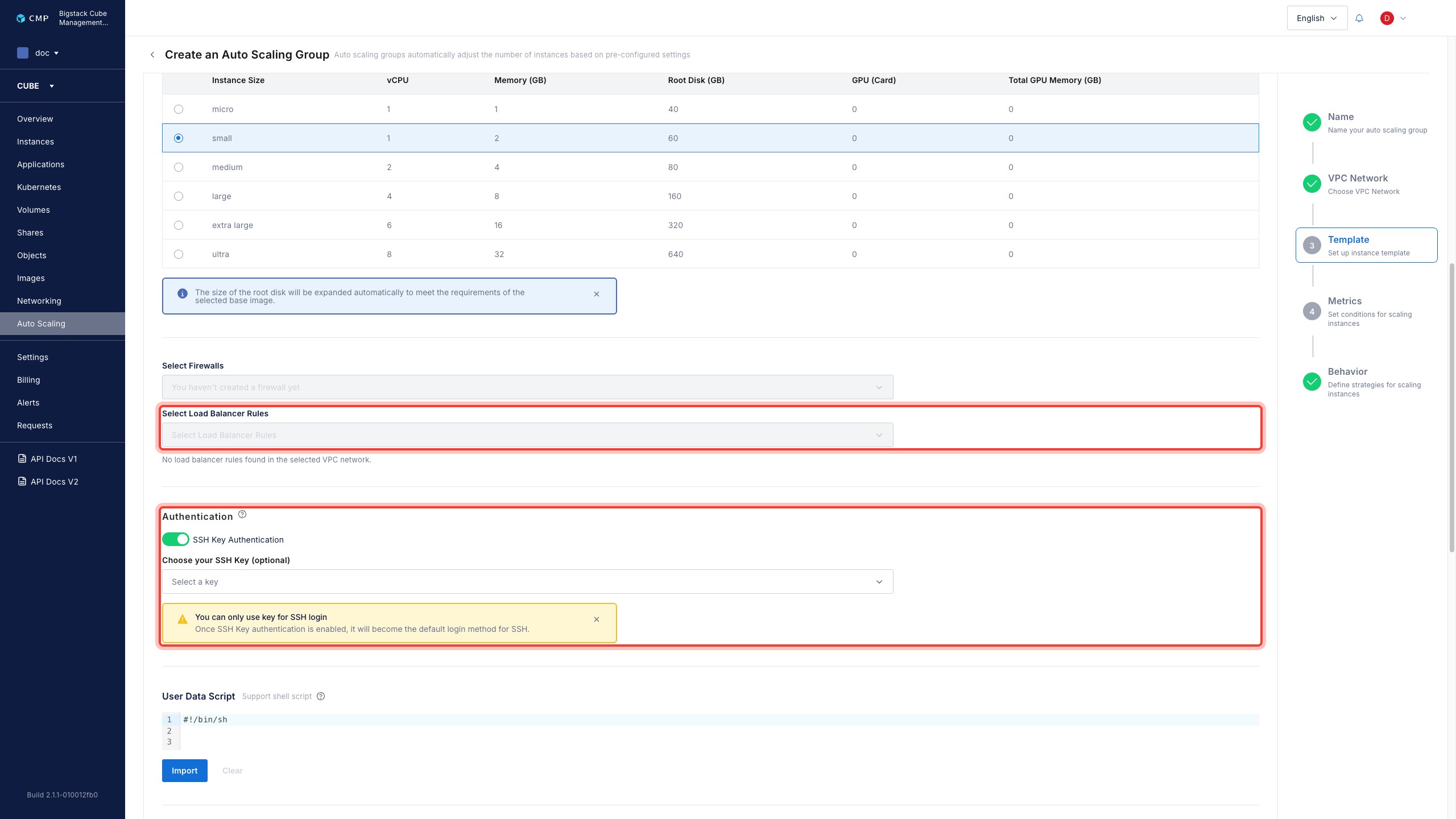
Select an Instance Type that matches your workload:
- Basic
- CPU-optimized
- Memory-optimized
- Storage-optimized
-
Select the Load Balancer Rules to apply to the ASG.
-
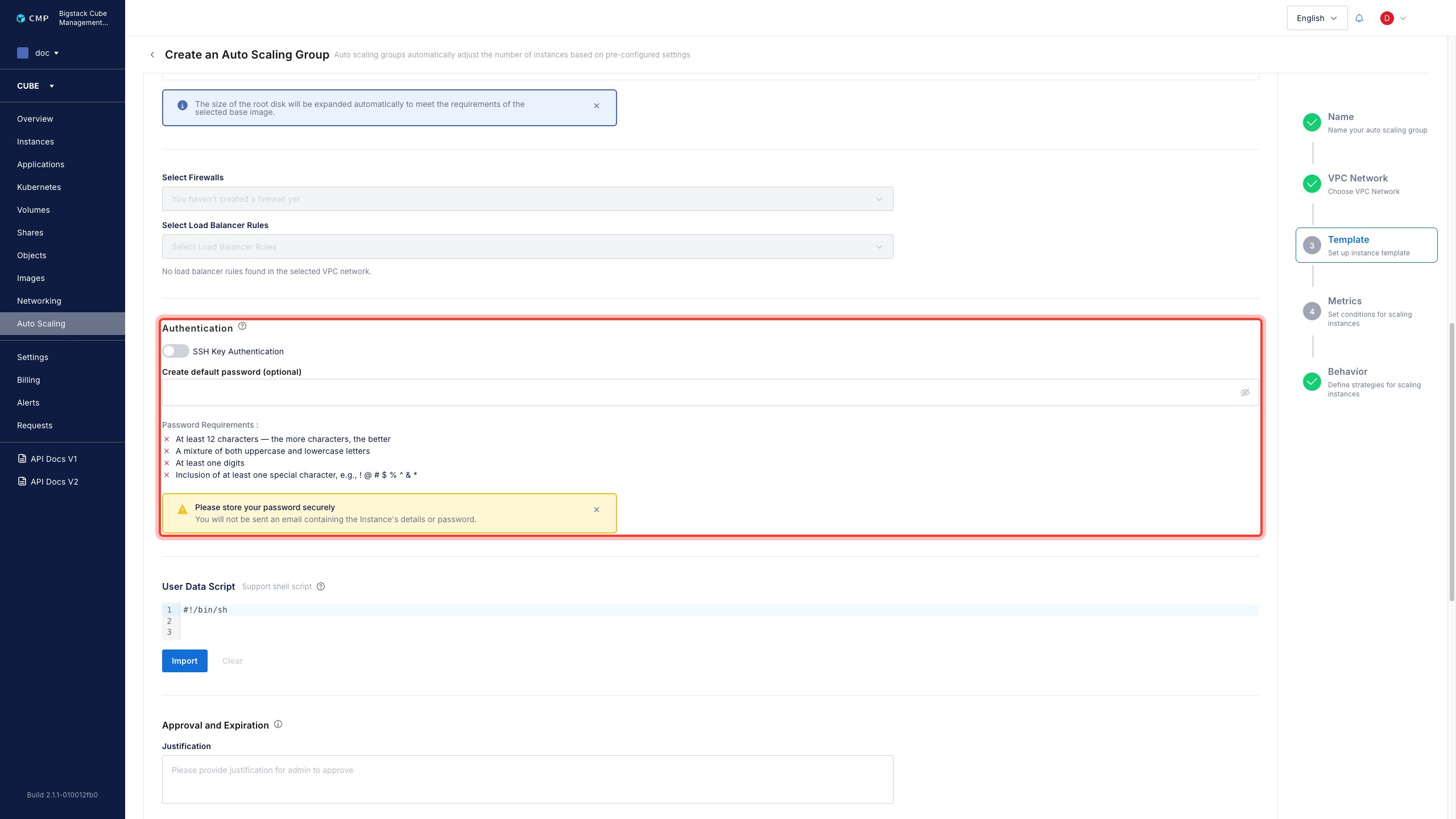
On the Authentication tab, select an authentication method:
- SSH key authentication
- Default password
Select an existing SSH key, or add a new one, to use for instance access.
Enter a password that you can use to access the instances.
-
Optional: In the User Data Script field, enter a script to run when an instance initializes.
-
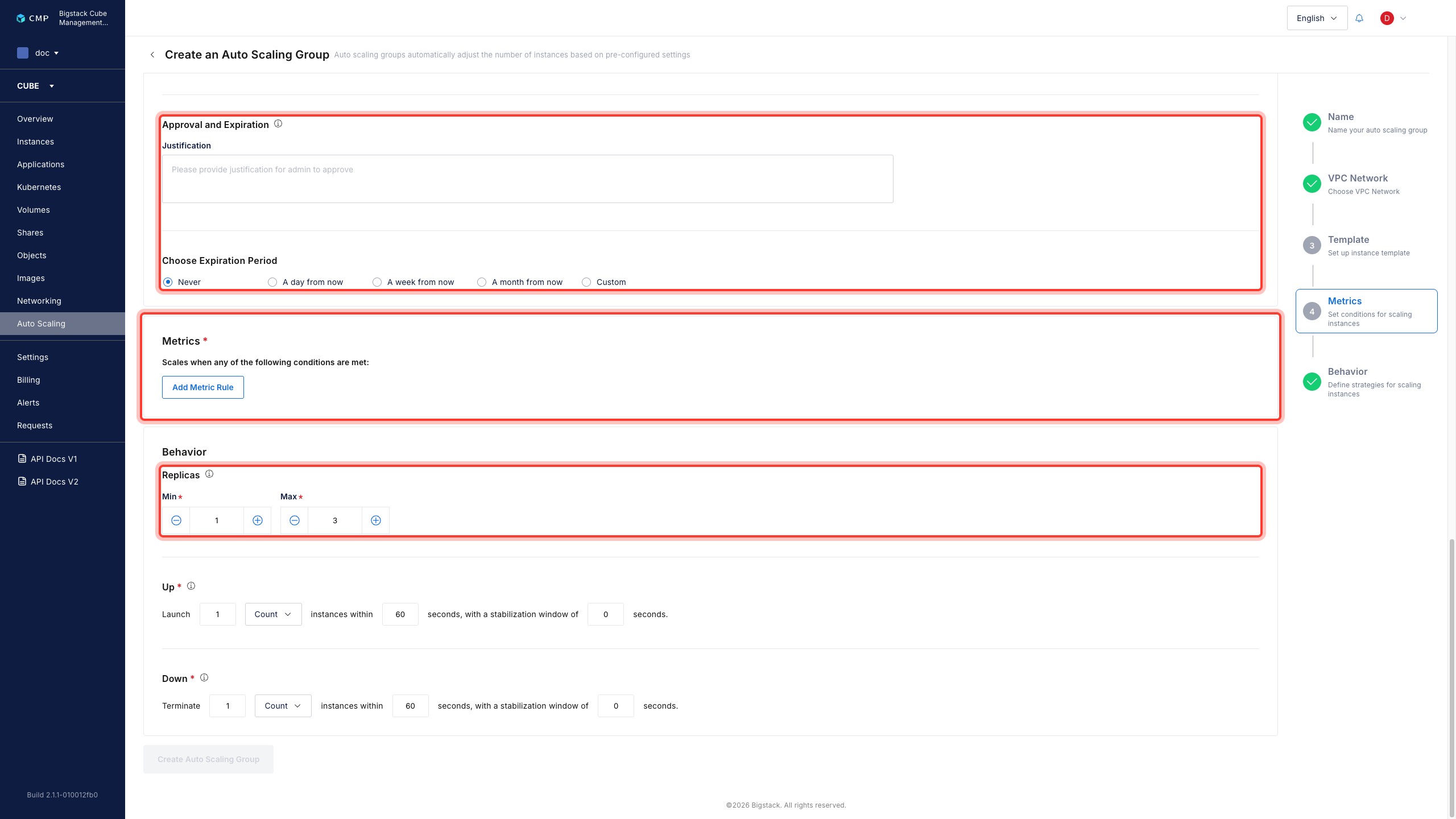
In the Approval and Expiration section, enter a justification in the Justification field.
-
Choose an Expiration period.
-
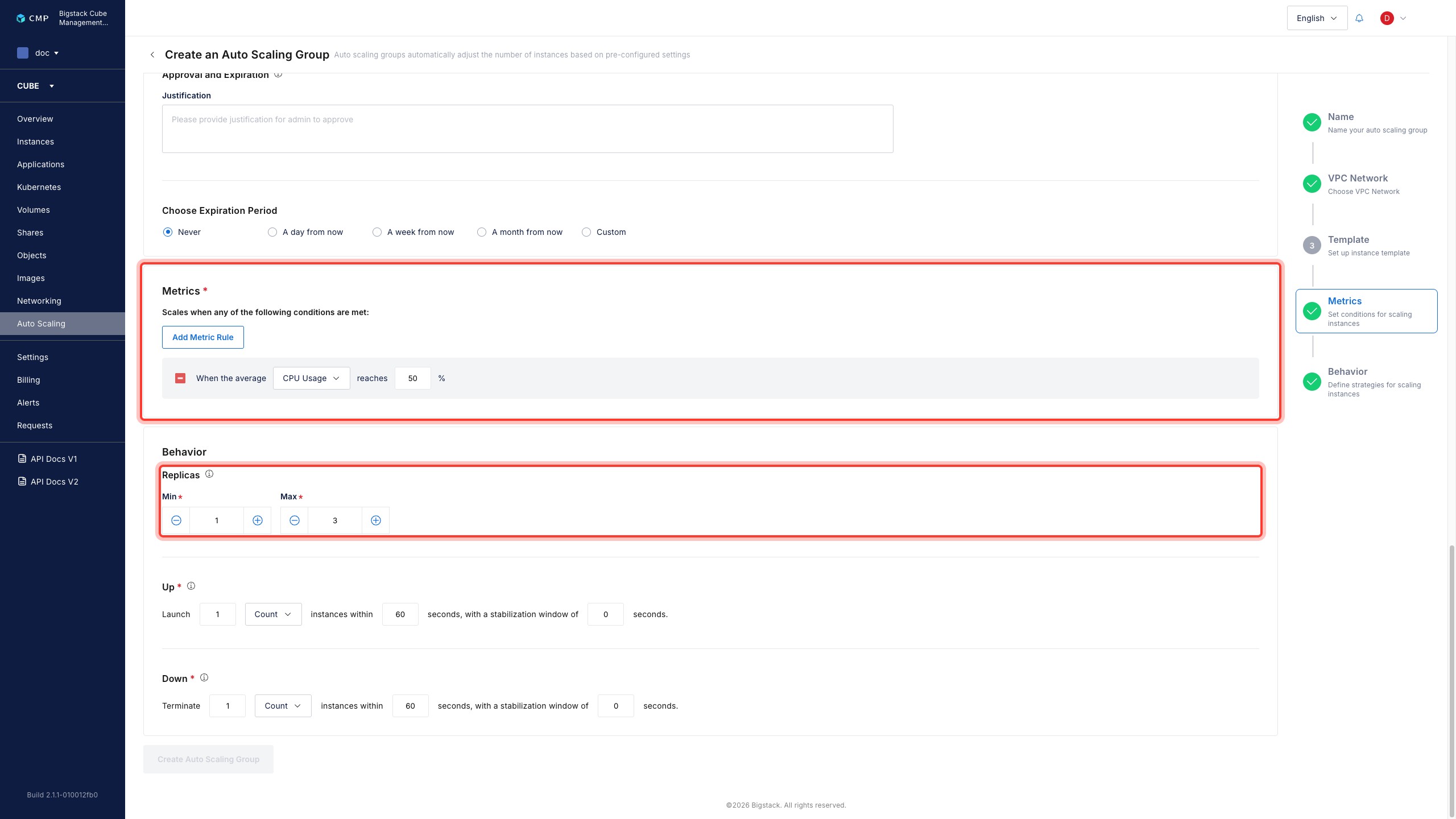
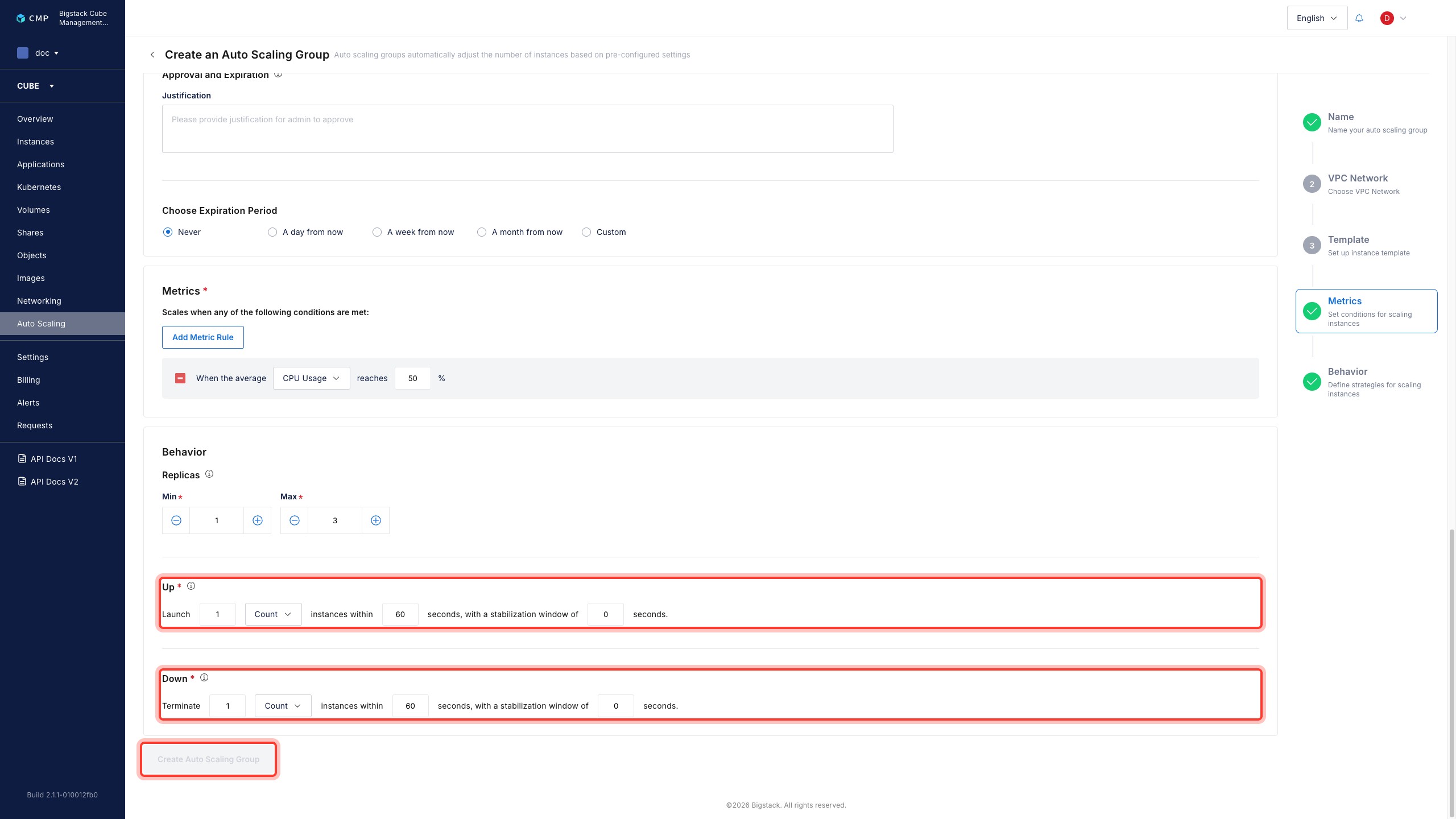
Click Add Metric Rule to add a scaling metric.
infoThe ASG scales when any of the following metrics meet the threshold you set:
- Average CPU usage (%)
- Average memory usage (%)
- Average network inbound usage (packets)
-
Set the Min and Max replica counts to define the scaling range for the ASG.
-
Configure the scaling behavior:
- Scale up: Specify the number of instances that must meet the metric threshold, and set a stabilization window.
- Scale down: Specify the number of instances that must meet the metric threshold, and set a stabilization window.
-
Click Create Auto Scaling Group.