Create local Kubernetes cluster
Local Kubernetes cluster overview
This guide explains how to create and manage a local Kubernetes cluster in CubeCOS using CubeCMP. You’ll learn how to configure cluster settings, select node templates, and deploy a production-ready Kubernetes environment while maintaining centralized management through CubeCMP.
Create local Kubernetes cluster
-
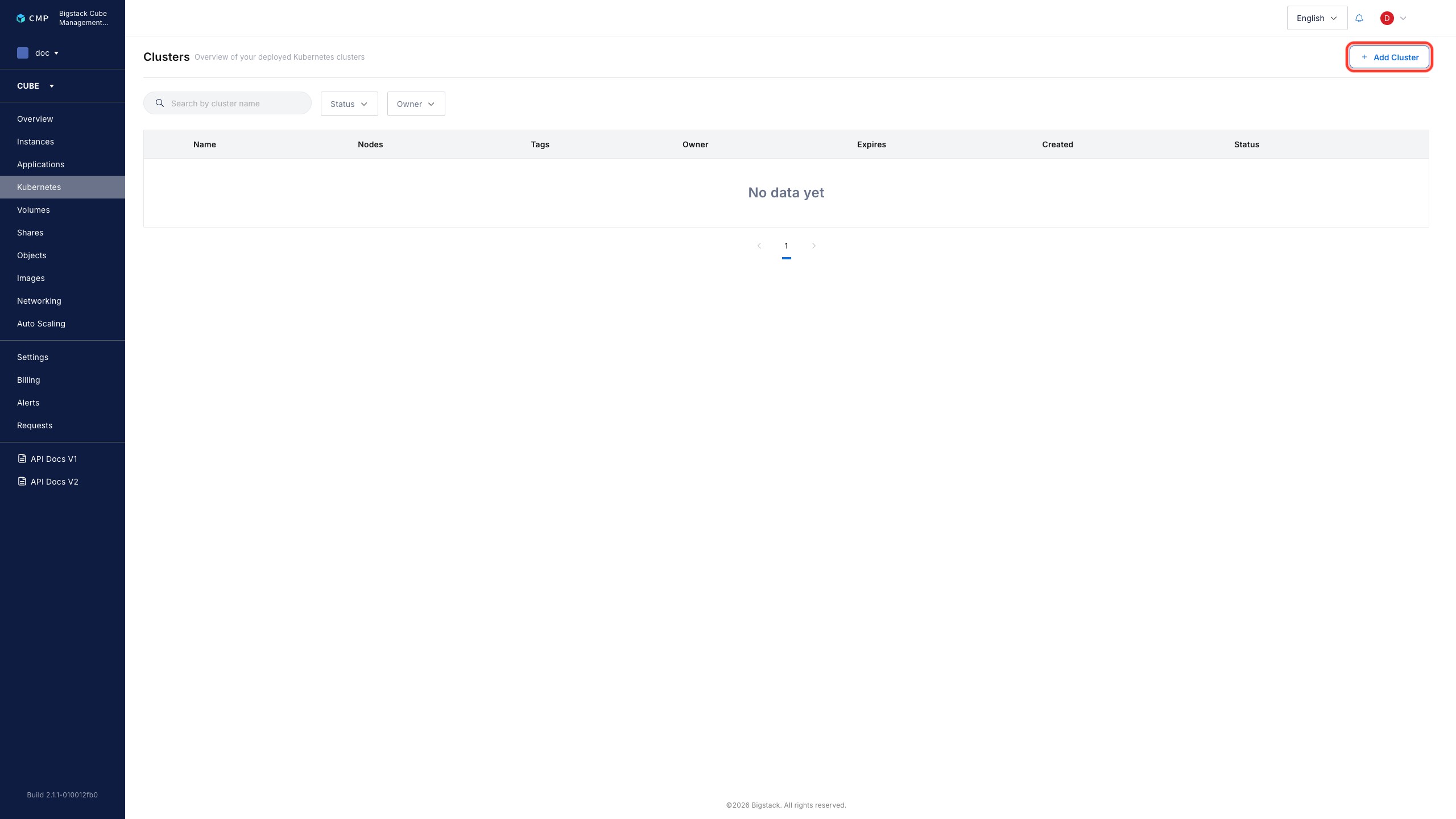
In the CubeCMP user portal, go to Kubernetes.
-
To configure basic cluster properties, click + Add Cluster.
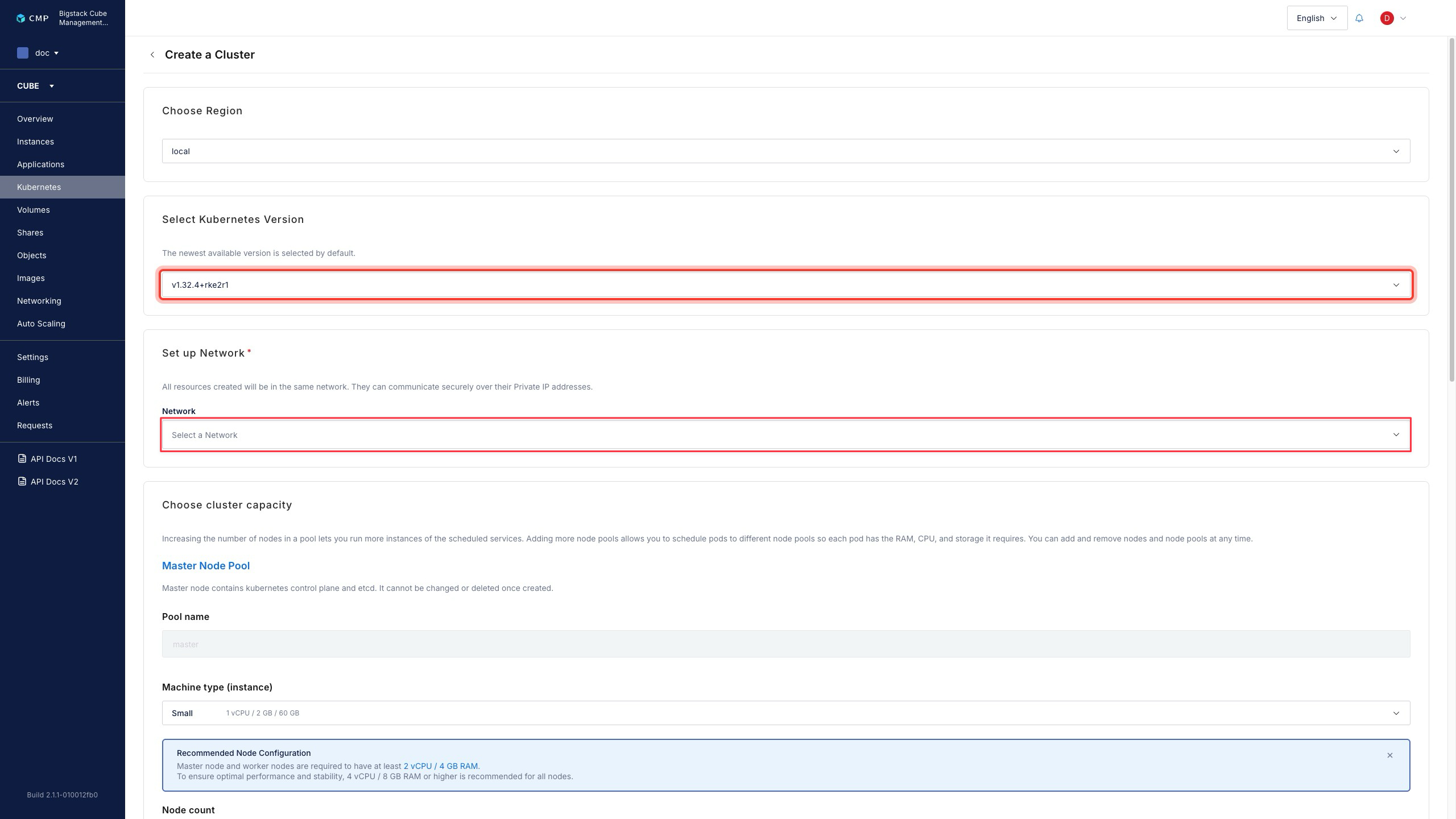
- Skip Choose Region when using the local Cube cluster.
- To select a Kubernetes version for creation, click the Select Kuberntes Version dropdown.
- Skip Set up Network
-
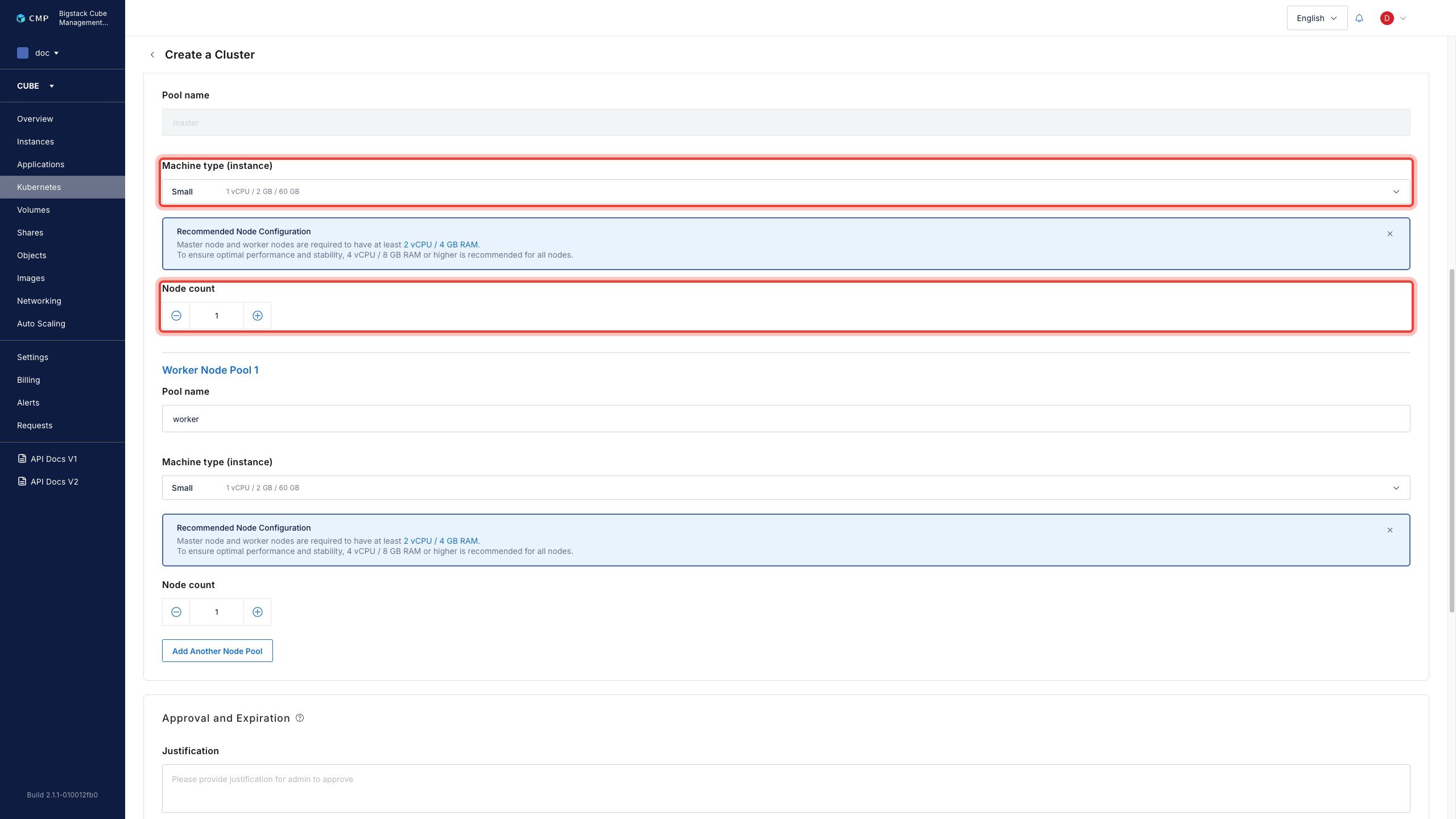
In the Choose cluster capacity configure the following master and worker information.
-
To configure the number of master Kubernetes node running in the clicker, go to the Master Node Pool workload sizes and functions. In the Master Node Pool section, set the Machine type (instance) for the resources allocated to the master node and set how many nodes to create by configuring Node Count.
-
To configure the number of worker pools performing the workload, go to the Worker Node Pool. Set the machine type (instance) for the resources allocated to the worker node and configure the node count to determine how many nodes to create. Add additional worker node pools and nodes as required.
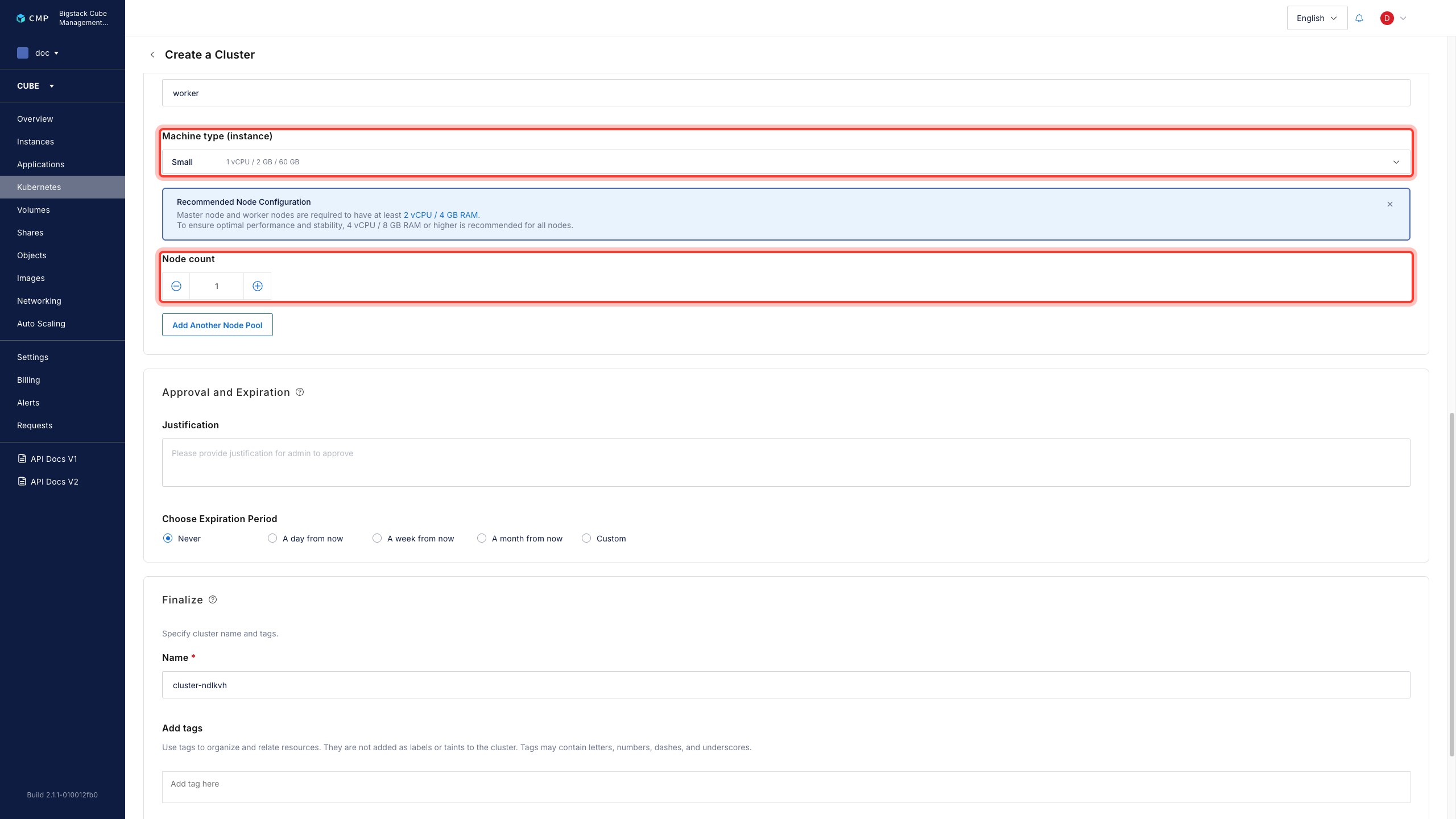
-
-
To begin cluster creation, complete the following steps:
- If administrator resource approval is required, go to Justification and enter the cluster usage justification.
- If you have a resource expiration date, set the Choose Expiration Period.
-
In order to finalize the cluster creation, go to Finalize section.
- Enter a descriptive name for the cluster.
- If you need to set a tag for the cluster, enter a tag in Add tags section.
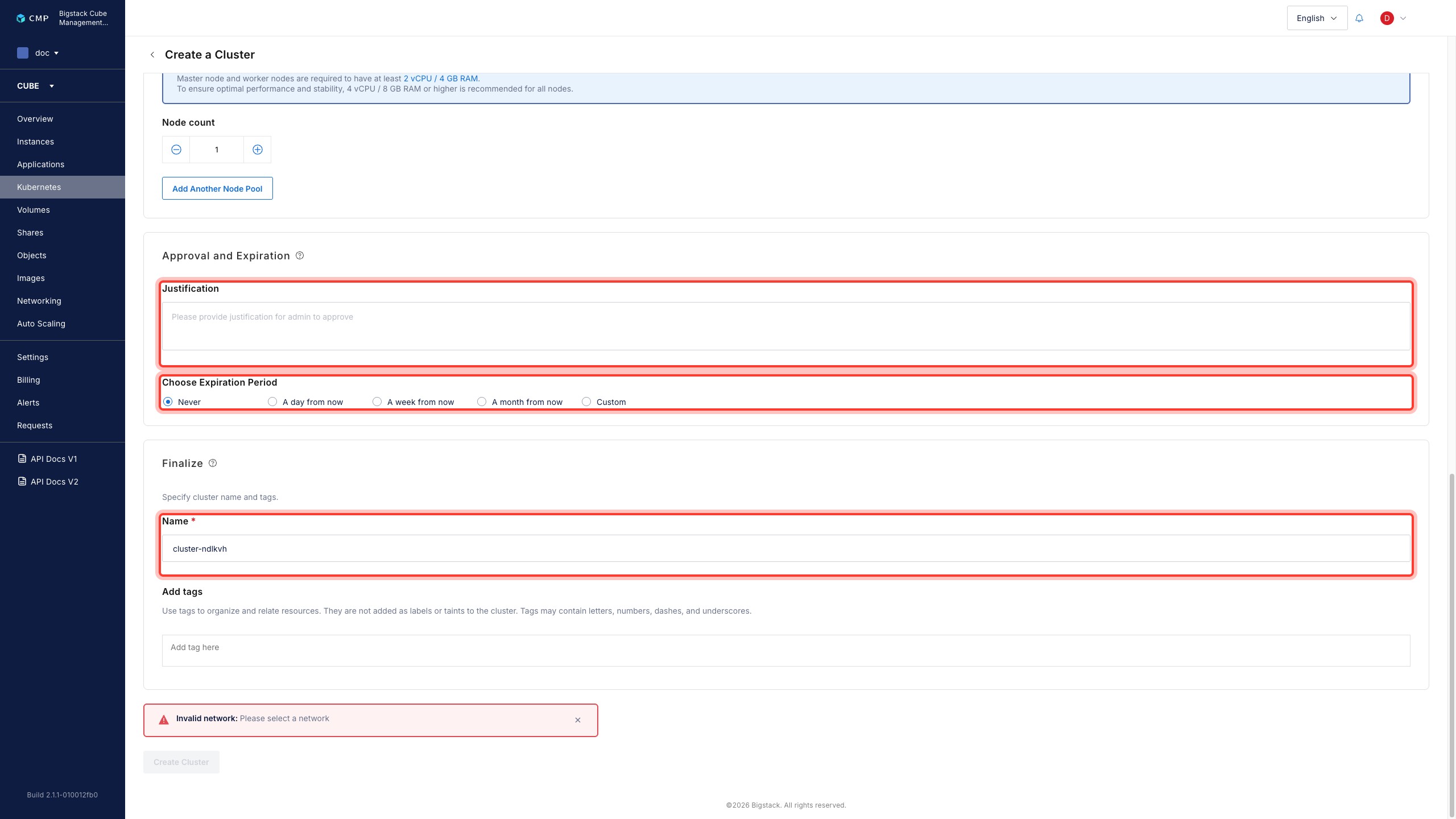
-
To begin cluster creation, click Create Cluster.
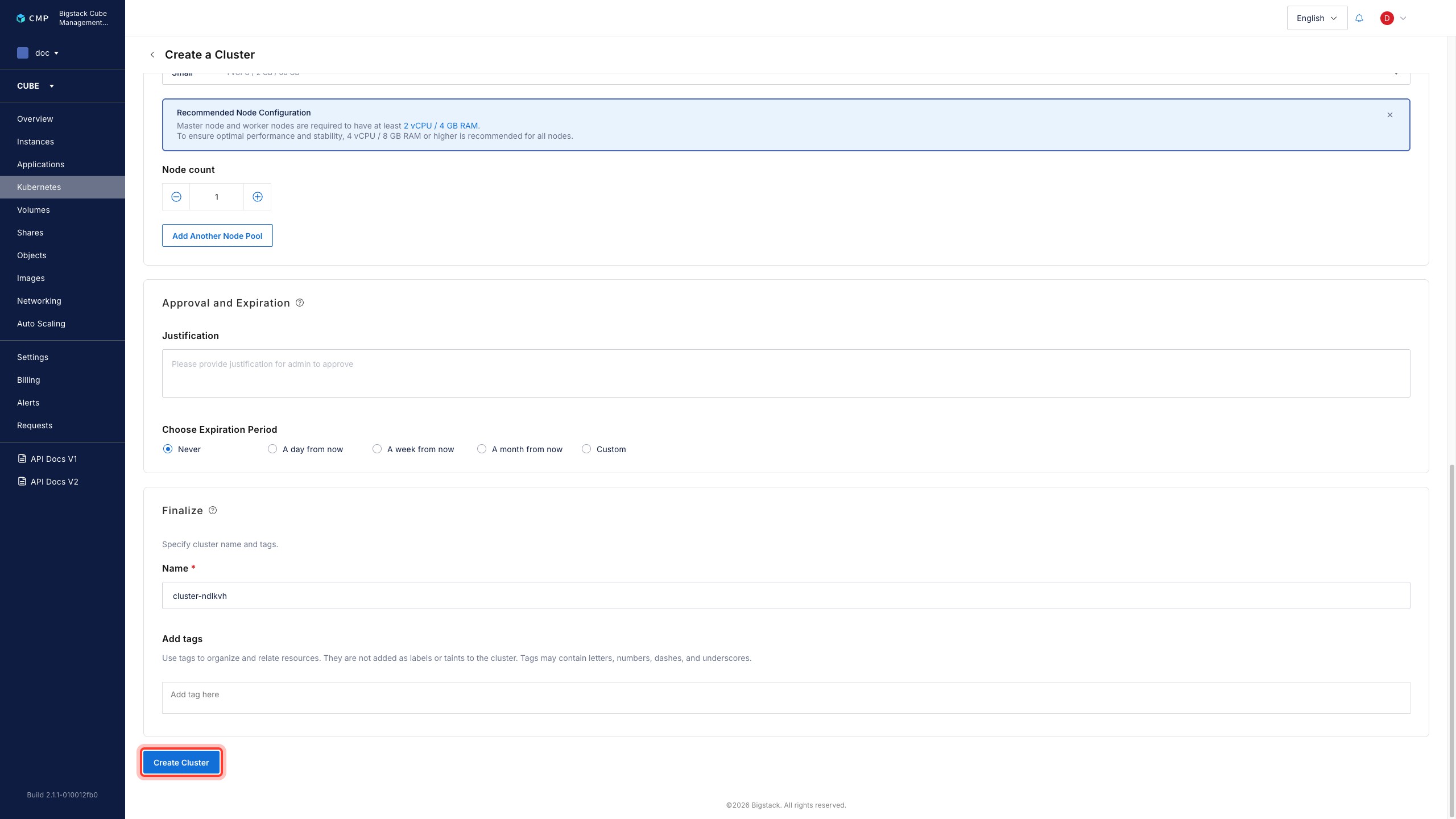
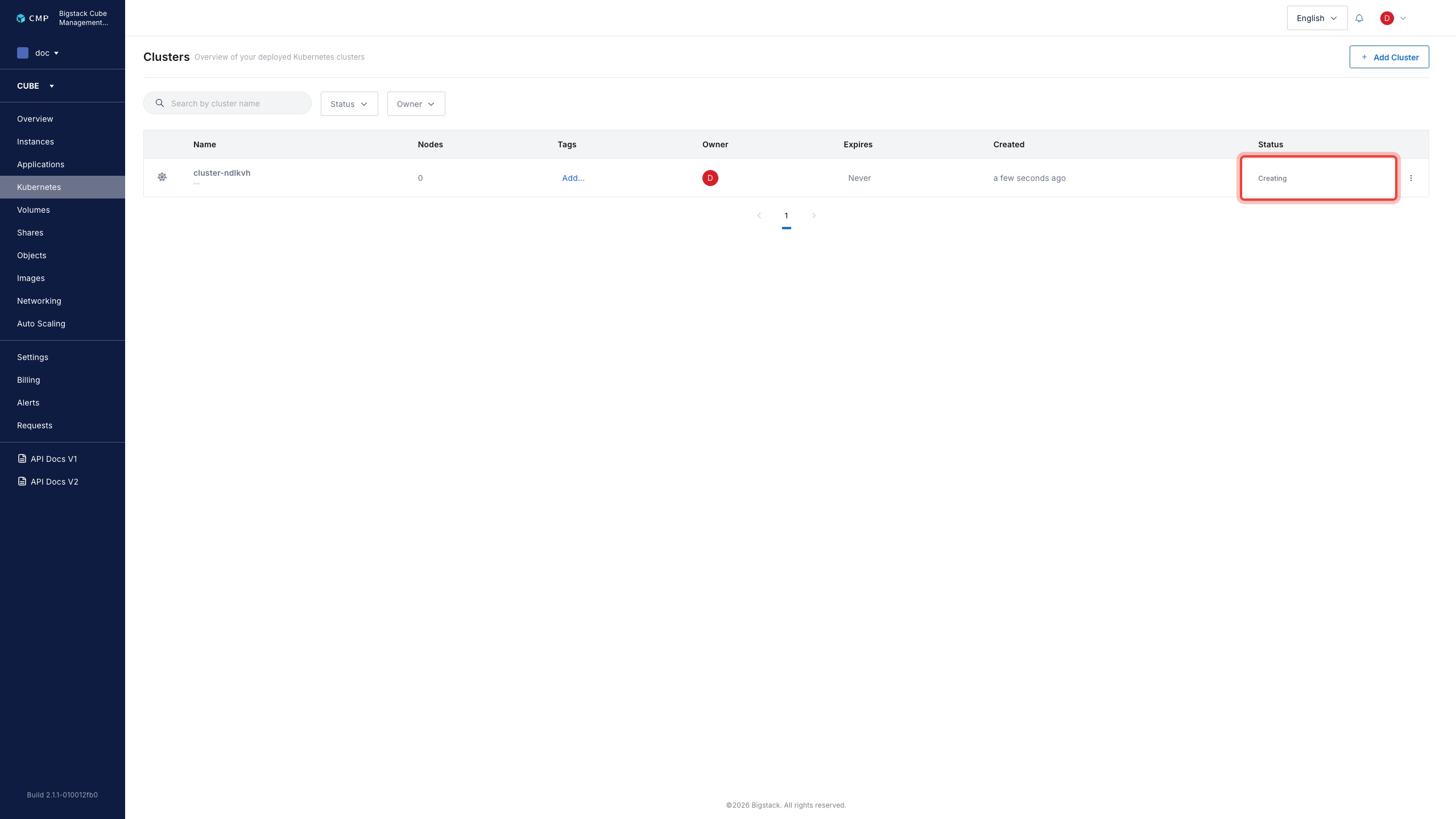
The cluster enters a Creating state on the Clusters page while it provisions.