Create and attach a firewall
Before you begin
Firewalls provide the following traffic control capabilities:
- Traffic control between private networks
- Ingress and egress traffic control for instances, private networks, and Auto Scaling Groups (ASGs)
- Internet traffic control based on subnets (CIDR blocks), hosts, and interfaces
- Policy application to instances, specific interfaces, private networks, and ASGs
Where you can apply a firewall depends on its attachment point:
| Attachment point | Valid targets |
|---|---|
| Private network | Other private networks only |
| Instance | Instances and ASGs |
Create a firewall
-
In the CubeCMP management console, go to the Networking page.
-
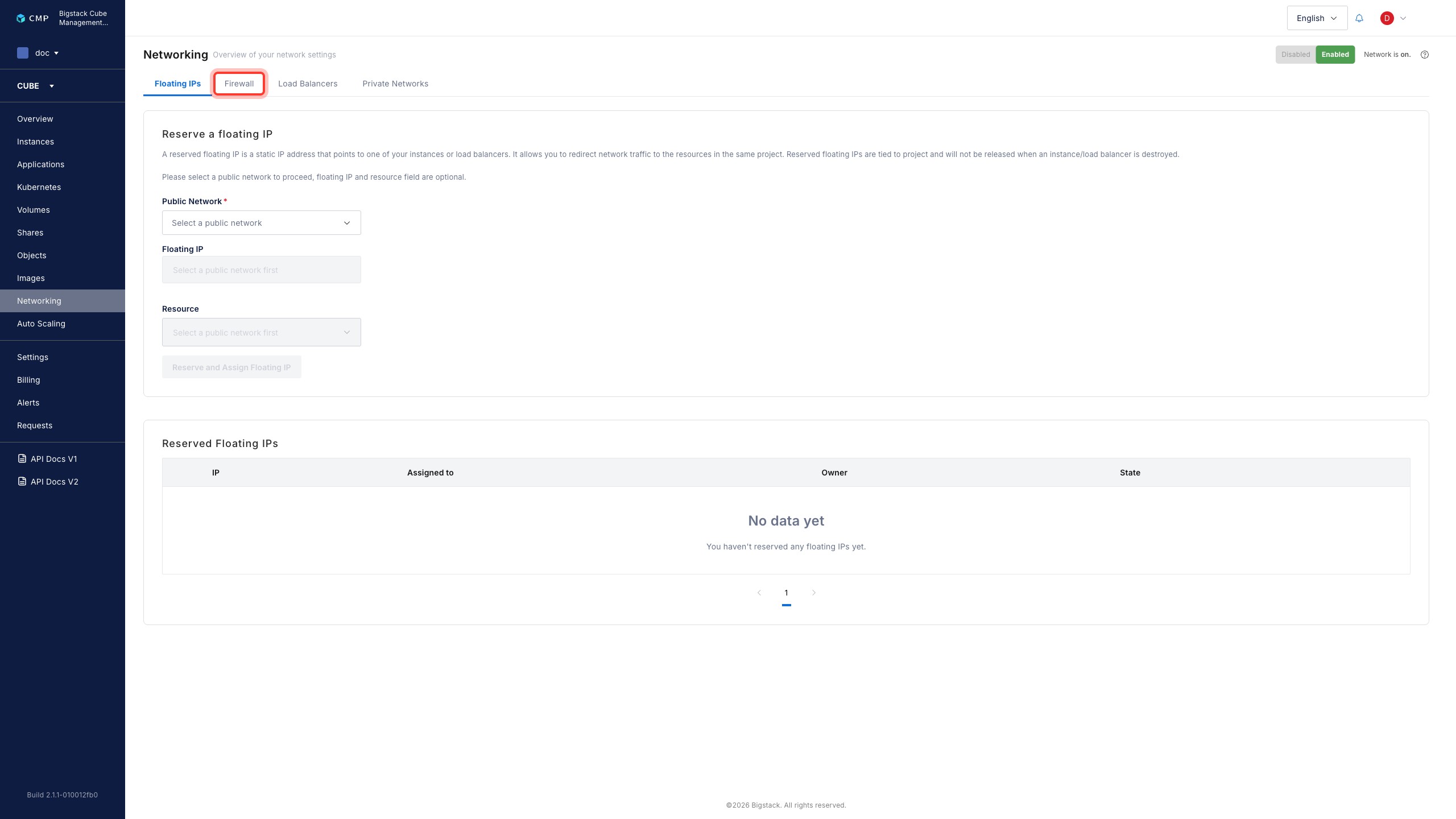
Navigate to the Firewall tab.
-
Click + Add Firewall to start the firewall creation flow.
-
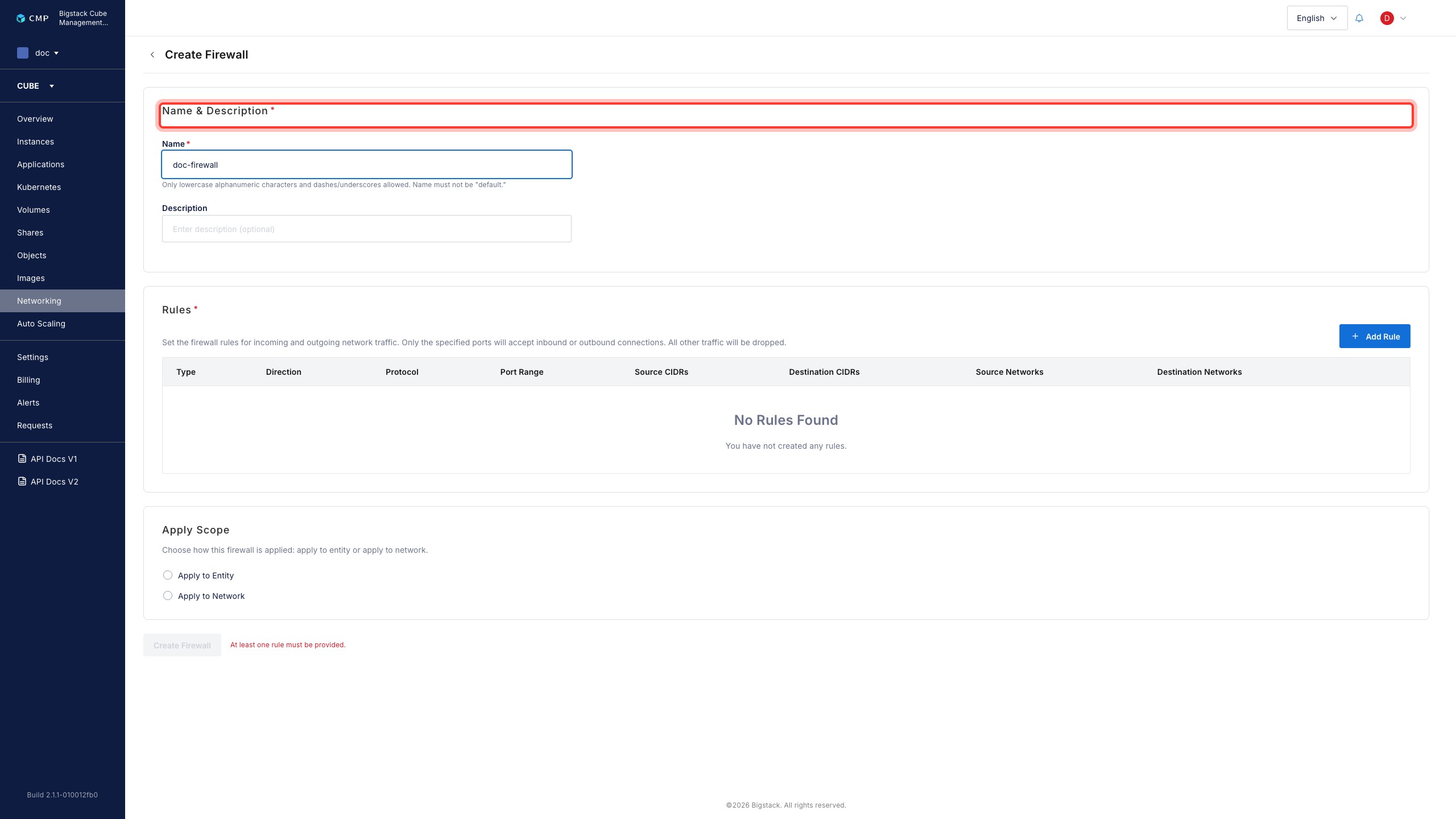
Fill in the Name and Description block:
- Name: Enter a name for the firewall.
- Description (Optional): Enter a description for the firewall.
-
Configure the firewall rules:
-
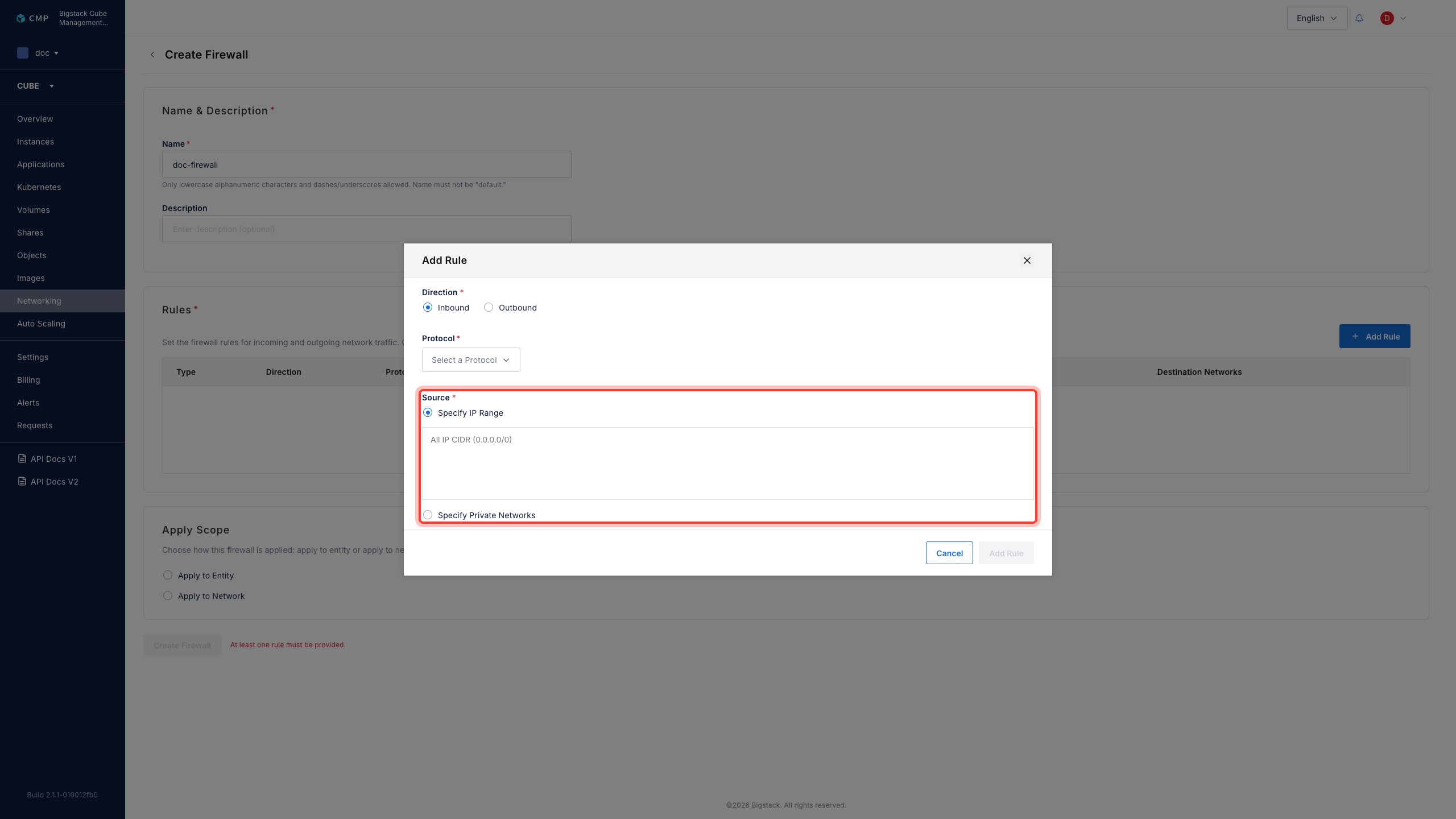
Click + Add Rule.
-
Select a Direction: Inbound or Outbound.
- Inbound: Allow or deny incoming traffic to your entities or network.
- Outbound: Allow or deny outgoing traffic from your entities or network.
-
Select the Protocol. Choose a common protocol, or select TCP or UDP to specify custom ports.
-
Select the Source to filter traffic by source IP address:
- Specify IP range: Enter a custom IP range.
- Specify Private Networks: Select one or more private networks.
tipRepeat step 5 to add multiple rules to the same firewall before creating it.
-
-
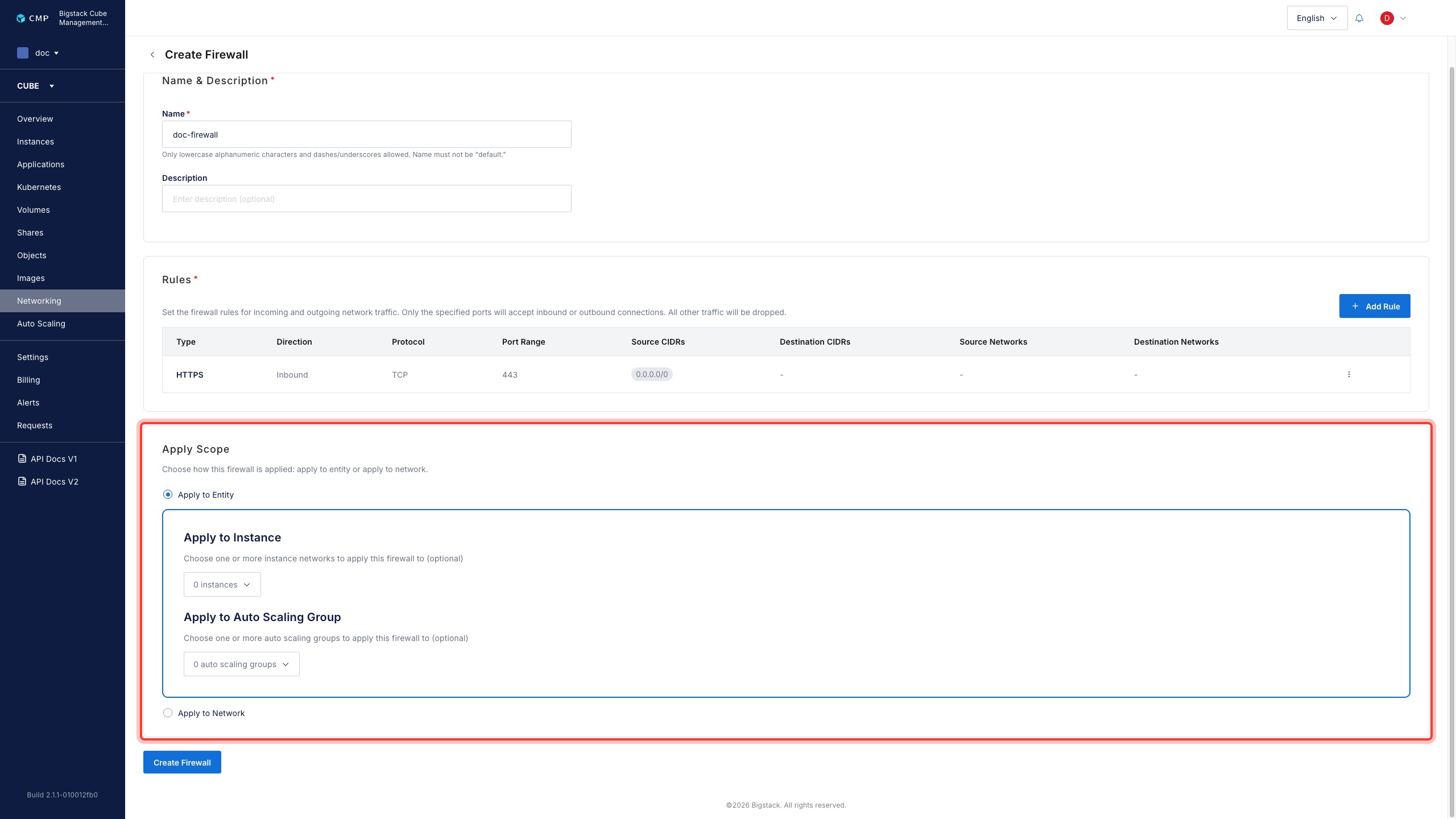
In the Apply Scope block, apply the firewall to your entities or network:
- Apply to Entities:
- Apply to Instance: Select instances to apply the firewall to.
- Apply to Auto Scaling Group: Select ASGs to apply the firewall to.
- Apply to Network: Select private networks to apply the firewall to.
- Apply to Entities:
-
Click Create Firewall.
Attach a firewall to additional resources
After you create a firewall, you can attach it to more instances, ASGs, or private networks at any time.
-
Navigate to Networking > Firewall.
-
Click the firewall you want to attach.
-
In the Rules tab, verify the rules are configured correctly.
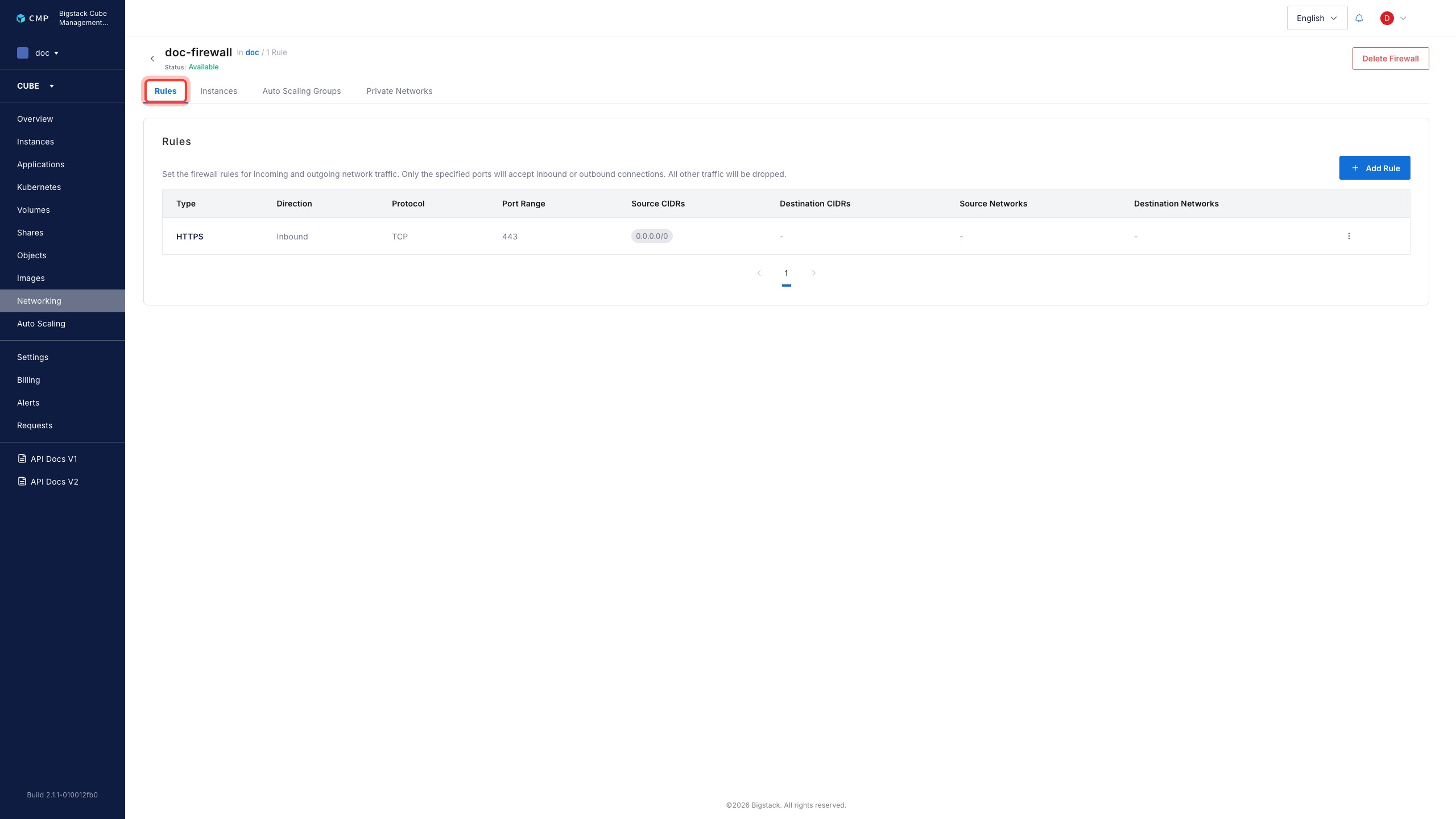
Then, depending on the resource type, follow the corresponding tab below.
- Instances
- Auto Scaling Groups
- Private Networks
-
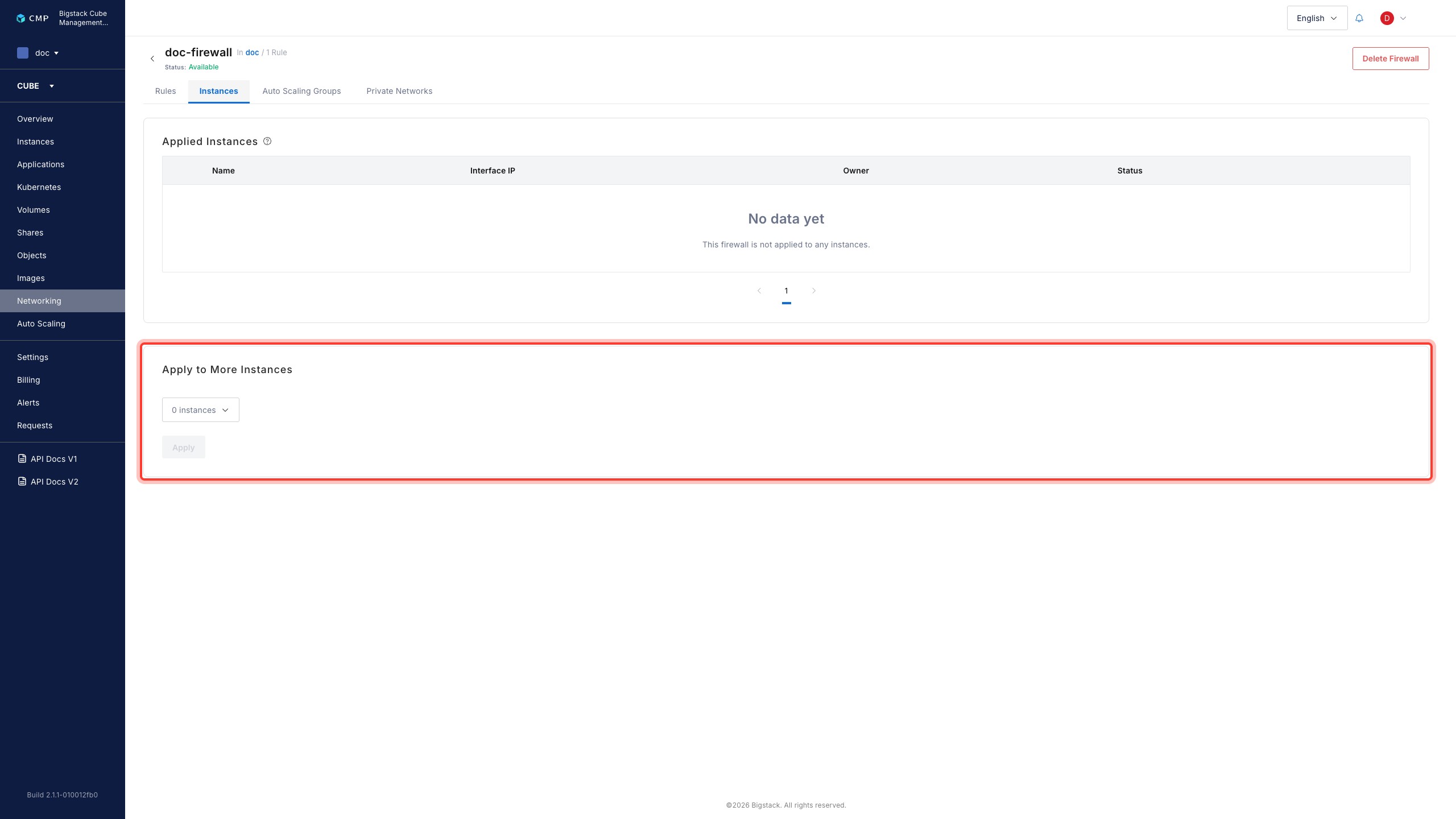
Switch to the Instances tab.
-
From the Apply to More Instances dropdown menu, select the instances to attach the firewall to.
-
Click Apply.
-
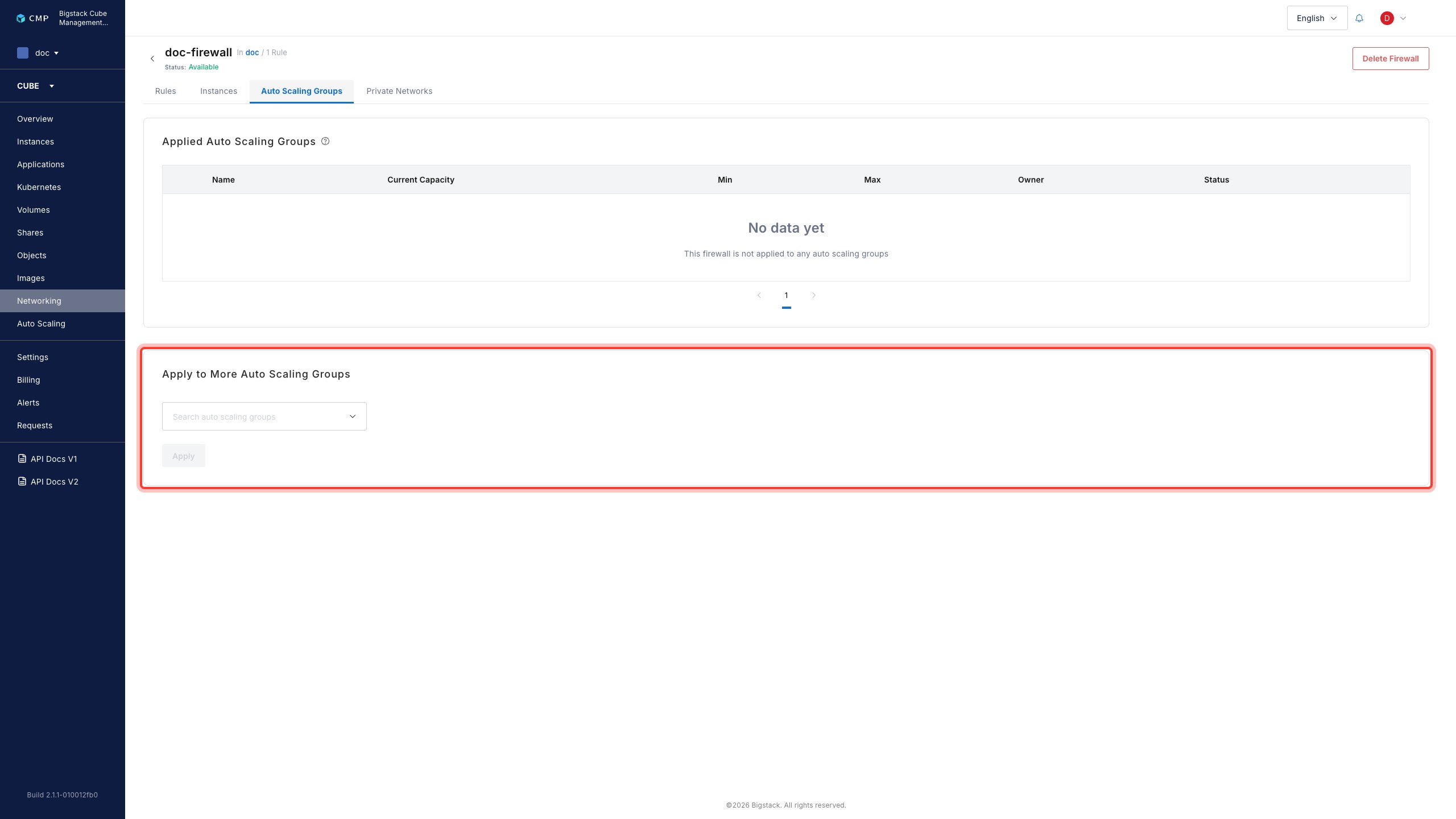
Switch to the Auto Scaling Groups tab.
-
From the Apply to More Auto Scaling Groups dropdown menu, select the ASGs to attach the firewall to.
-
Click Apply.
-
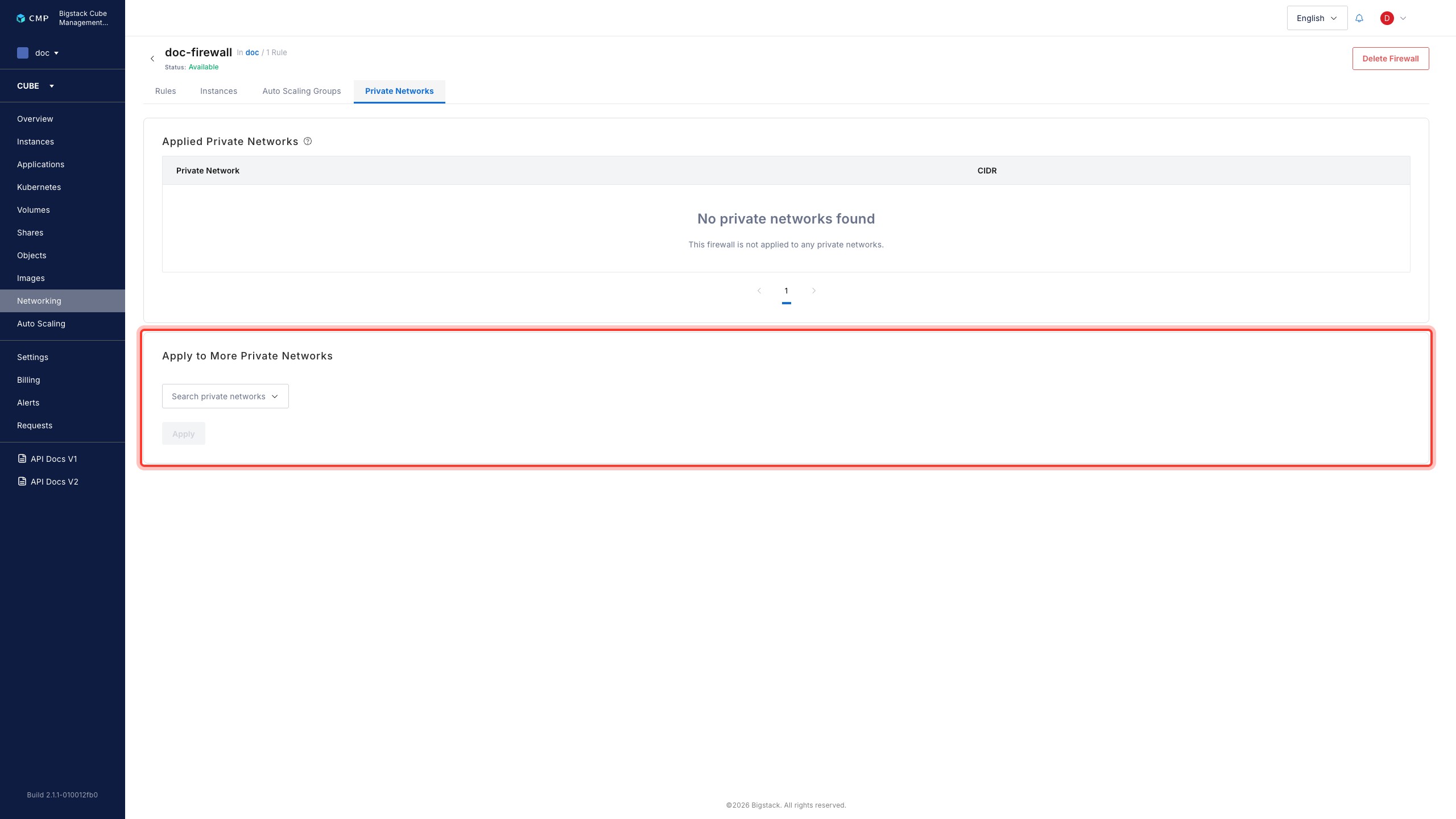
Switch to the Private Networks tab.
-
From the Apply to More Private Networks dropdown menu, select the private networks to attach the firewall to.
-
Click Apply.