Compute
Create Flavors
-
Let's goto Admin > Compute > Flavors >
+ CREATE FLAVOR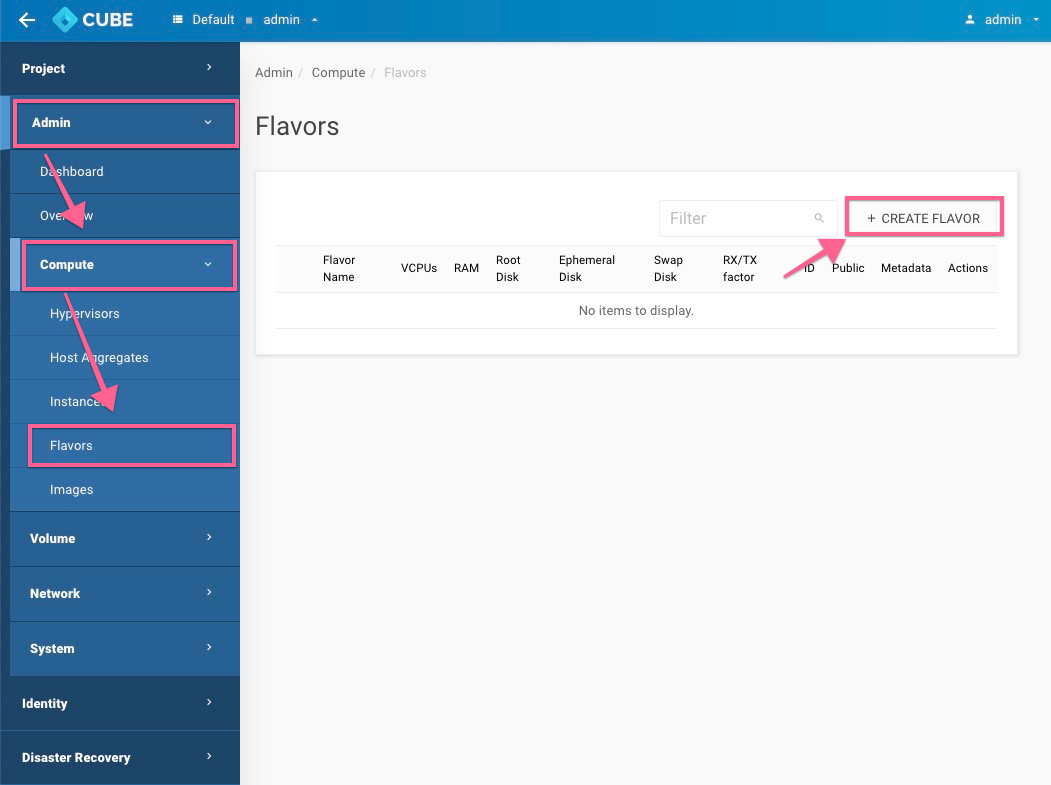
-
Please define a Names, No. of VCPU, RAM & Root Disk, ex:
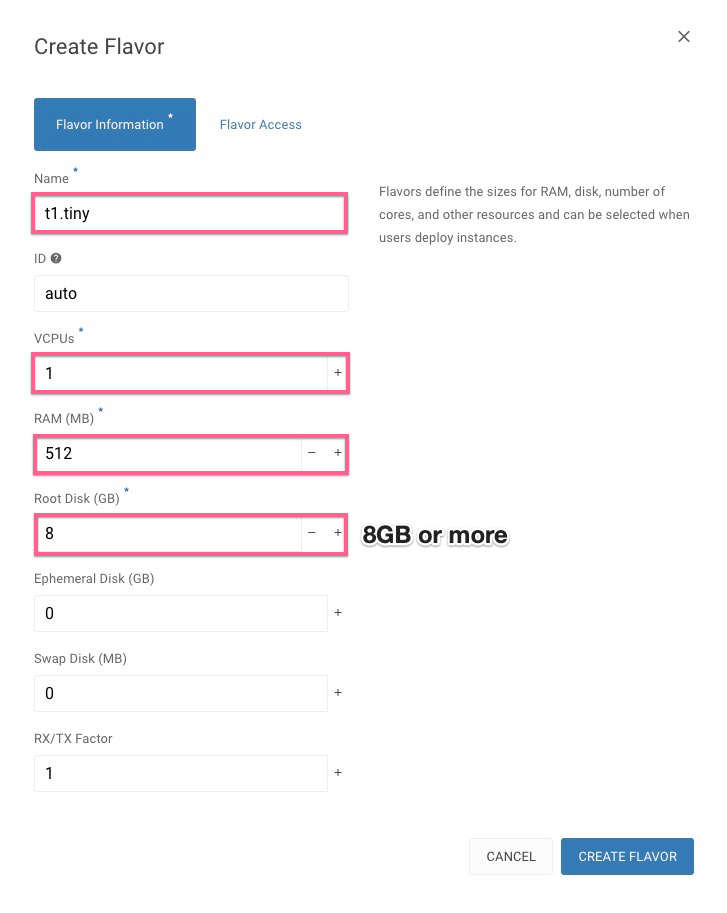
Create Images with web
download from the web:
-
Let's goto Admin > Compute > Images >
+ CREATE IMAGE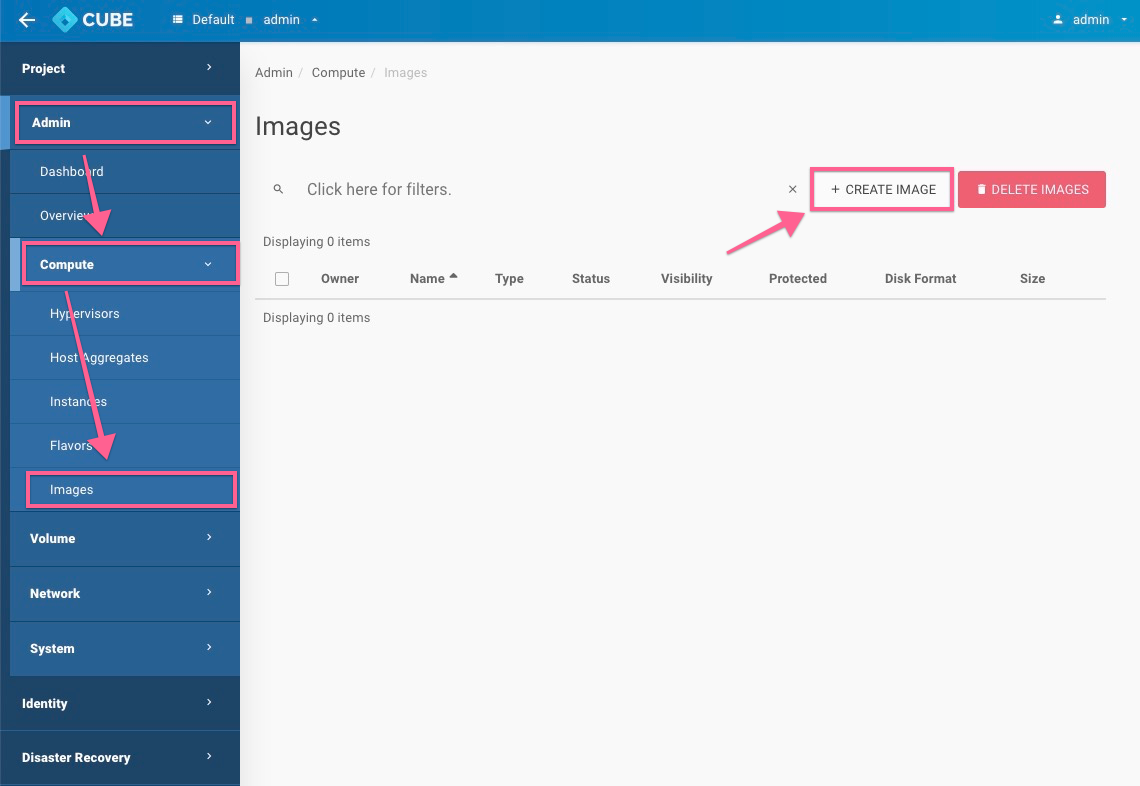
-
Create an image with file upload, ex:
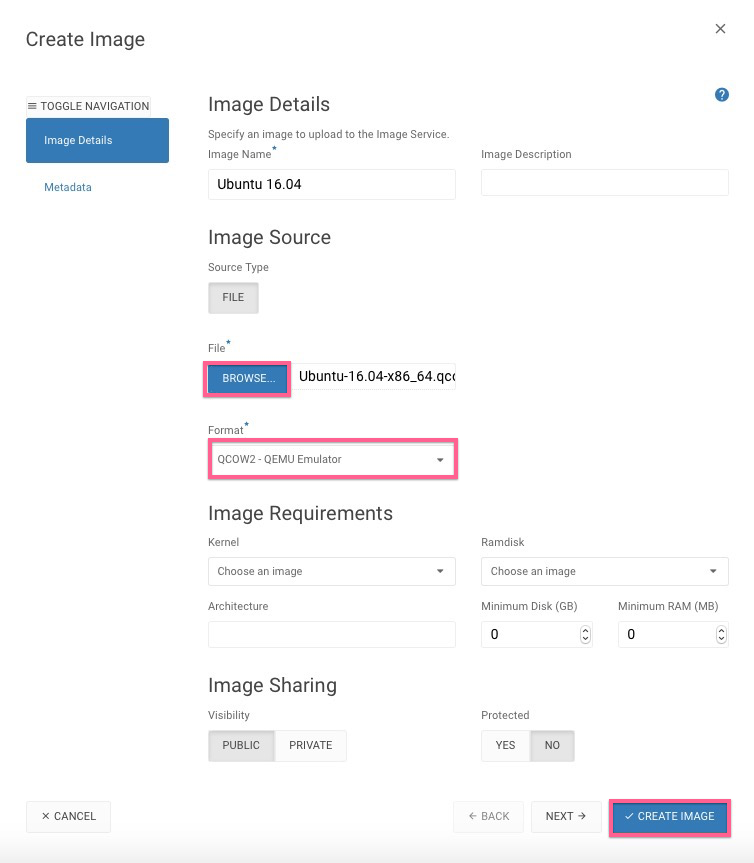
Create Images with CLI
Description: import your VM image from usb drive or local disk
/var/supportyour local machine
scp Cirros-0.4.0-x86_64.qcow2 root@IPADDRESS:/var/support/.
control node
$ ssh admin@IPADDRESSWelcome to the Cube ApplianceEnter "help" for a list of available commandshost-1> imagehost-1:image> import1: usb2: localEnter index: 21: Cirros-0.4.0-x86_64.qcow2Enter index: 1Specify image name: CirrosImporting...+------------------+-----------------------------------------------------------------------------------------------------------------------------------------------------------------------------------------------------------------------+| Field | Value |+------------------+-----------------------------------------------------------------------------------------------------------------------------------------------------------------------------------------------------------------------+| checksum | ba3cd24377dde5dfdd58728894004abb || container_format | bare || created_at | 2019-10-09T06:19:44Z || disk_format | raw || file | /v2/images/6660fd5a-1cec-4e4e-ada4-08366fc450d0/file || id | 6660fd5a-1cec-4e4e-ada4-08366fc450d0 || min_disk | 0 || min_ram | 0 || name | Cirros || owner | 35f9664428534c81b85611fa3c6f23c3 || properties | direct_url='rbd://c6e64c49-09cf-463b-9d1c-b6645b4b3b85/glance-images/6660fd5a-1cec-4e4e-ada4-08366fc450d0/snap', hw_disk_bus='scsi', hw_qemu_guest_agent='yes', hw_scsi_model='virtio-scsi', os_require_quiesce='yes' || protected | False || schema | /v2/schemas/image || size | 46137344 || status | active || tags | || updated_at | 2019-10-09T06:19:49Z || virtual_size | None || visibility | public |+------------------+-----------------------------------------------------------------------------------------------------------------------------------------------------------------------------------------------------------------------+Importing Cirros complete. It is safe to remove the USB drive.
Create Instance
-
Let's goto Project > Compute > Instances >
+ CREATE INSTANCE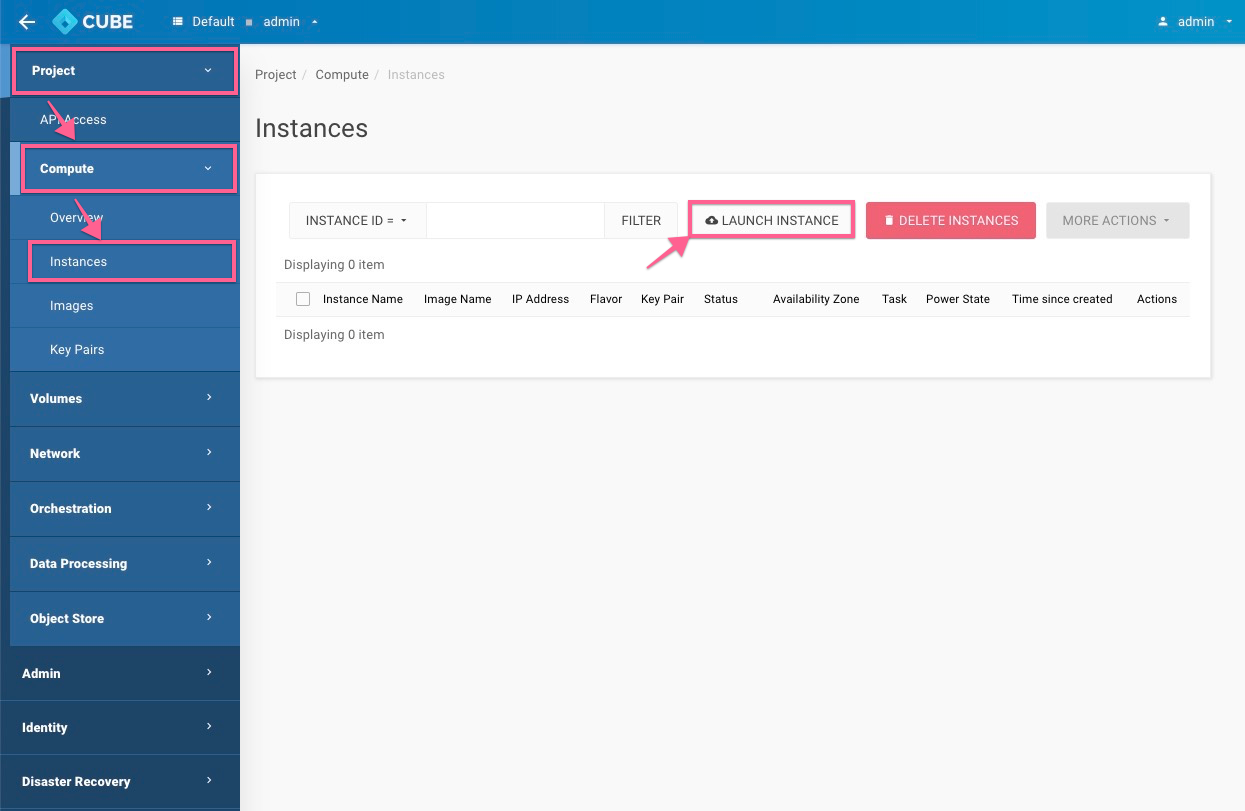
-
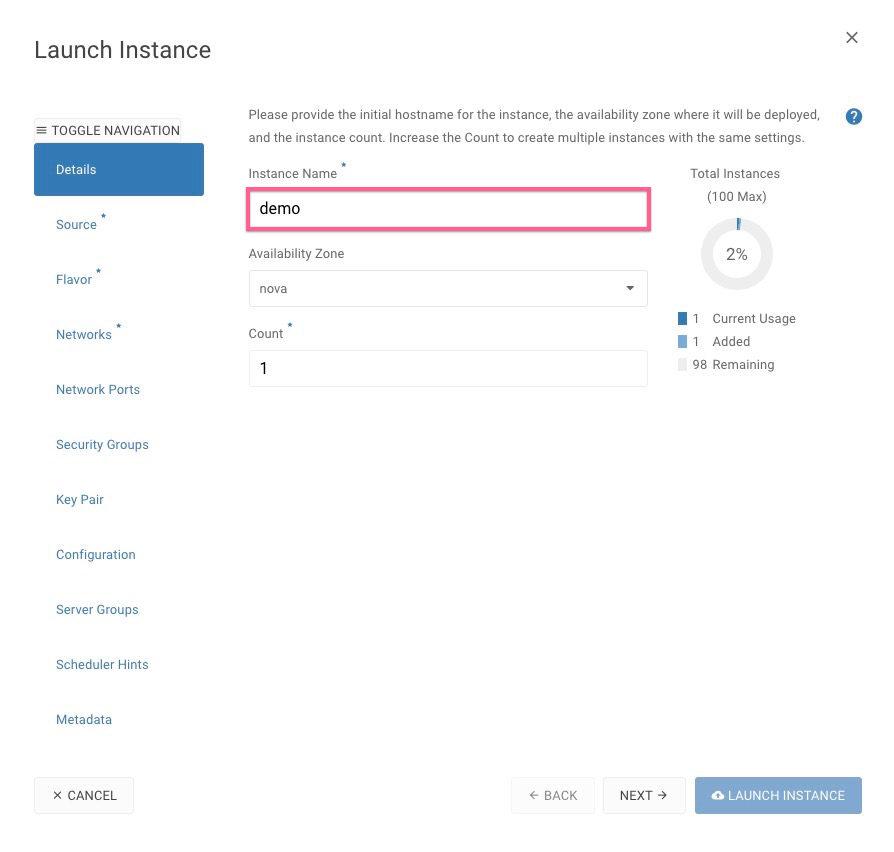
Detail : Naming the Instance Name
-
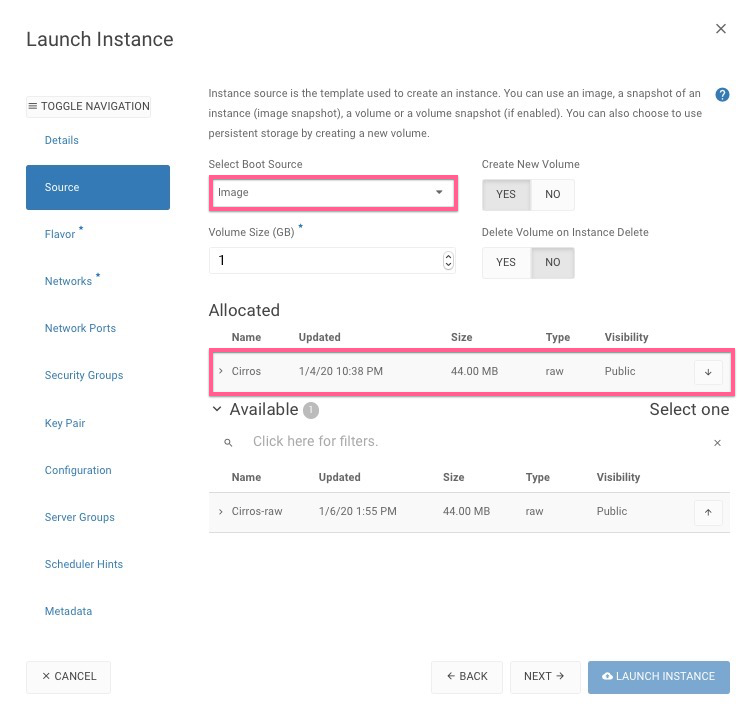
Source :
-
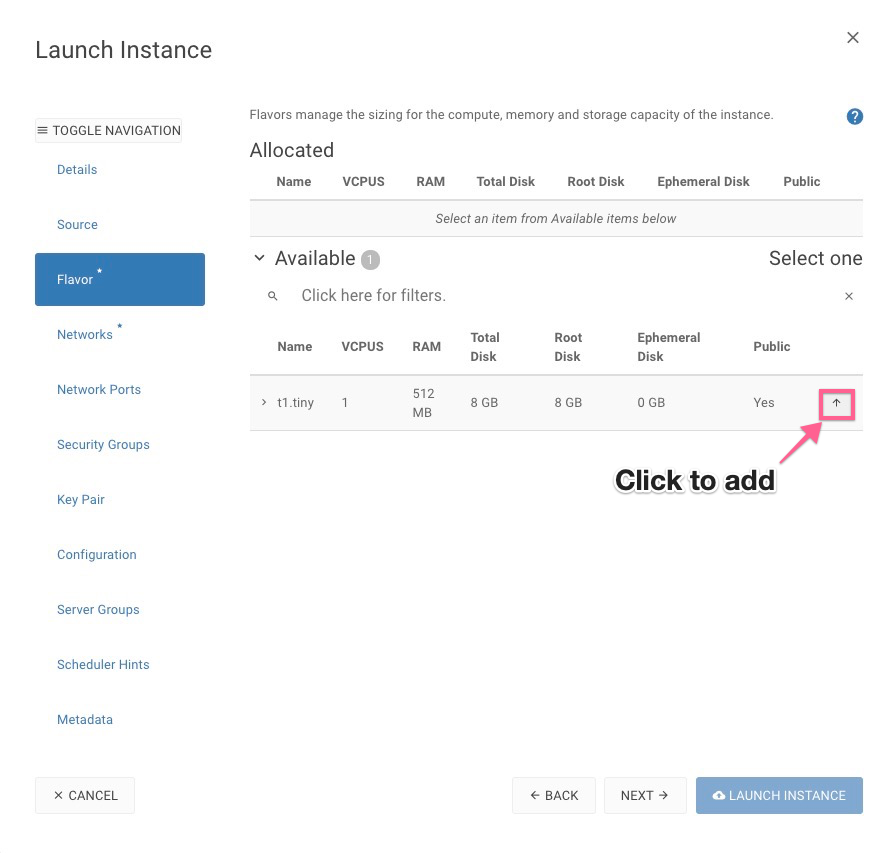
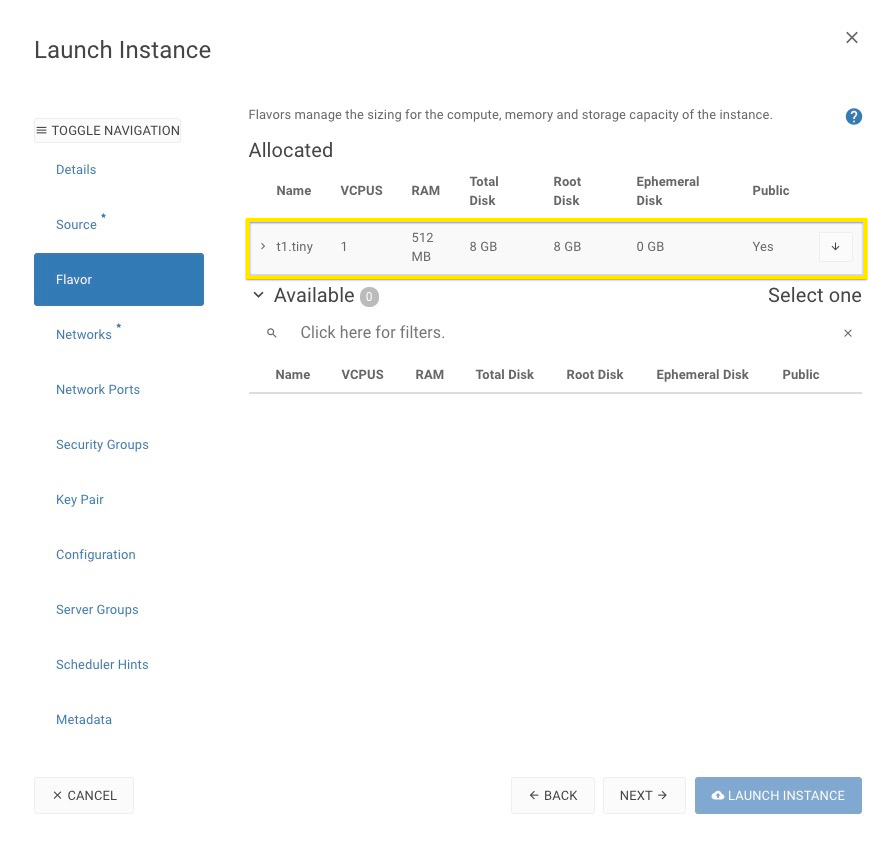
Flavor :
-
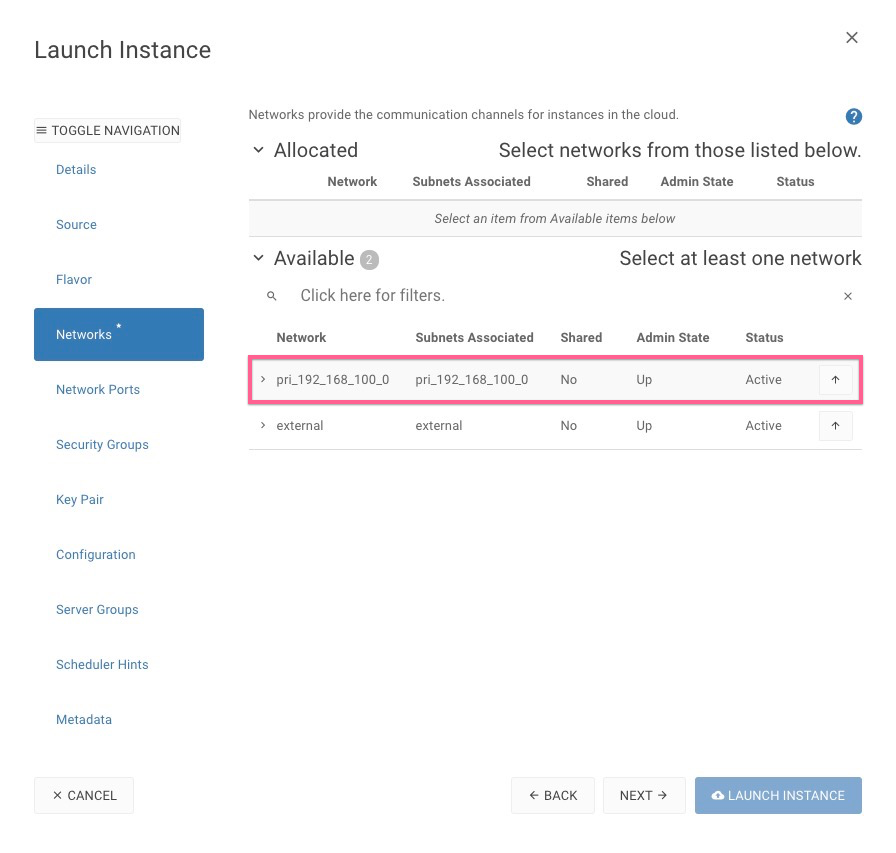
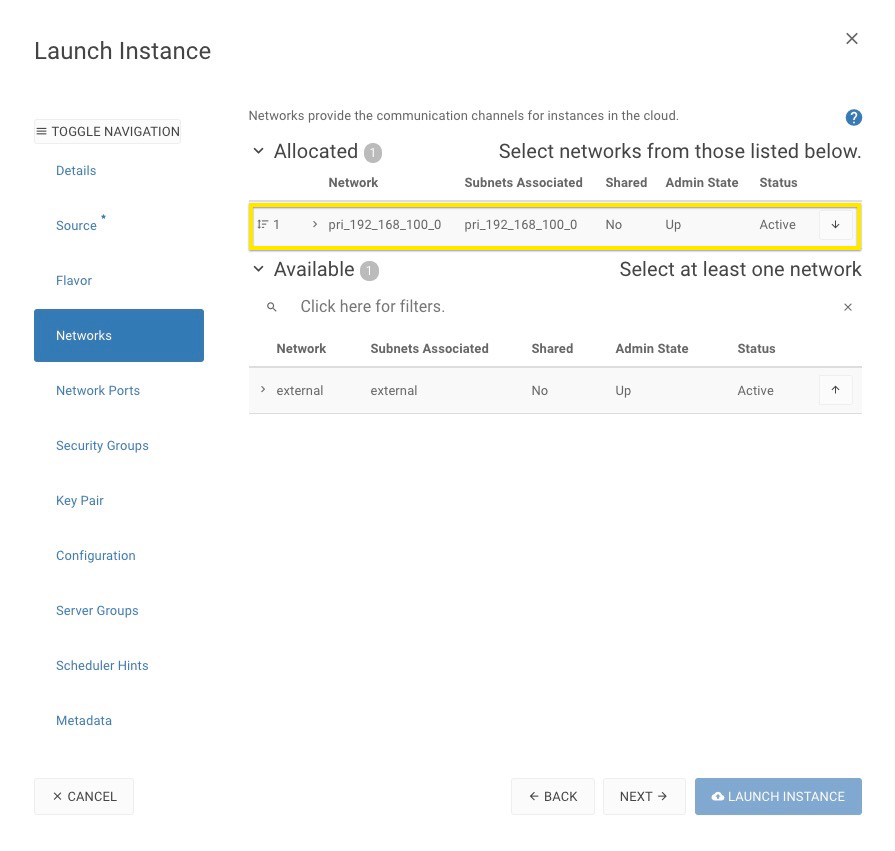
Networks :
-
Launch the instance
Associate Floating IP for VLAN/VXLAN
-
Select
ASSOCIATE FLOATING IPfrom the drop down from the actions column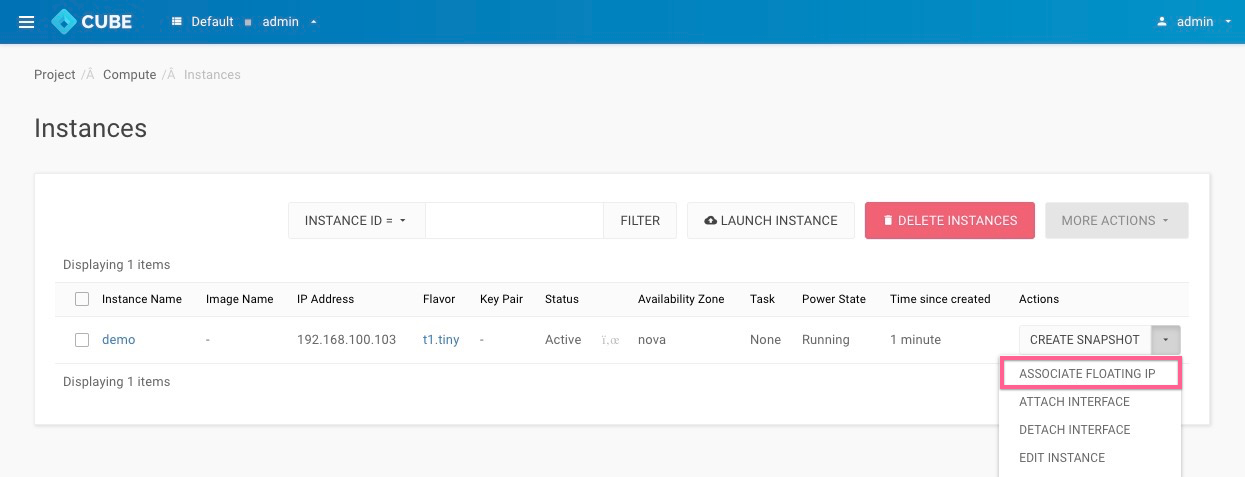
-
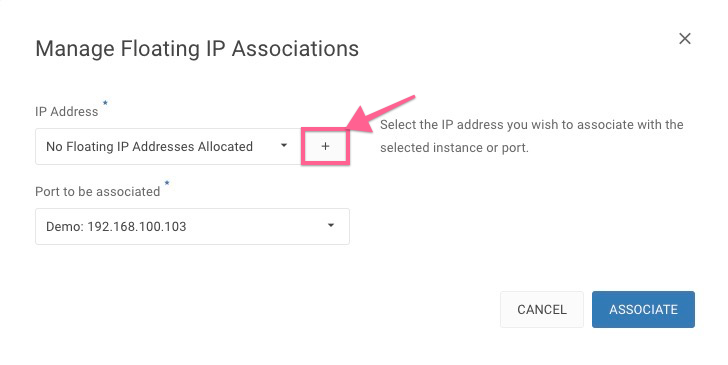
Allocate a floating IP
-
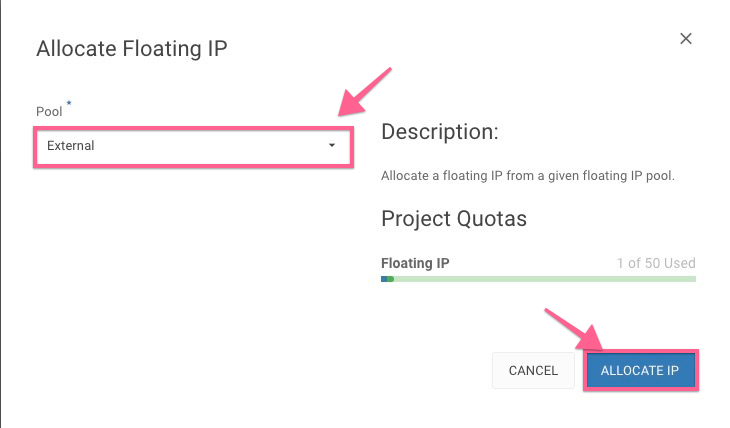
Select Pool and Allocate IP
-
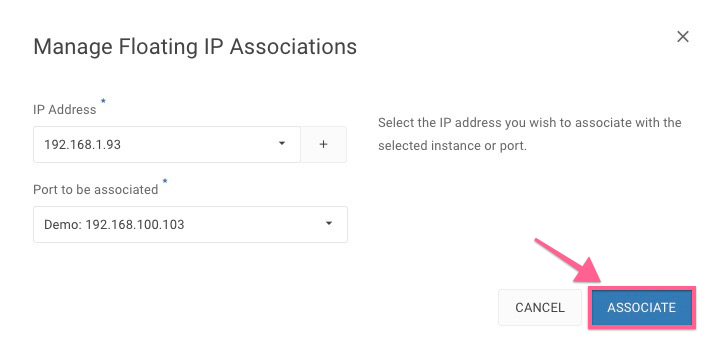
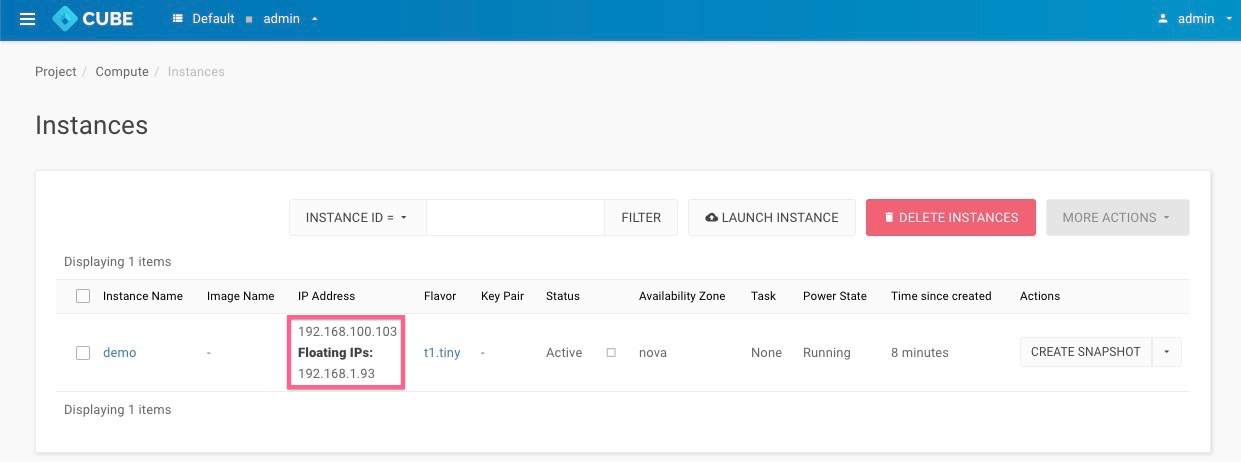
Associate to the instances
-
-