Resize an instance
The Resize Instance function modifies a virtual machine’s resource allocation—such as vCPU and memory—by switching to a different instance type without requiring the VM to be recreated.
Resize an instance
-
Navigate to
Project > Compute > Instances, choose the desired instance, then hover overMore.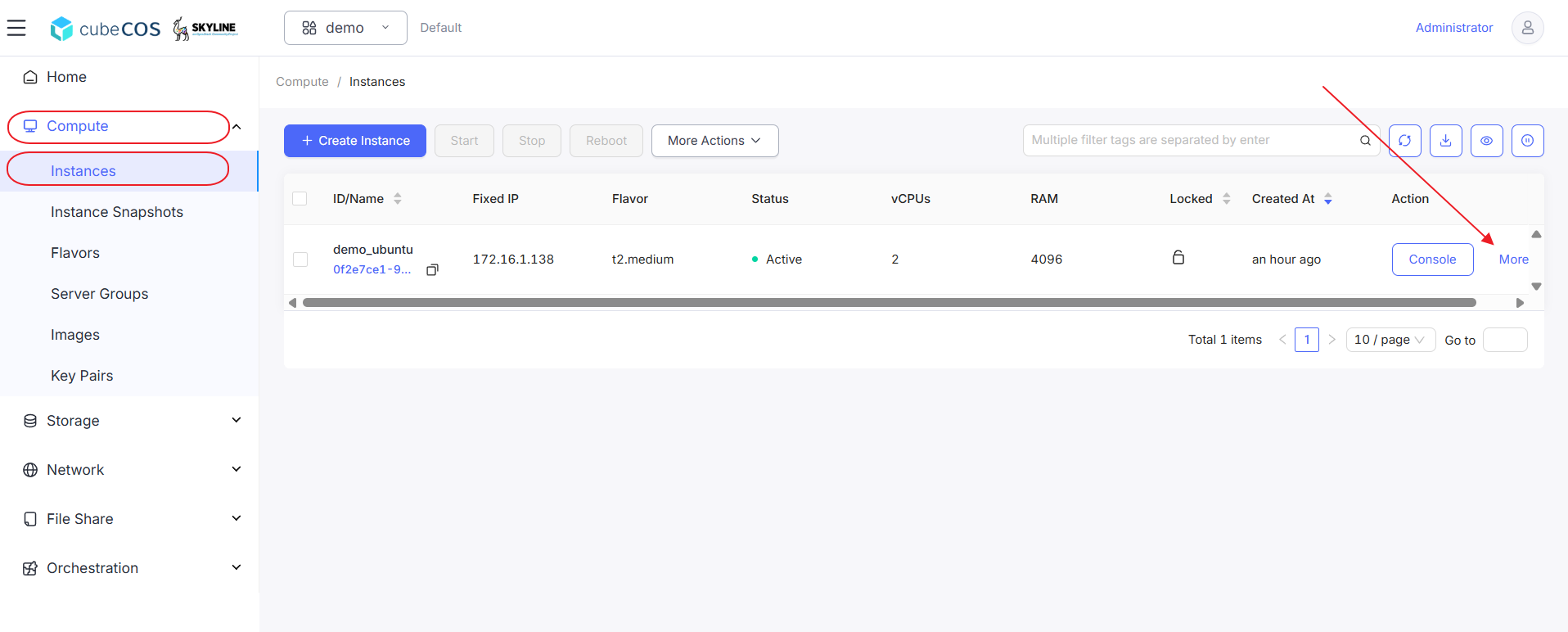
-
Hover over
Configuration Updatein the drop-down menu, then clickResize.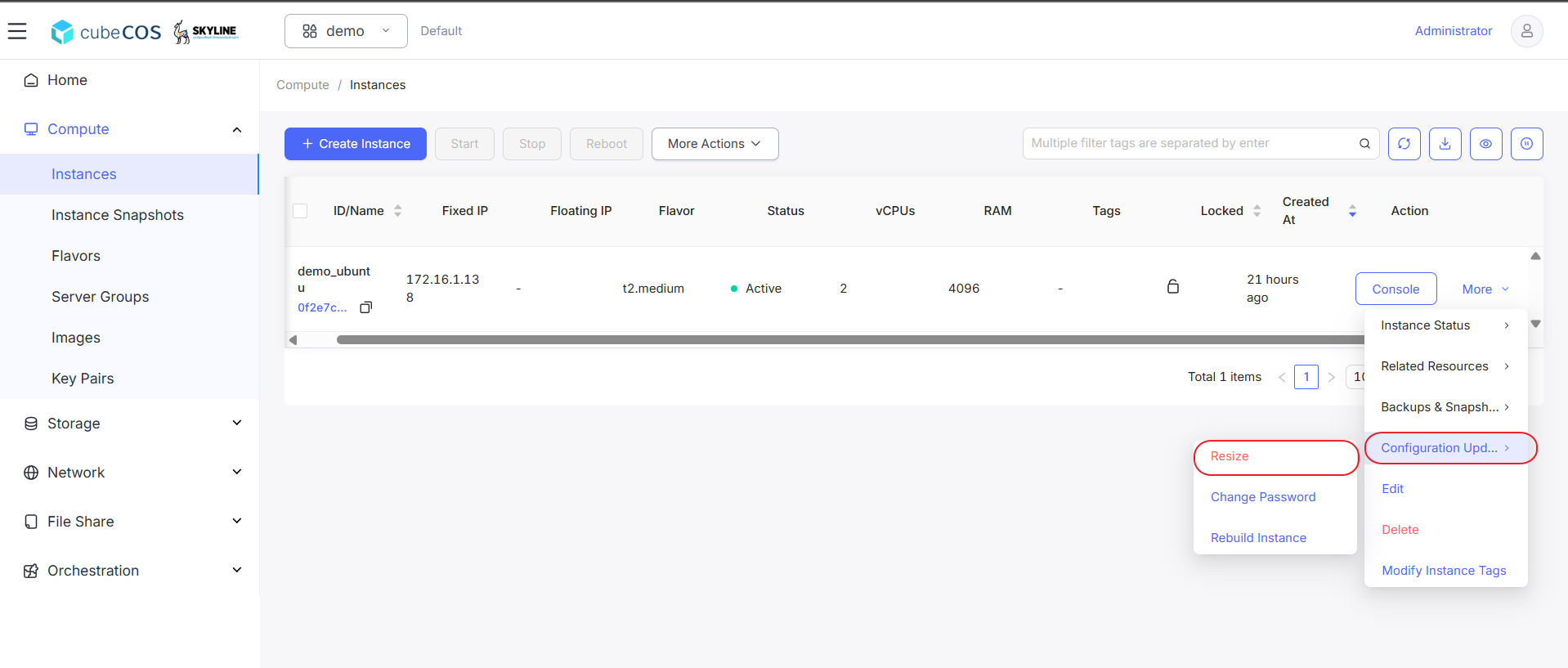
-
Choose desired Flavor from the list, make sure to check
Forced Shutdownbefore clickOKto proceed.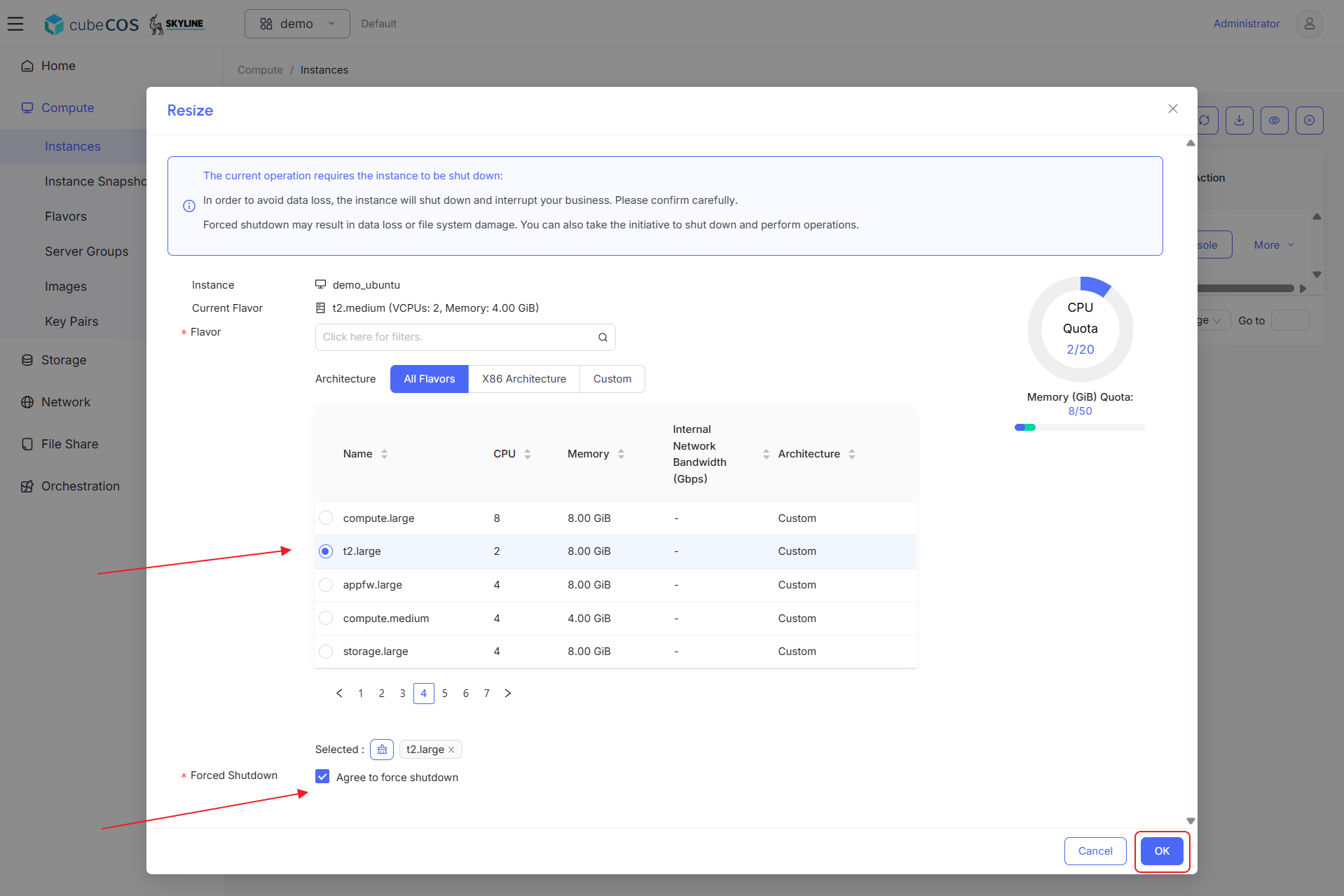
-
Hover over
Moreagain, hover overConfiguration Updatein the drop-down menu, then clickConfirm Resize or Migrate.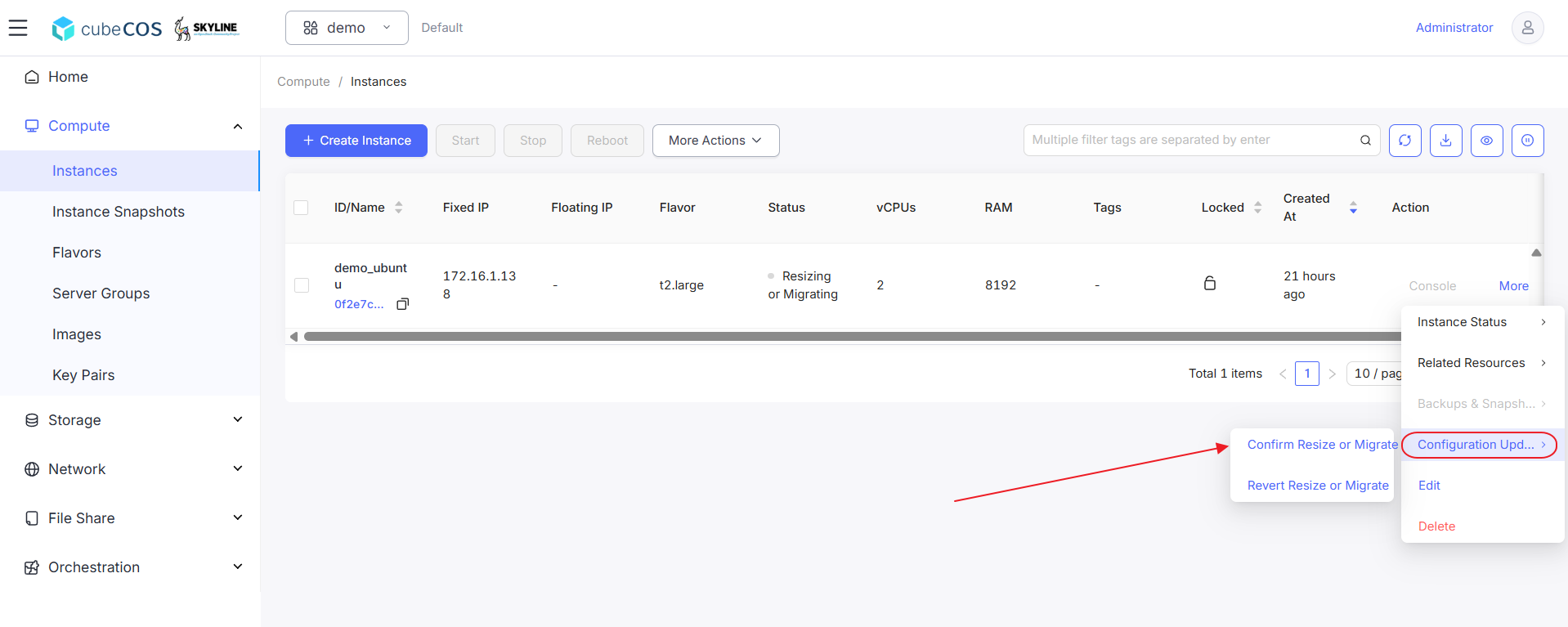
-
Click
Confirmto proceed.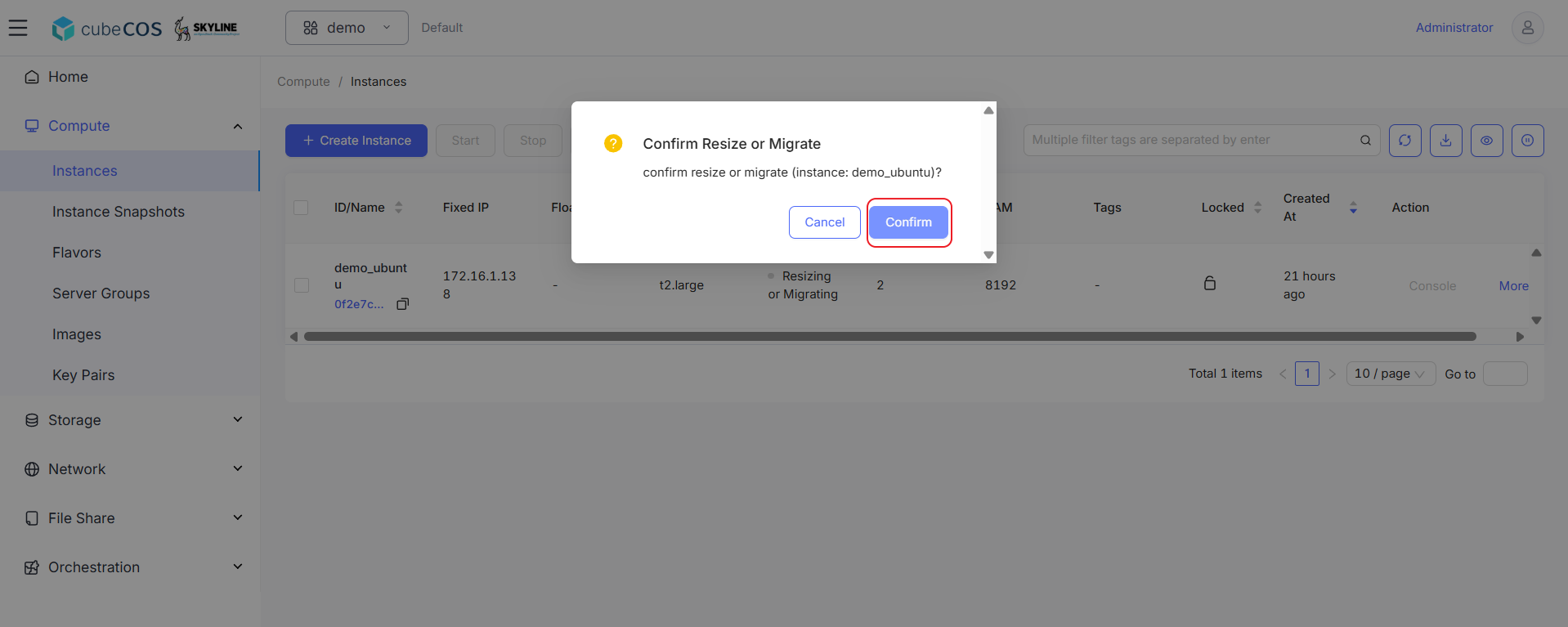
-
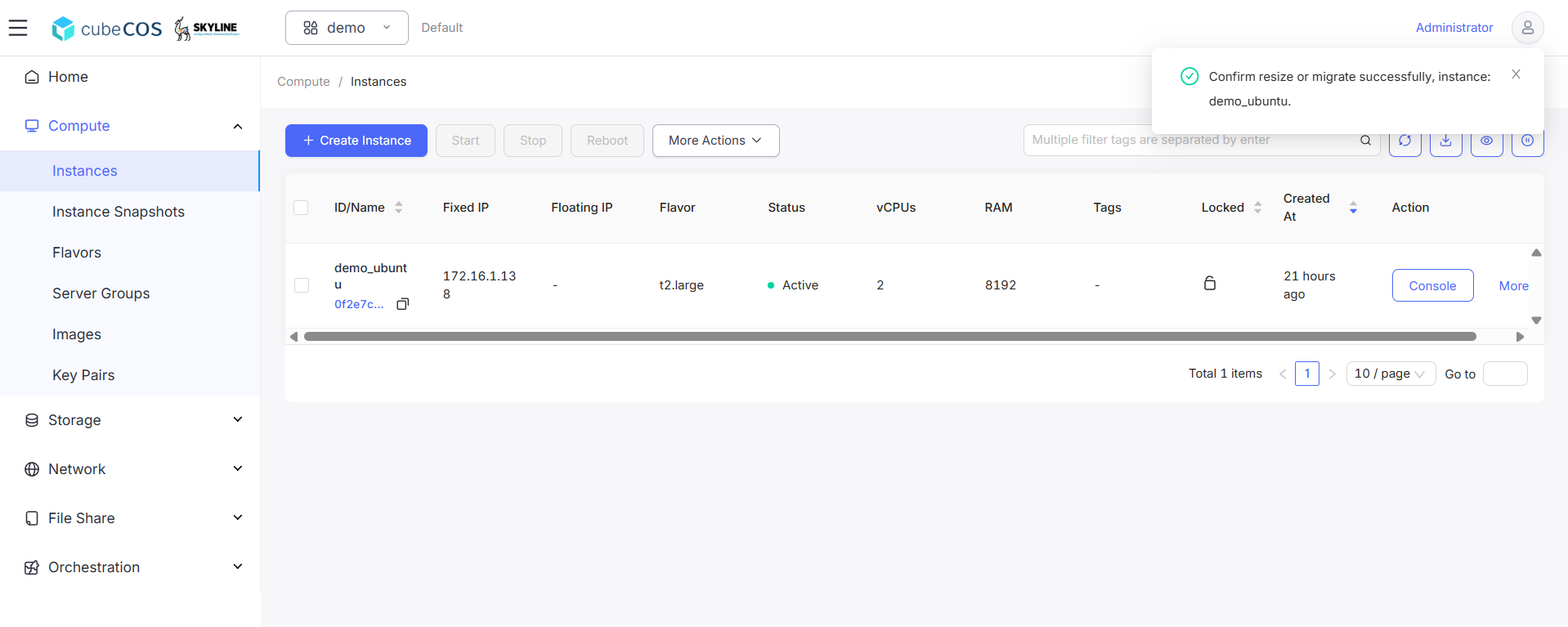
Ensure instance status should be Active.
-
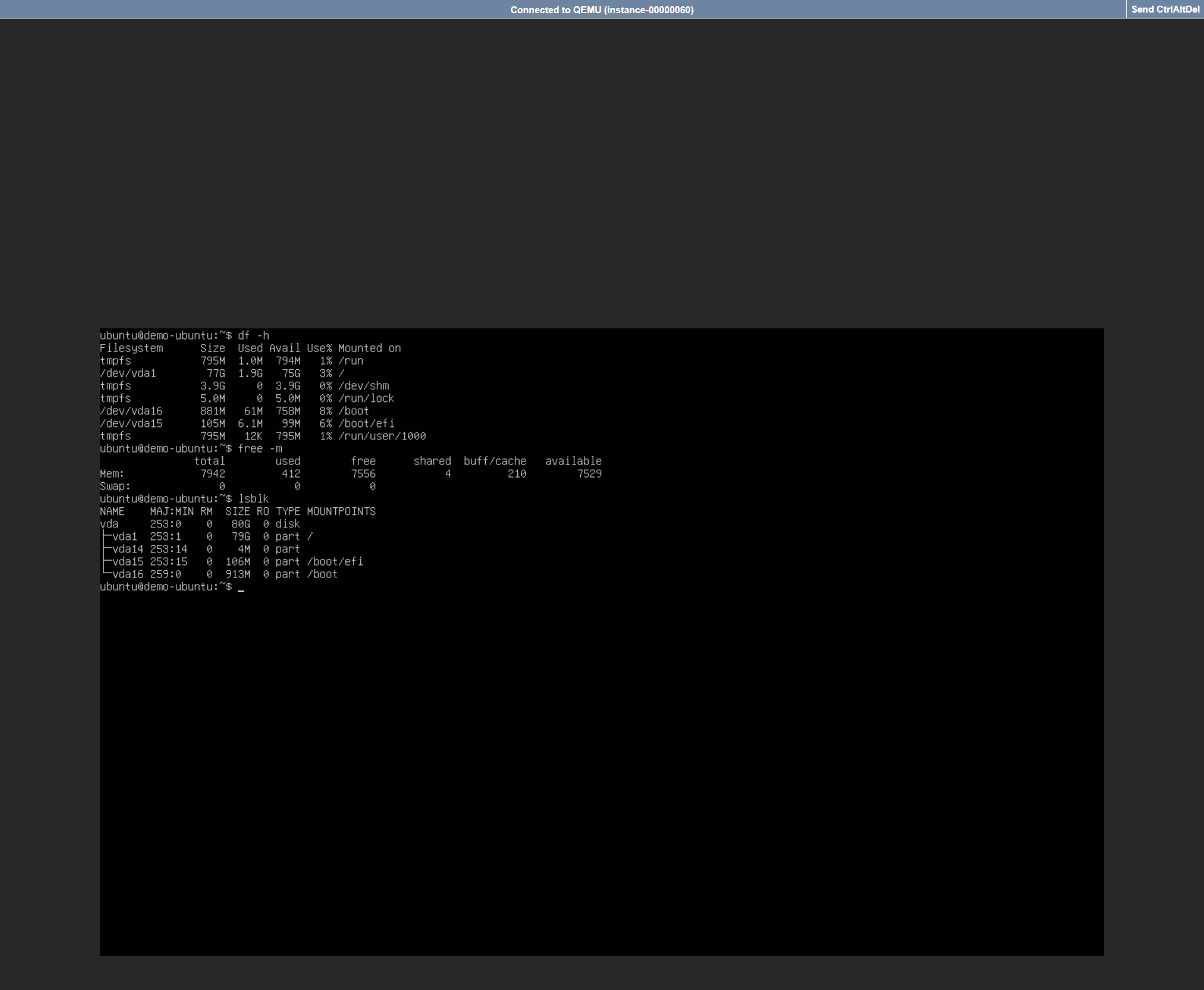
Verify Resized Instance Specifications through console. See Connect to Instance by noVNC for more info.