Configure and manage system tunings
A tuning is a configurable system parameter that changes how a CubeCOS cluster behaves. Use the web UI for a guided workflow, or the CLI for scripting and advanced control.
UI-based tuning management
-
Log in to the CubeCOS management interface.
-
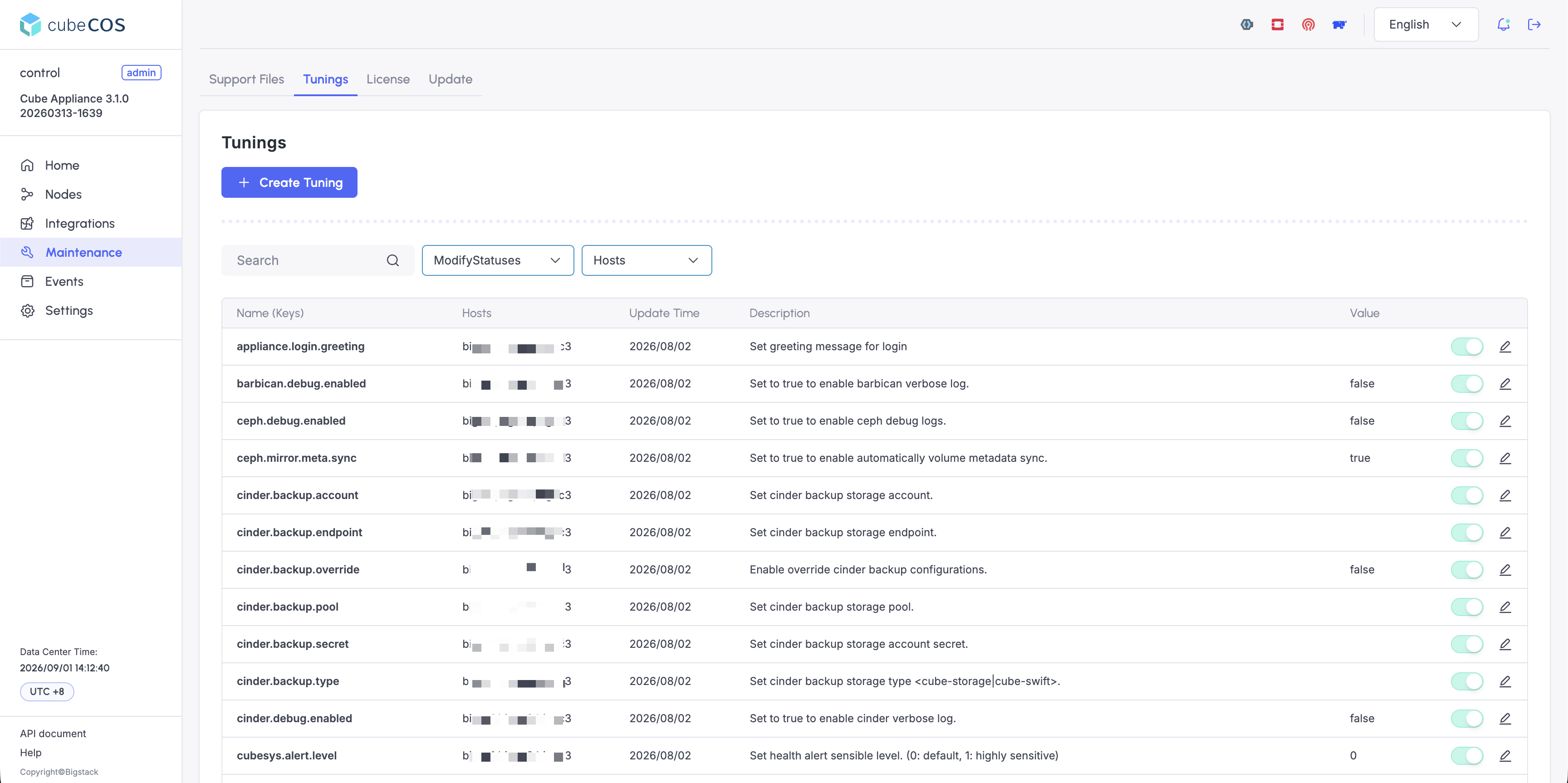
Navigate to Maintenance > Tunings to view all available tunings.
-
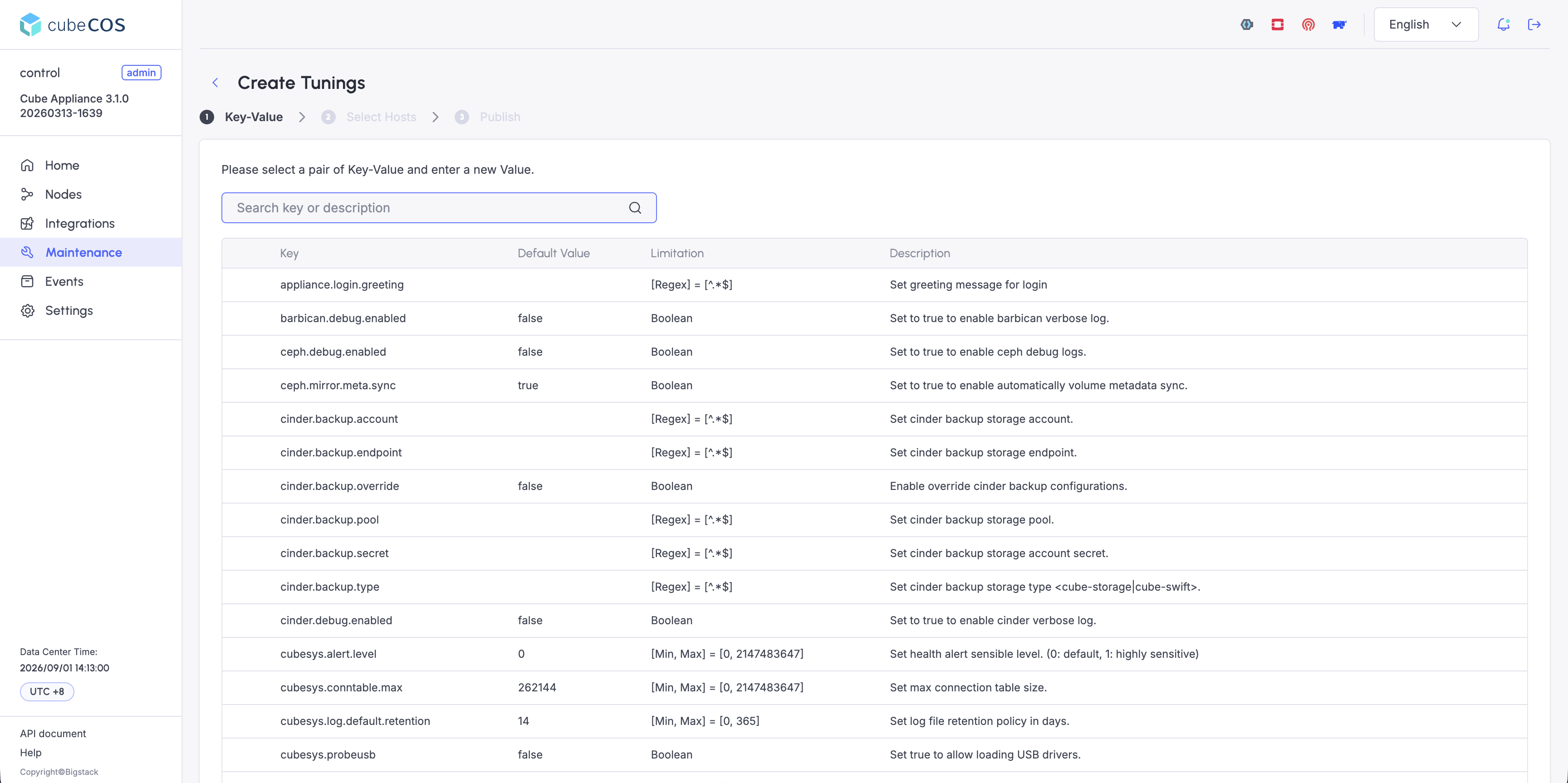
Click + Create Tuning.
-
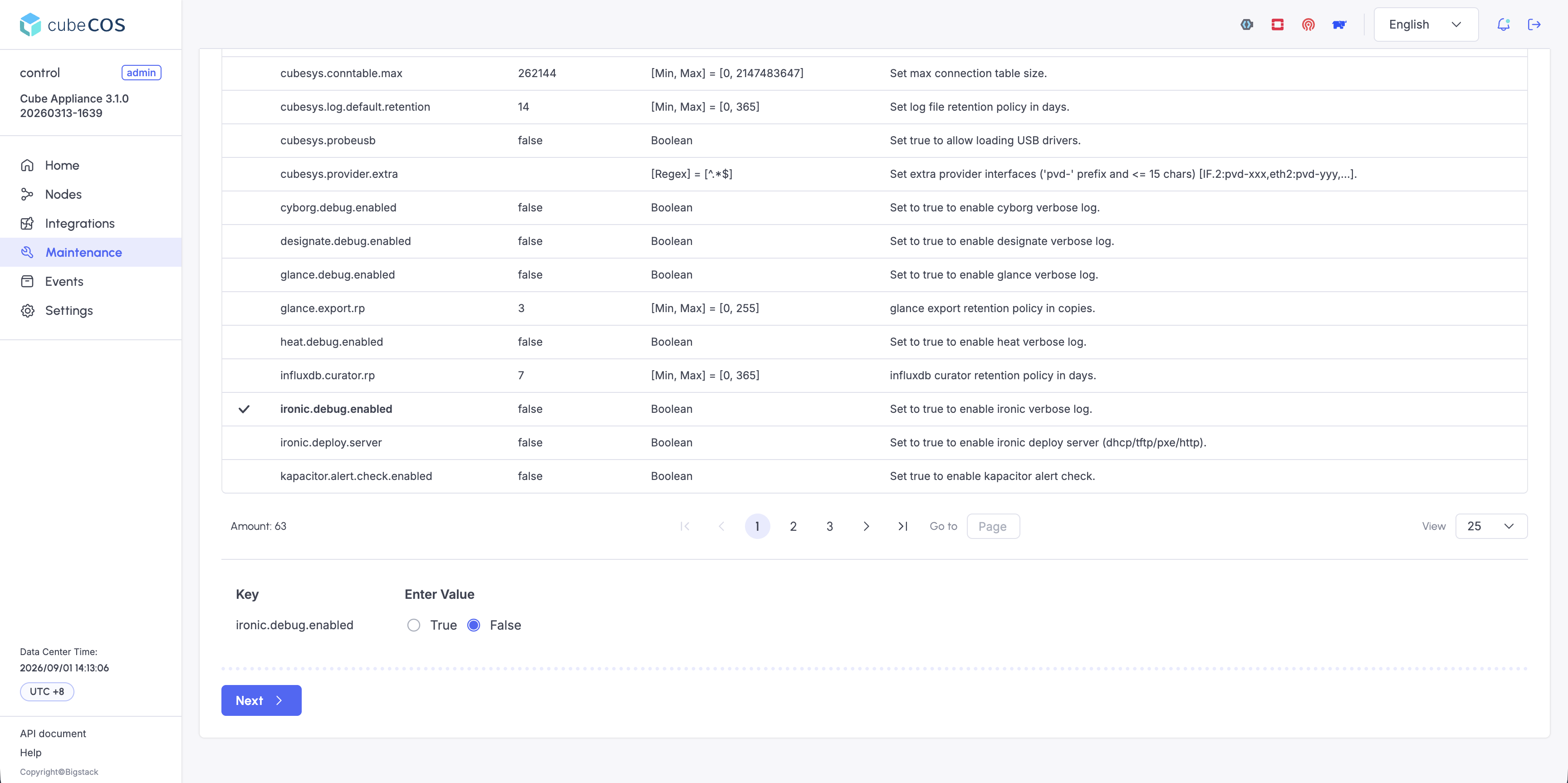
Select a tuning, enter the new value in the Enter Value field, then click Next.
-
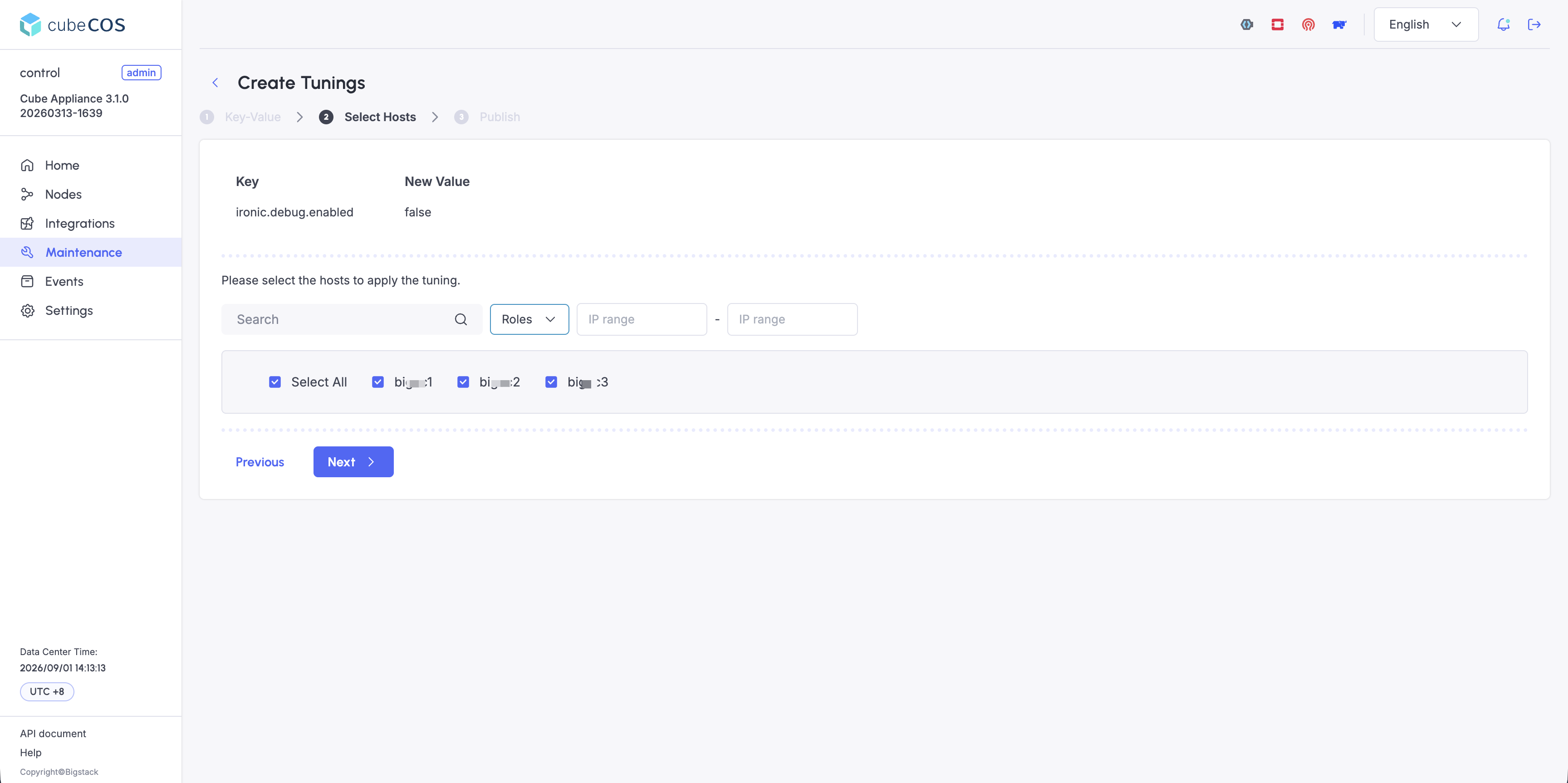
Select which hosts receive the tuning:
- Hostname: Apply the tuning to one selected host only.
- Select All: Apply the tuning to every host in the cluster.
-
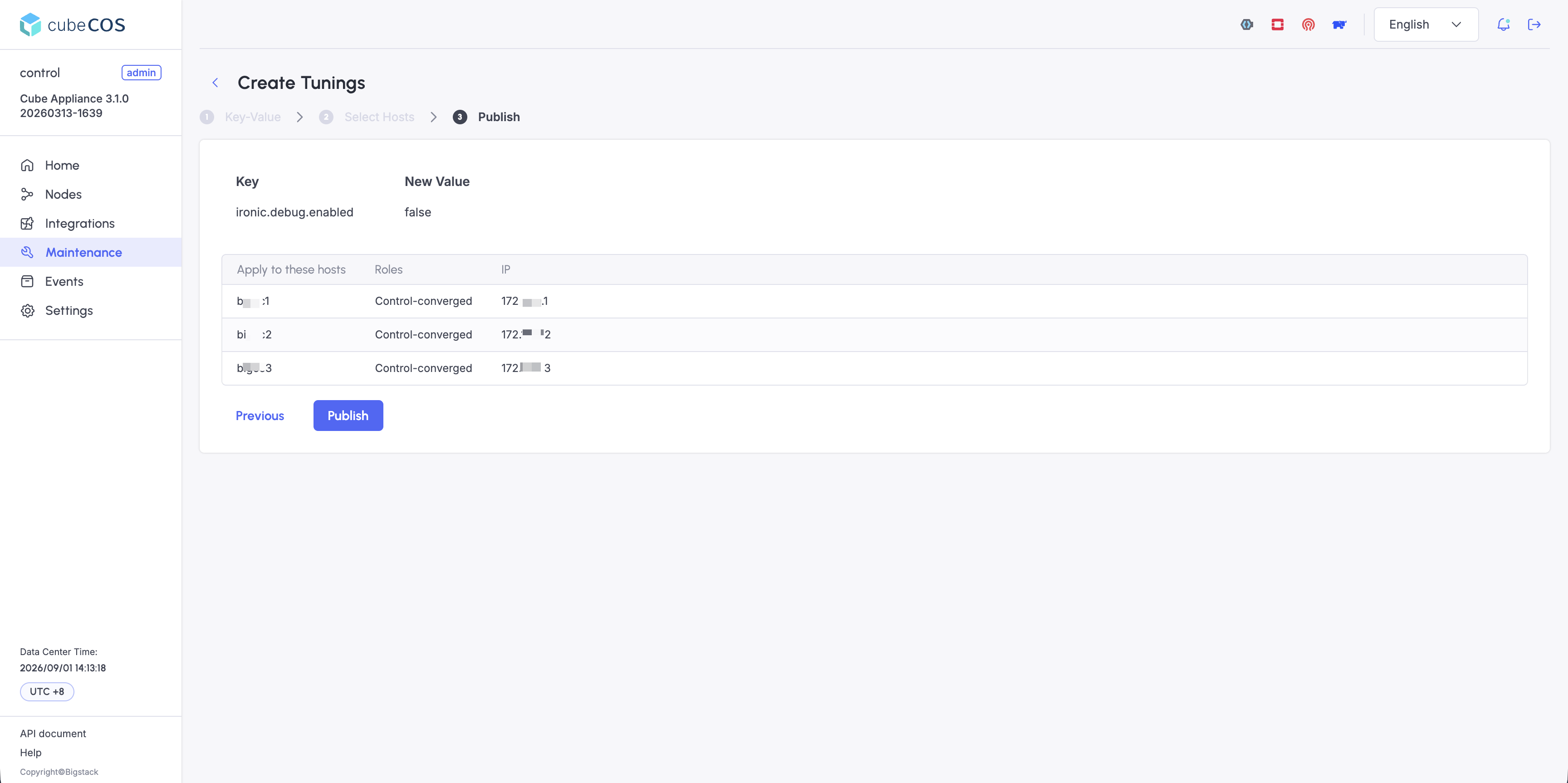
Confirm the application details, then click Publish to apply the tunings.
Connect to cluster admin shell
Learn how to use SSH to connect to the admin shell of your CubeCOS cluster for administrative tasks.
Connect to clusters as admin via SSH
-
Open your terminal app.
-
Connect to your CubeCOS cluster via SSH (Secure Shell) using this command:
ssh admin@<your-cluster-vip> -
When prompted, enter your SSH password.
CLI-based tuning management
Check for existing tunings
Run the following command to list configured tunings.
tuning list
enabled                            name                                 value
-------------------------------------------------------------------------------
-------------------------------------------------------------------------------
Dump all available tunings
Run the following command to list every available tuning.
cc1:tuning> dump

Published Tunings
----------------------------------------------------------------
Name                          Description                                                                                         Default|Min|Max
debug.level.%s                Set debug level for process %s                                                                      [0|0|9]
debug.enable_core_dump.%s     Enable core dump for process %s                                                                     [False]
# ... output truncated
kapacitor.alert.extra.prefix  Set kapacitor alert message prefix.                                                                 ["Cube" (Any)]
opensearch.curator.rp         opensearch curator retention policy in days.                                                        [7|0|365]
opensearch.heap.size          opensearch heap size in GB.                                                                         [2|1|1024]
----------------------------------------------------------------

Network Interfaces
------------------------------------------------------------------------------------------------------------------------
     Dev    Label        DevID/Cfg   BusID/Slaves               HWAddr     Driver  Link  State Speed(actual/advertised)
------------------------------------------------------------------------------------------------------------------------
    eth0     IF.1        14e4.165f   0000:01:00.0    18:66:da:eb:c7:1c        tg3   yes     UP        1000F/1000F
    eth1     IF.2        14e4.165f   0000:01:00.1    18:66:da:eb:c7:1d        tg3    no   DOWN           NA/1000F
------------------------------------------------------------------------------------------------------------------------
Configure a new tuning
If high availability (HA) is enabled, configure the tuning on all control nodes.
-
Run the following command.
tuning configureenabled name value--------------------------------------------------------------------------------------------------------------------------------------------------------------1: modify tunings2: apply3: exitEnter index: 1 -
Enter
1to add a new tuning, then enter the tuning name and value. Find the tuning name in the output oftuning dump.Select action:1: Add2: Delete3: UpdateEnter index: 1Enter tuning name: <tuning-name>Enter tuning value: <tuning-value> -
Enter
1to enable the tuning.Enable the tuning:1: Enabled2: DisabledEnter index: 1 -
Enter
2to apply the tuning to the node.Adding tuning: <tuning-name> = <tuning-value>(Enabled)enabled name value-------------------------------------------------------------------------------[x] <tuning-name> <tuning-value>-------------------------------------------------------------------------------1: modify tunings2: apply3: exitEnter index: 2enabled name value-------------------------------------------------------------------------------[x] <tuning-name> <tuning-value>-------------------------------------------------------------------------------Apply the changes?Enter 'YES' to confirm: YESApplying policy changes.Policy changes were successfully applied.