パブリッククラウド接続を追加する
CubeCMPはAWSと連携し、ハイブリッドクラウドのリソース割り当てと一元管理を実現します。
クラスタ全体に対するパブリッククラウド連携を設定する
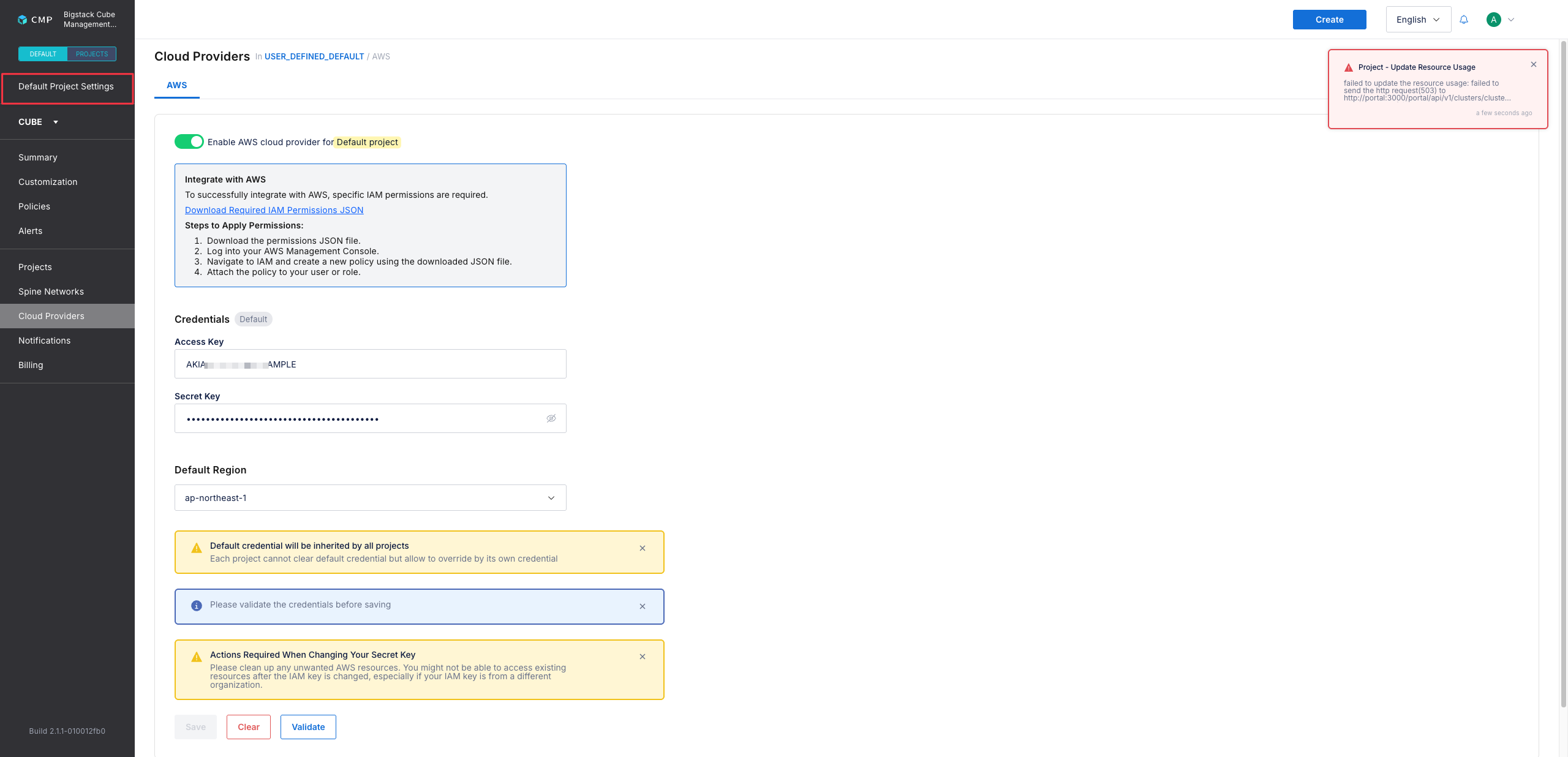
サイト全体でのパブリッククラウドへのアクセスを有効にするには、DEFAULT プロジェクトで AWS 統合を設定してください。 DEFAULT プロジェクトレベルで統合を適用すると、CubeCMP テナント内のすべてのプロジェクトで、設定されたパブリッククラウドプロバイダーを利用できるようになります。
クラスターレベルでパブリッククラウドの統合を設定すると、クラウドリソースの使用権限を持つすべてのユーザーがクラウドにアクセスできるようになります。よりきめ細かなアクセス制御を行うには、パブリッククラウド連携の設定をプロジェクト単位で行うようにしてください。
個々のプロジェクトレベルでのクラウド統合の設定について詳しくは、個々のプロジェクト向けのパブリッククラウドリソースの設定を参照してください。
-
CubeCMP 管理コンソールで、DEFAULT タブに切り替えます。 DEFAULT プロジェクト管理インターフェースに切り替わったことを確認するには、左側のサイドバーに
Default Project Settingsと表示されているか確認してください。 -
デフォルトのプロジェクトで、Cube > Cloud Providers に移動します。
-
パブリッククラウドプロバイダーへの認証を有効にするには、以下を設定してください:
- アクセスキー:AWSクラスターを一意に識別する識別子。
- 秘密鍵:リソースへのアクセスを認証するための秘密鍵。
-
ワークロードを起動する際のデフォルトのリージョンを設定するには、**[デフォルトのリージョン]**をクリックし、希望のリージョンを設定してください。
-
アクセス認証情報とIAMロールの設定を確認するには、**[検証]**をクリックしてください。
-
認証情報の詳細が正常に検証されたら、設定を保存して適用するには、**[保存]**をクリックしてください。
個々のプロジェクト向けにパブリッククラウドリソースを設定する
プロジェクト単位でのパブリッククラウドへのアクセスを有効にするには、各プロジェクトでAWS連携を設定してください。個々のプロジェクトレベルで統合を適用することで、CubeCMPテナント内のすべてのプロジェクトで、設定されたパブリッククラウドプロバイダーを利用できるようになります。
-
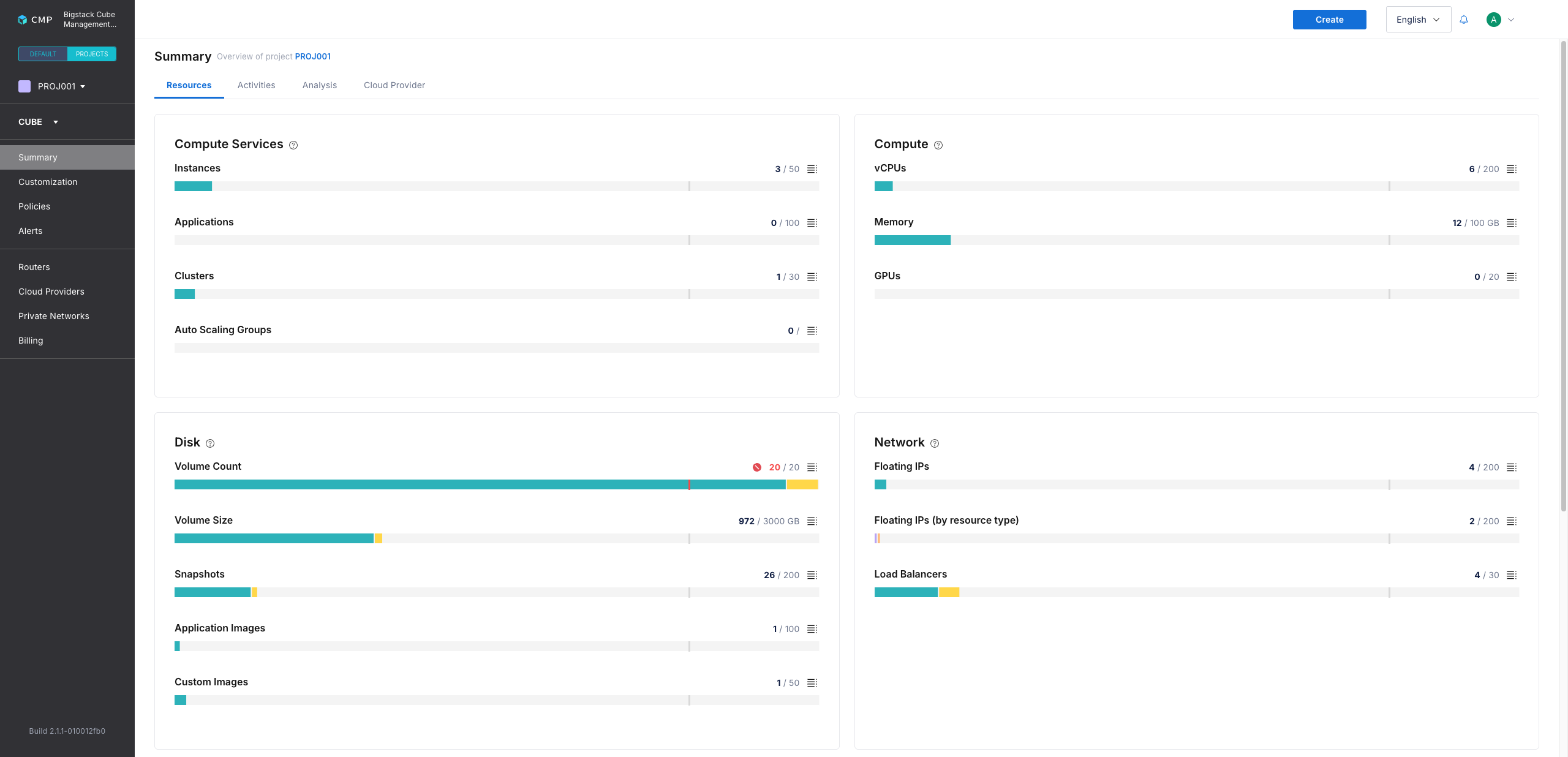
CubeCMP管理コンソールで、PROJECTSタブに切り替えます。 PROJECTS 管理セクションに切り替わったことを確認するには、左側のサイドバーに目的のプロジェクト名が表示されているか確認してください。
-
個別のクラウド連携設定を行うプロジェクトを選択するには、**「プロジェクト」**のドロップダウンをクリックし、編集するプロジェクトを選択してください。
-
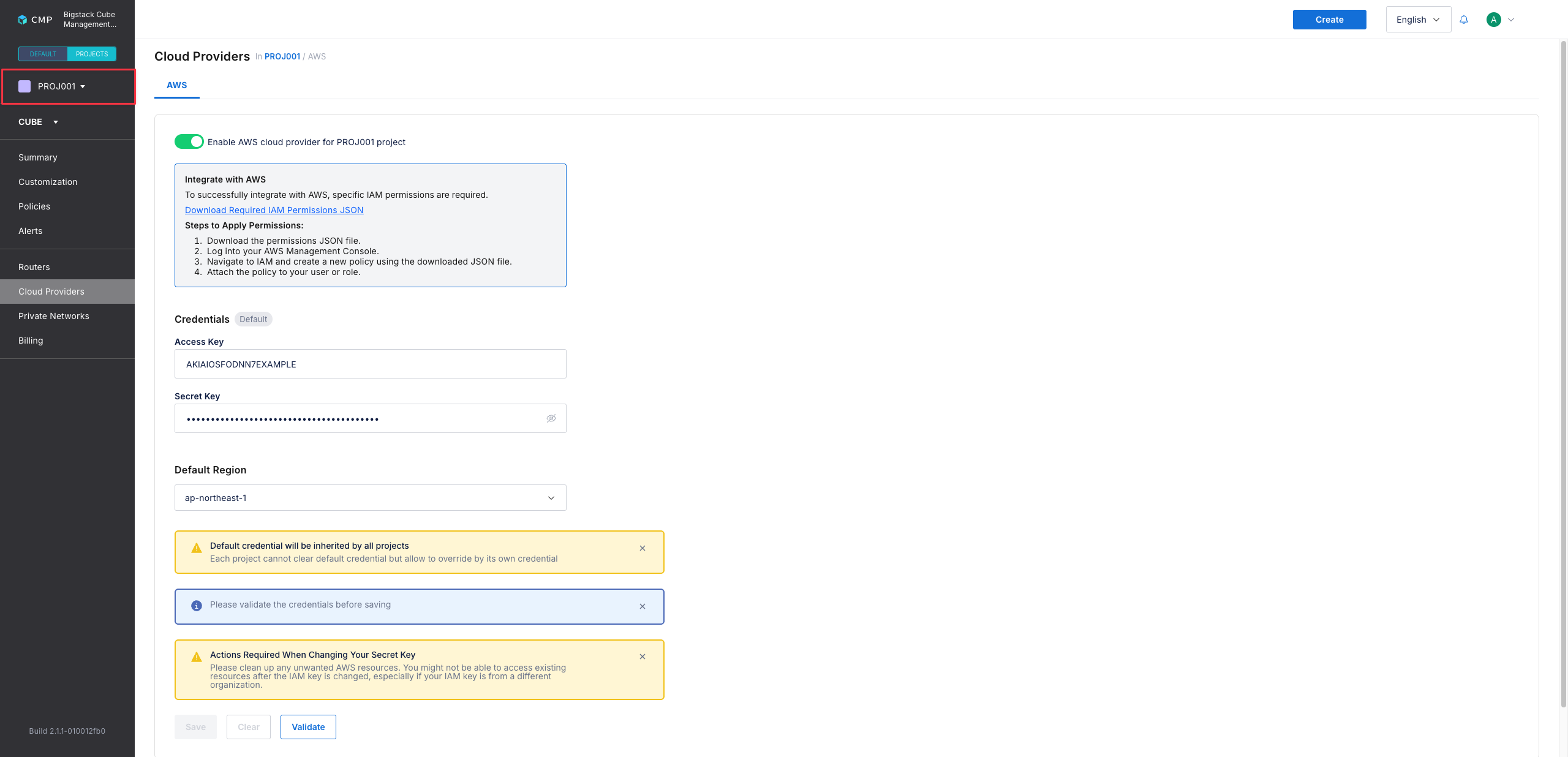
[Cube] > [クラウドプロバイダー] に移動します。
-
パブリッククラウドプロバイダーへの認証を有効にするには、設定されているデフォルトの認証情報を上書きしてください:
- アクセスキー:AWSクラスターを一意に識別する識別子。
- 秘密鍵:リソースへのアクセスを認証するための秘密鍵。
-
ワークロードを起動する際のデフォルトのリージョンを設定するには、**[デフォルトのリージョン]**をクリックし、希望のリージョンを設定してください。
-
アクセス認証情報とIAMロールの設定を確認するには、**[検証]**をクリックしてください。
-
認証情報の詳細が正常に検証されたら、設定を保存して適用するには、**[保存]**をクリックしてください。