# How to live migrate an instance from one host to another

> The Live Migrate Instance function moves a running virtual machine from one physical host to another without shutting it down, ensuring minimal disruption to service.

The Live Migrate Instance function moves a running virtual machine from one physical host to another without shutting it down, ensuring minimal disruption to service.

### Live Migrate Instance {#live-migrate-instance}

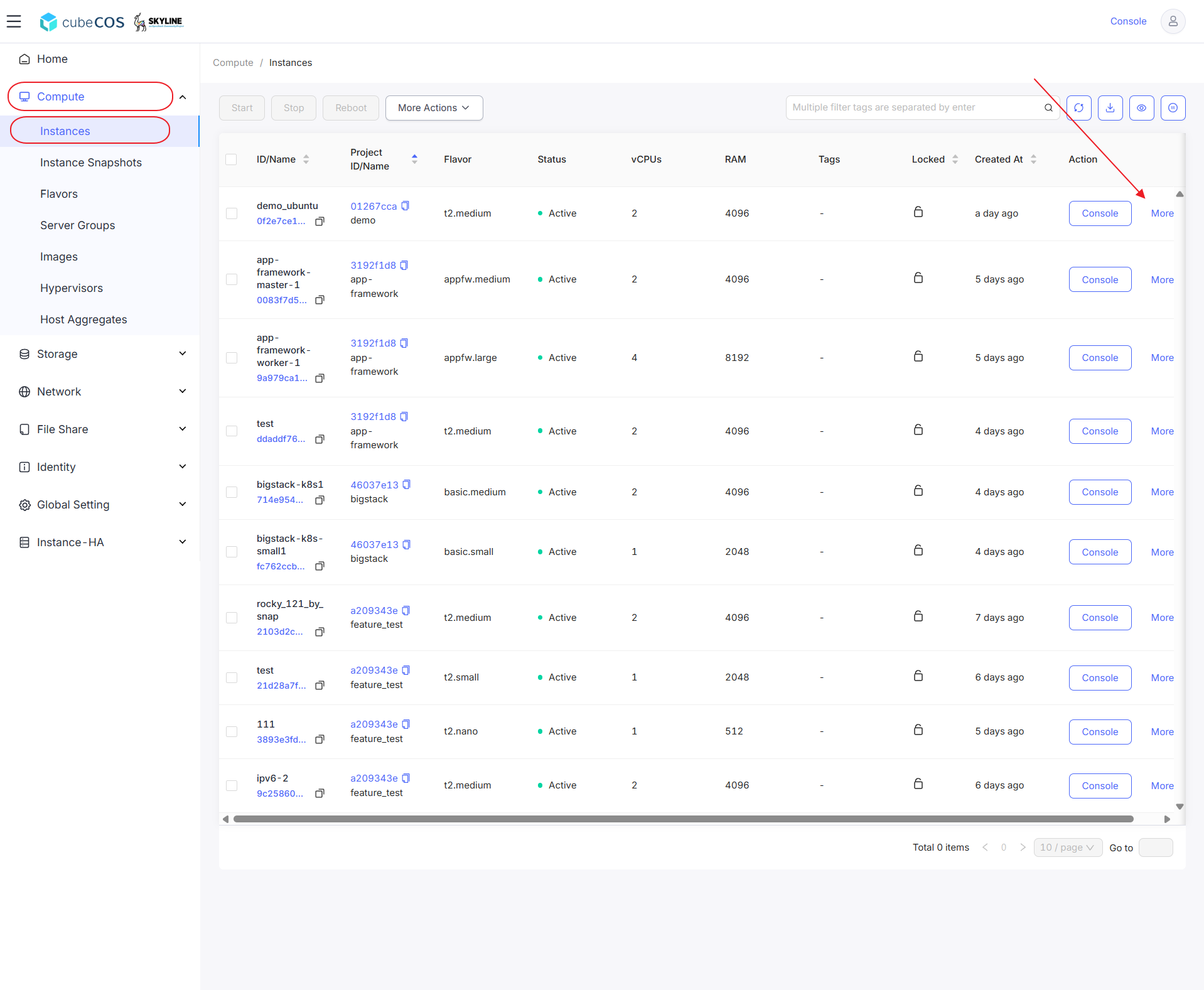
1. Navigate to `Administrator > Compute > Instances`, choose the desired project, then hover over `More`.

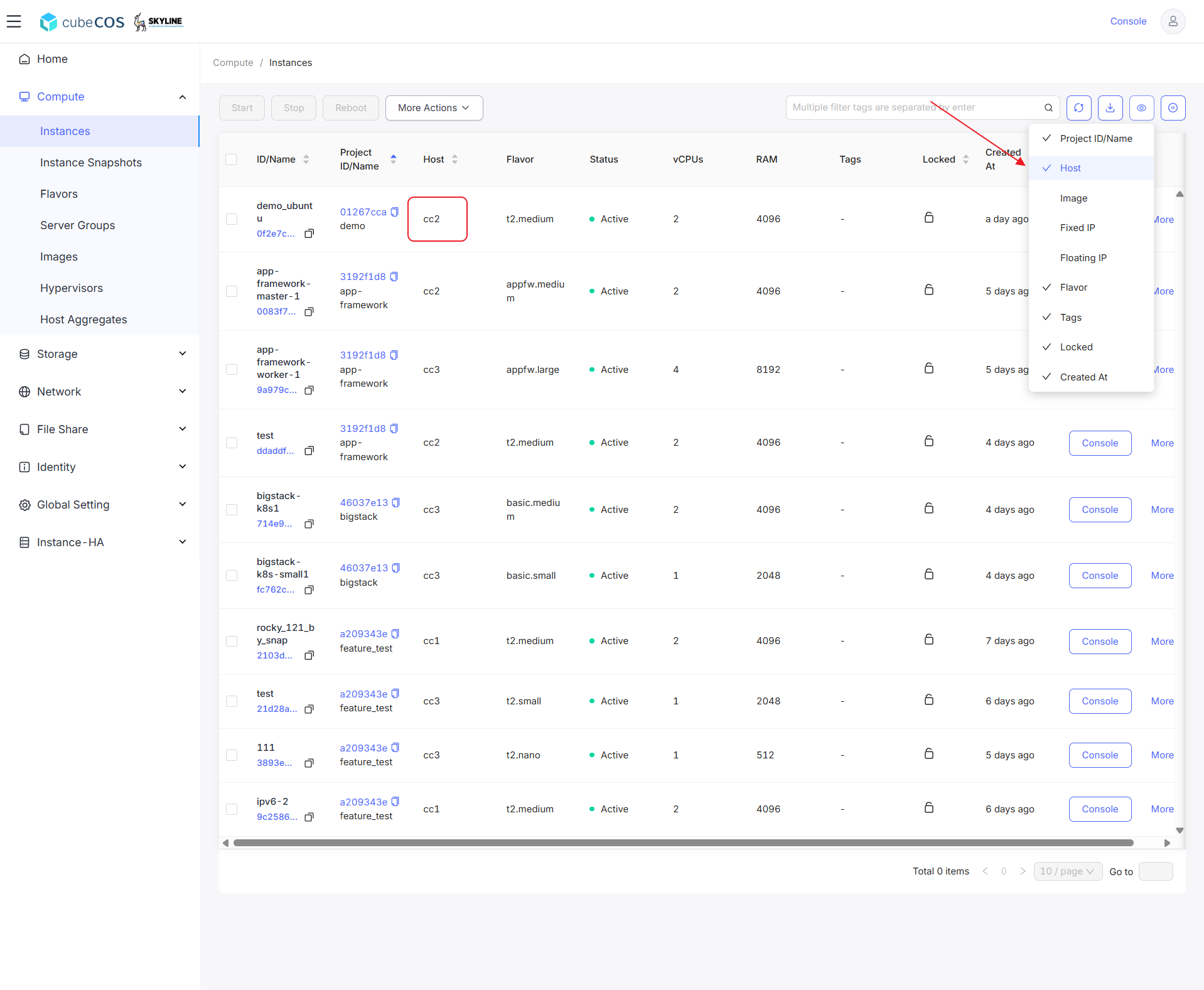
   _To adjust visible elements, hover over the eye icon. Selecting `Host` will reveal the instance’s current host._

![/assets/compute/ins_liveM_1.png](/assets/compute/ins_liveM_1.png)

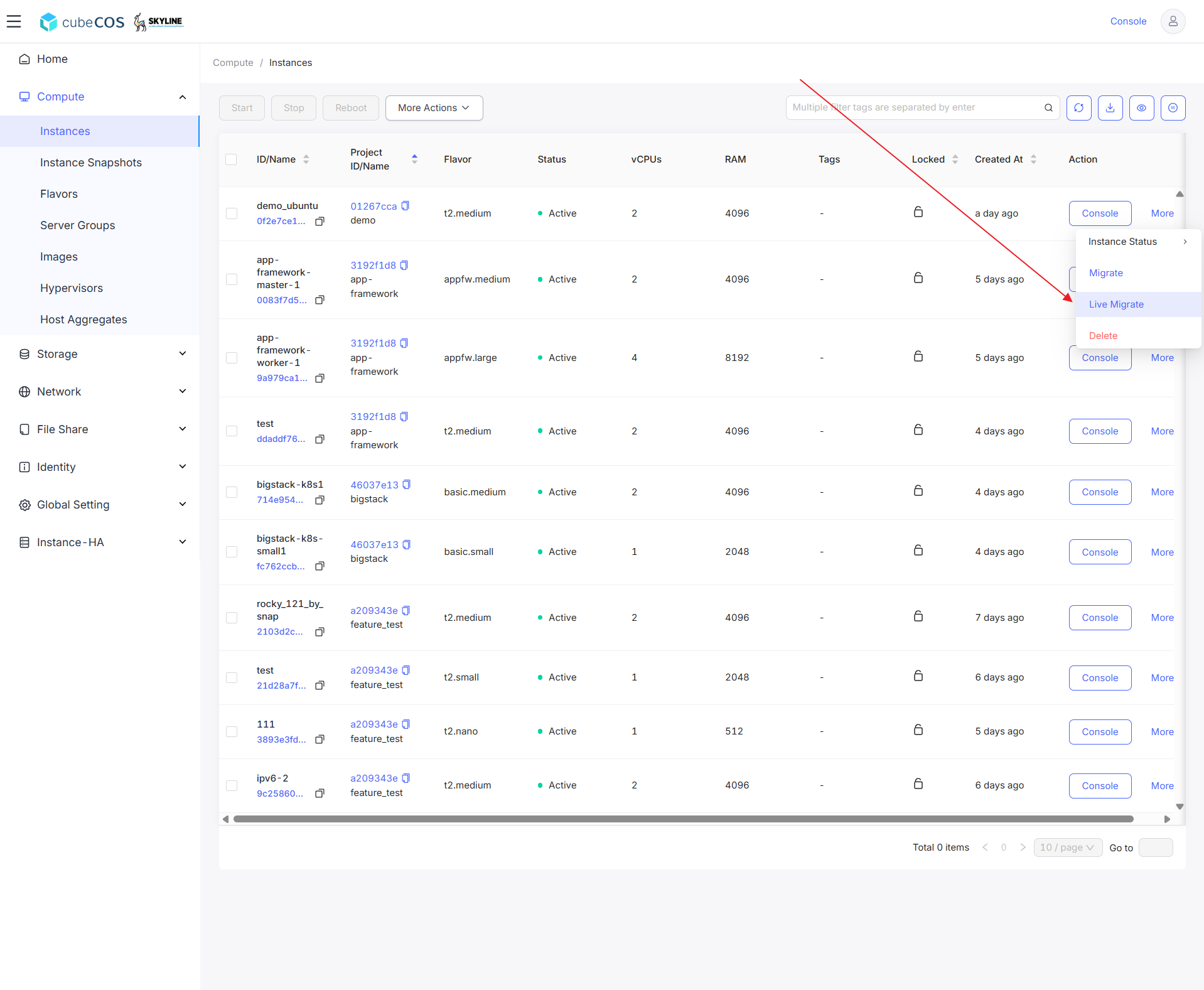
1. Click `Live Migrate` to proceed.

![/assets/compute/ins_liveM_2.png](/assets/compute/ins_liveM_2.png)

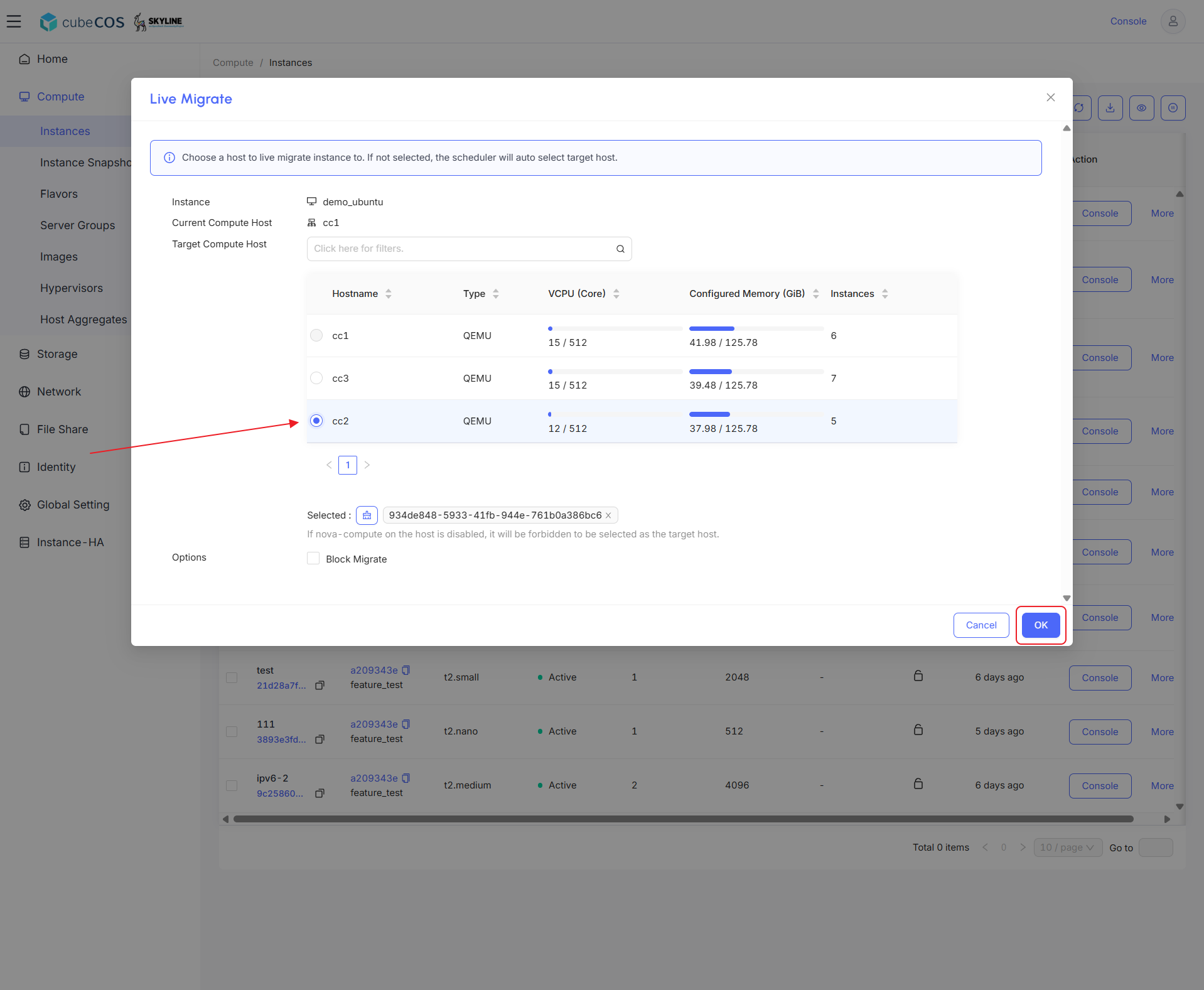
3. Select the destination host for live migration, then Click `OK`. If a host cannot be selected, it is the current host of the instance.

   ![/assets/compute/ins_liveM_3.png](/assets/compute/ins_liveM_3.png)

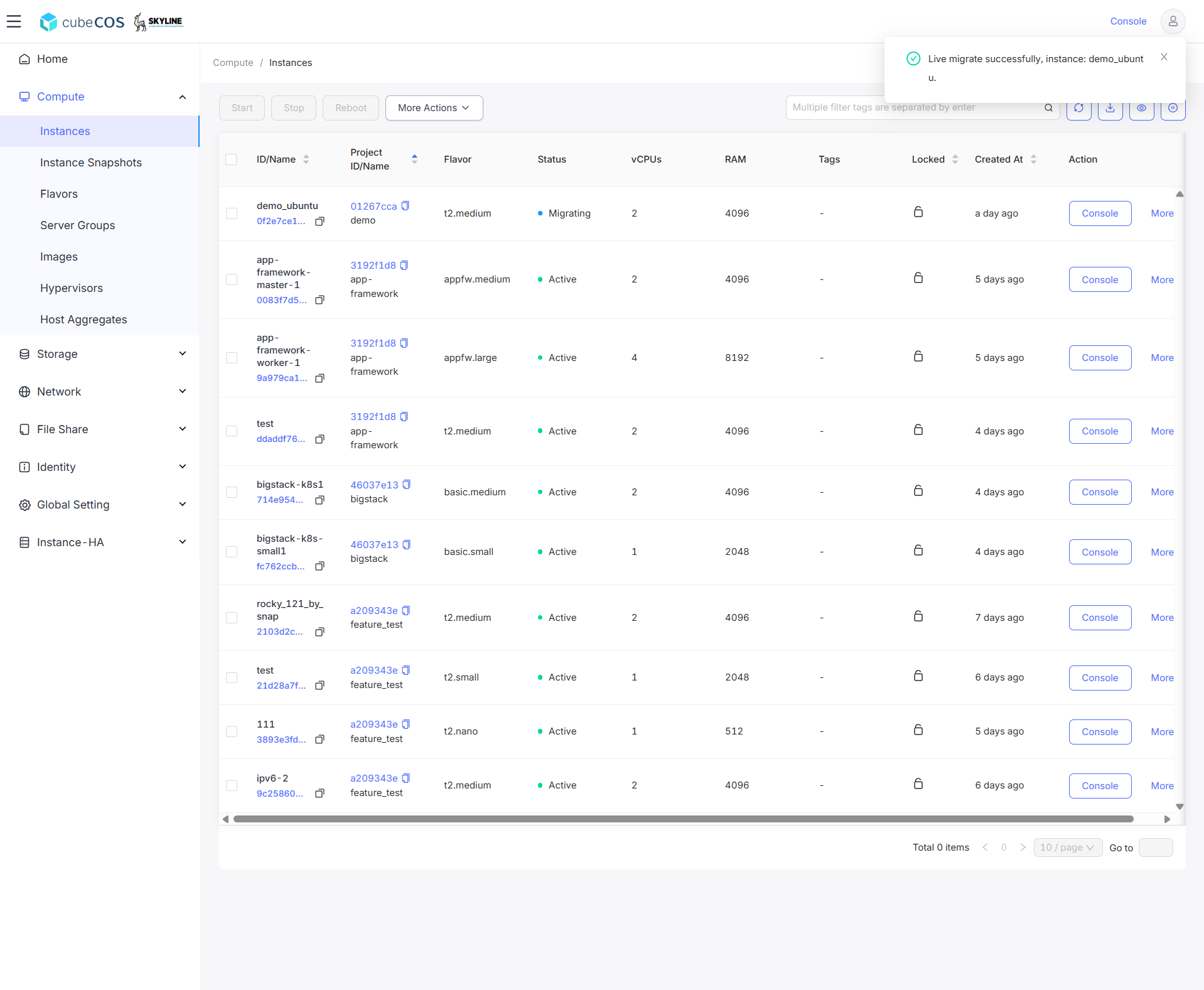
4. During migration, the instance status will display `Migrating`. The instance status will change to `Active` once migration is completed.

   ![/assets/compute/ins_liveM_4.png](/assets/compute/ins_liveM_4.png)

5. Verify that the instance has successfully migrated by customizing the visible columns. Hover over the `Eye icon` on the right, then select `Host` to display the current host of the instance.

   ![/assets/compute/ins_liveM_5.png](/assets/compute/ins_liveM_5.png)