# Create Instances

> The **Create Instances** function provisions virtual machines based on predefined resource templates, OS images, and configuration parameters.

The **Create Instances** function provisions virtual machines based on predefined resource templates, OS images, and configuration parameters.

## Create Instance {#create-instance}

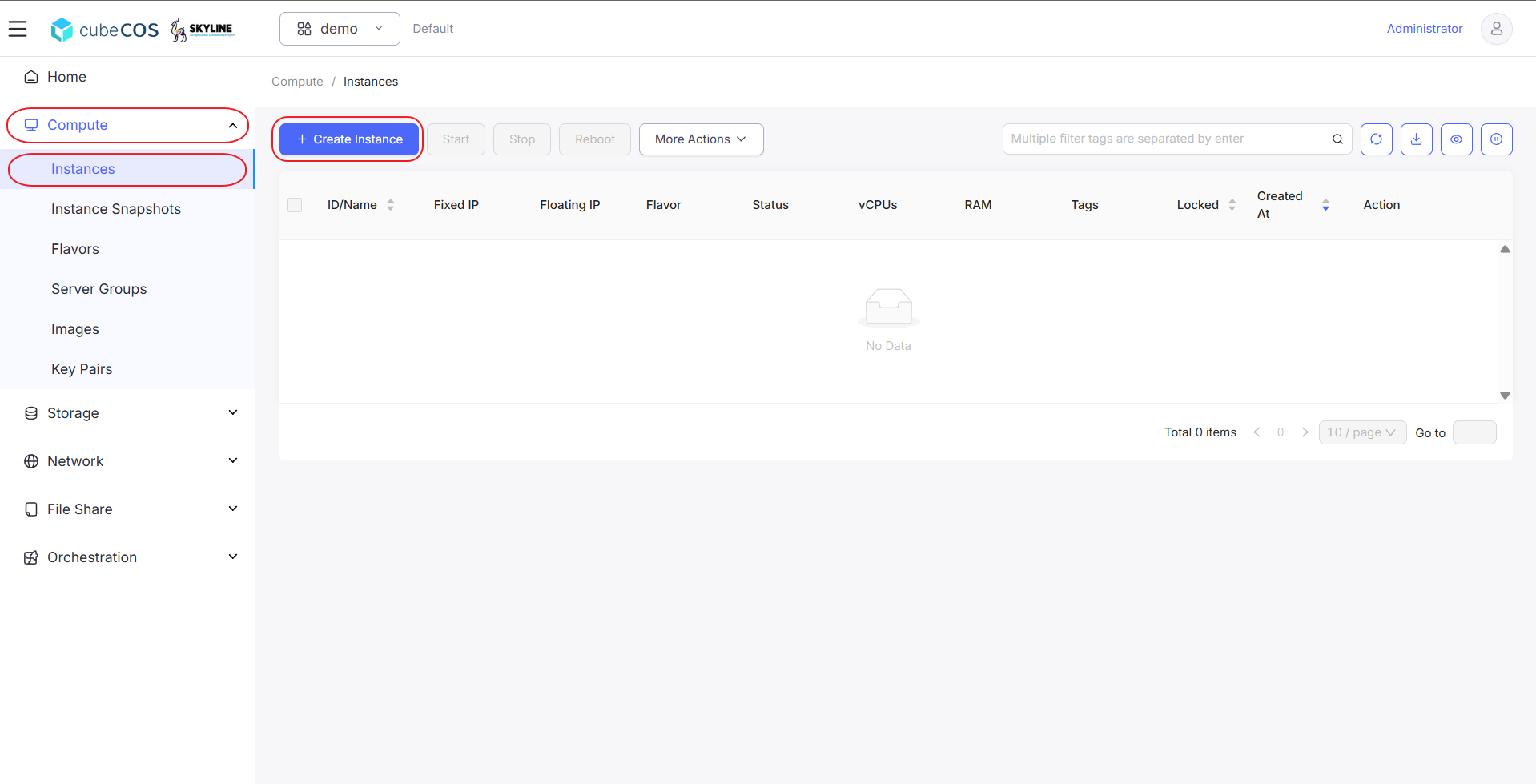
1.  Navigate to `Project > Compute > Instances` > `+ CREATE INSTANCE`

    ![/assets/compute/create_ins_1.png](/assets/compute/create_ins_1.png)

2.  There are four configuration steps to complete before creating instances.

- **Base Config**
- **Network Config**
- **System Config**
- **Confirm Config**

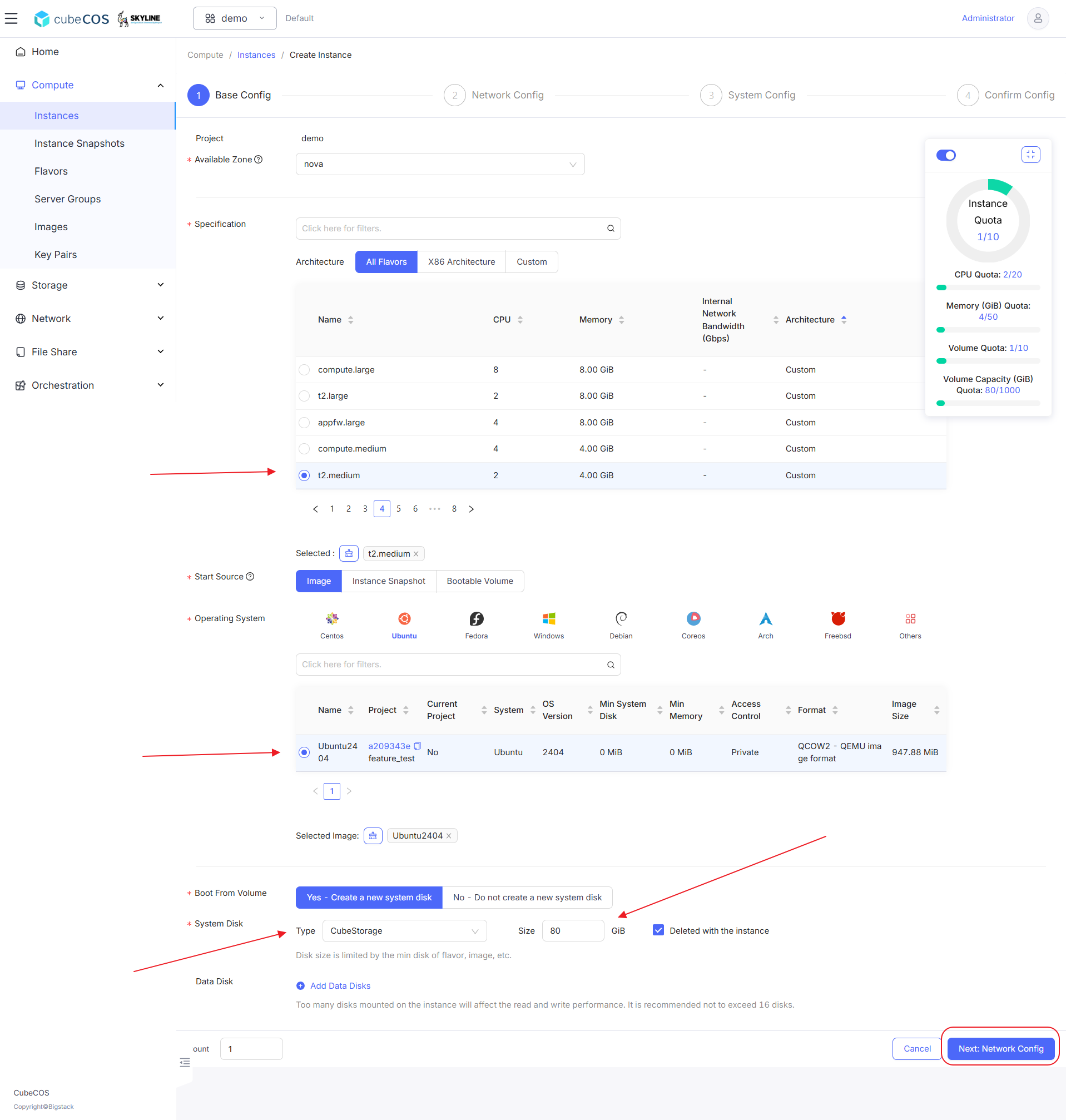
3.  Base Config :
    - **\*Avaiable Zone** : specific zone of the instances.
    - **\*Specification** : define flavor of the instances usage.
    - **\*Start Source** :
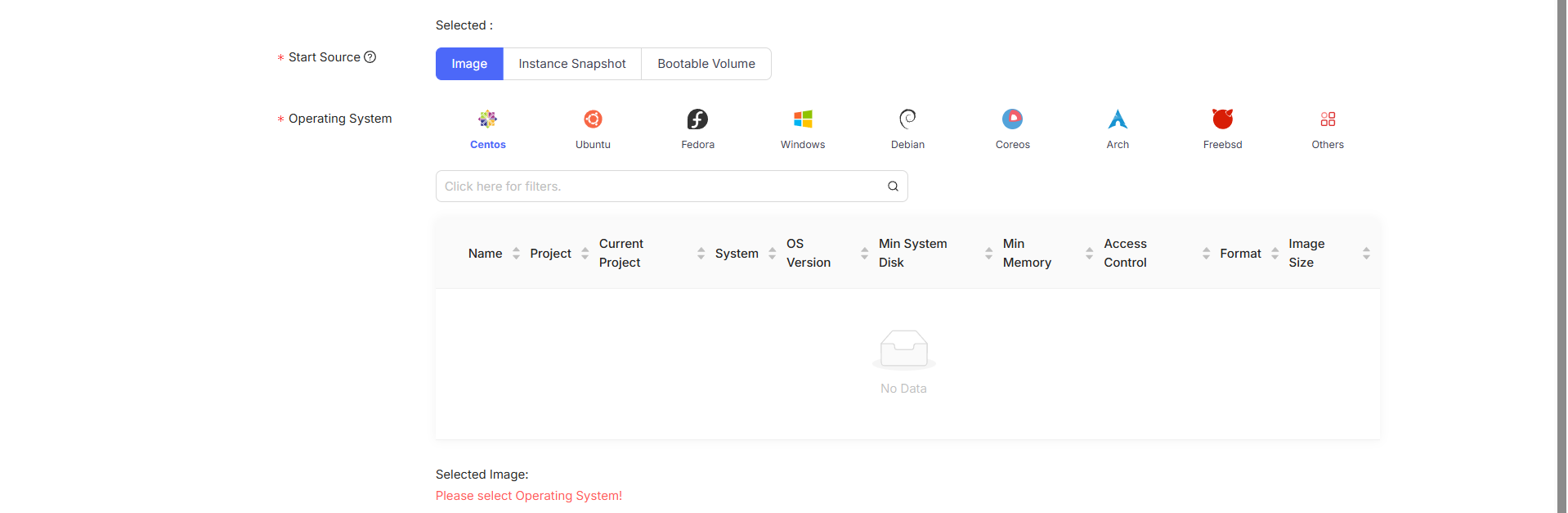
      - **\*Image** : build instance base on bootable image import into CubeCOS. Use this as default for following instuction.

        _Following attributes_ :

        **\*Operating System**: Images are categorized by their OS type and version. Note that images imported via `CLI` will be placed under the `Others` category by default, but you can reassign their category from the `Images` section. See **[Import image(CLI)](images/import-images-via-cli.md)** for more.

      ![/assets/compute/create_ins_1-1.png](/assets/compute/create_ins_1-1.png)
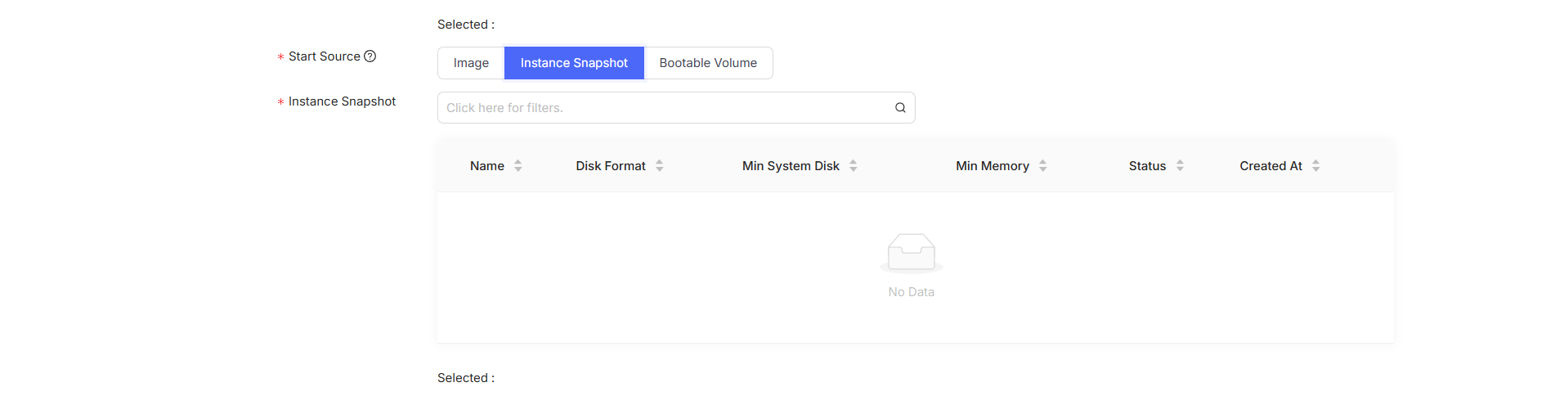
      - **\*Instance Snapshot**: Create instances based on snapshots of other instances. See **[Instance Snapshot](instance_snapshot.md)** for more

        _Following attributes_ :

        **\*Instance Snapshot** : A list of previously created snapshots.

      ![/assets/compute/create_ins_1-2.png](/assets/compute/create_ins_1-2.png)
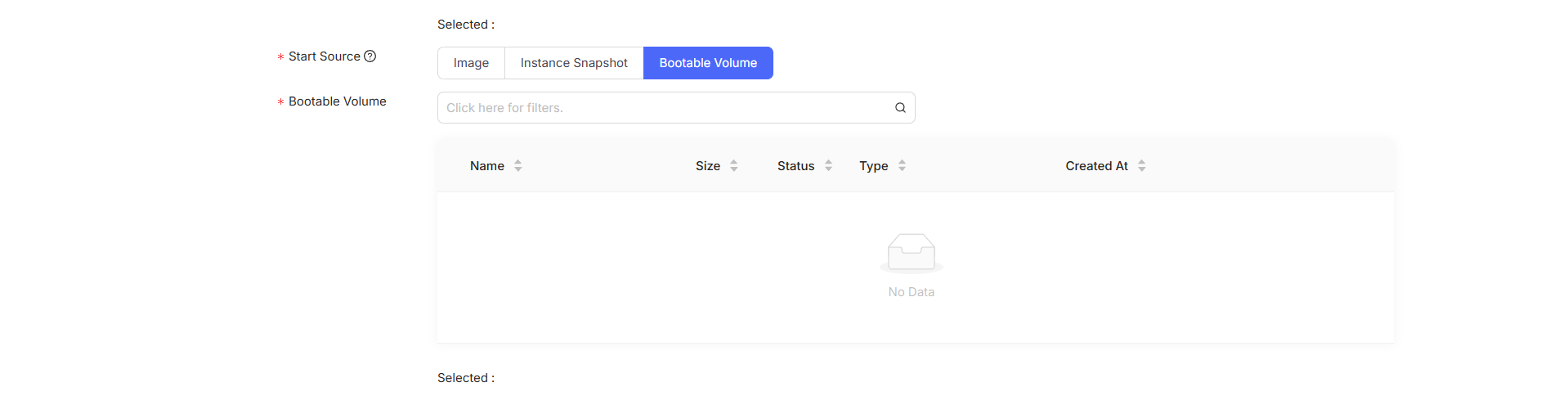
      - **\*Bootable Volume** : Create instances from bootable volumes. These volumes can be mounted from instance snapshots or other sources such as VMware or Hyper-V. To learn more about migrating images from other hypervisors, see [Import virtual disk images from another hypervisor](images/import-images#import-virtual-disk-images-from-another-hypervisor)

        _Following attributes_ :

        **\*Bootable Volume**: A list of previously created bootable volumes.

      ![/assets/compute/create_ins_1-3.png](/assets/compute/create_ins_1-3.png)

    - **Example setting of selecting Image for Start Source :**

      ![/assets/compute/create_ins_2.png](/assets/compute/create_ins_2.png)

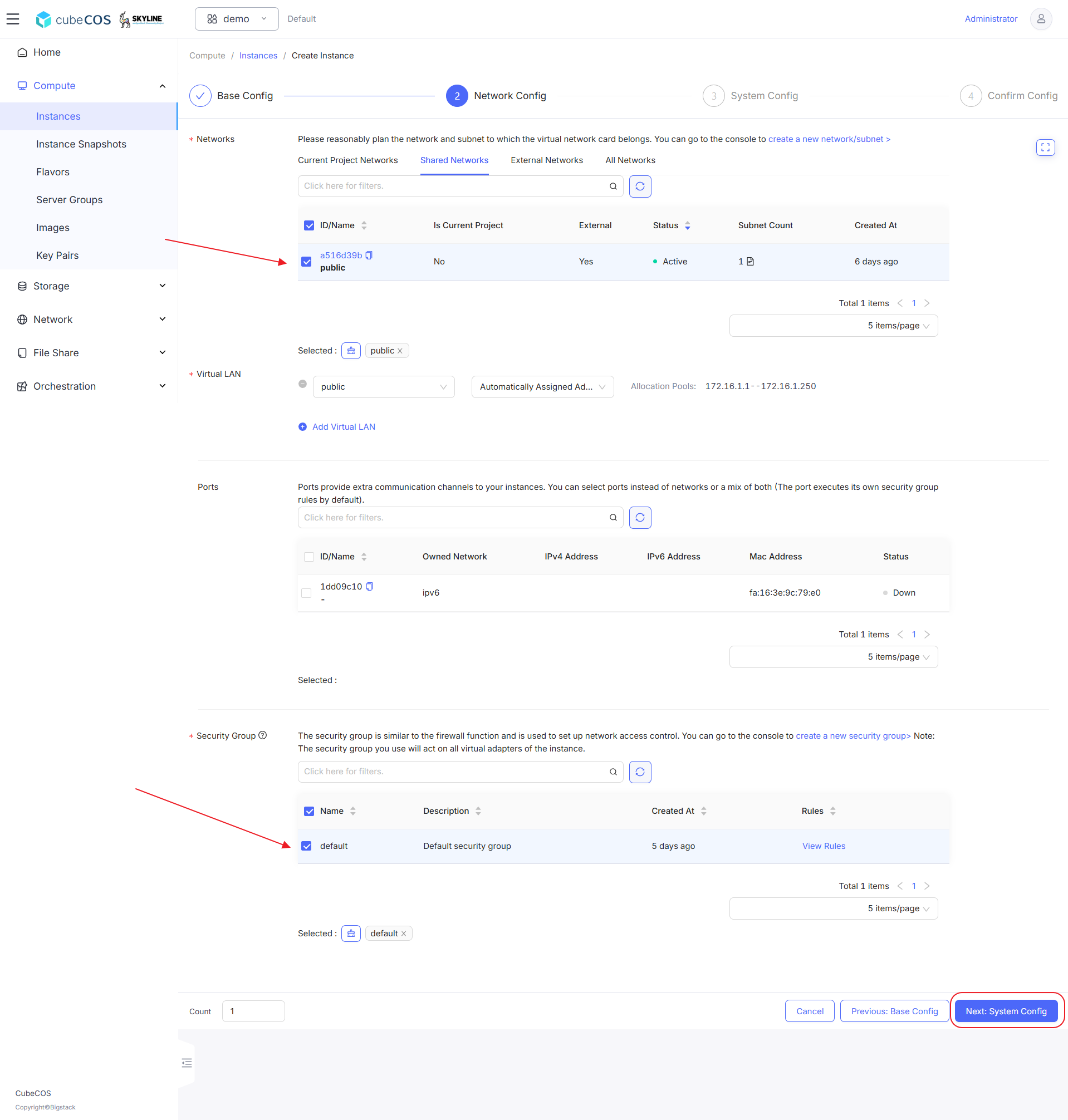
4.  Network Config :
    - **\*Networks** : Select the desired network interfaces and subnets for the instances.

    - **\*Virtual LAN** : IP addresses can be manually assigned, automatically assigned, or allocated as floating IPs after the instance is created.
    - **Ports** : Provide extra communication channels to instances.
    - **\*Security Group** : Set up network access control to instances. See **[Security Groups](../network/security_group.md)** for more.

    - **Example setting of Network Config :**

      ![/assets/compute/create_ins_3.png](/assets/compute/create_ins_3.png)

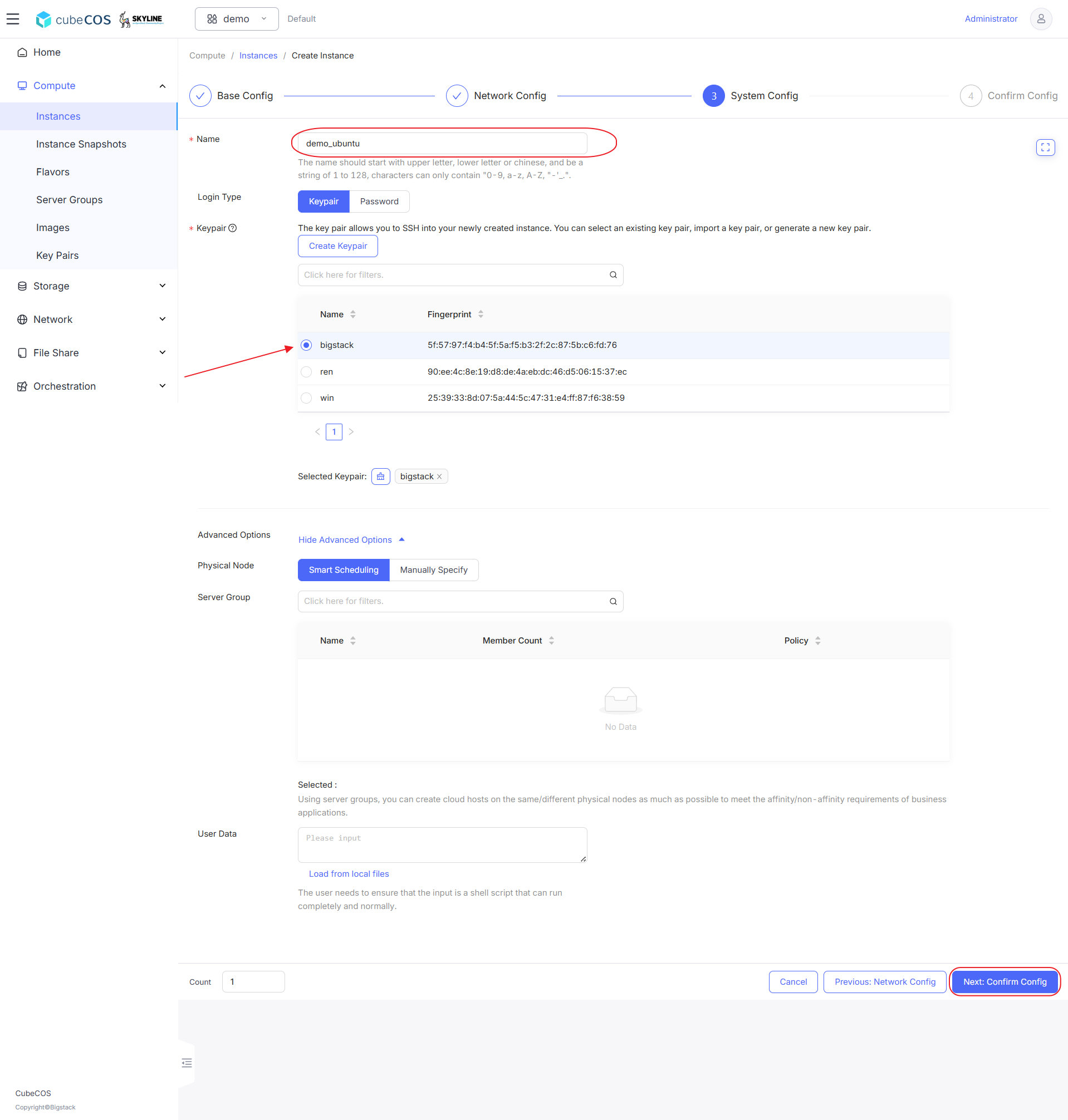
5.  System Config :
    - **\*Name** : Input the desired instance name.
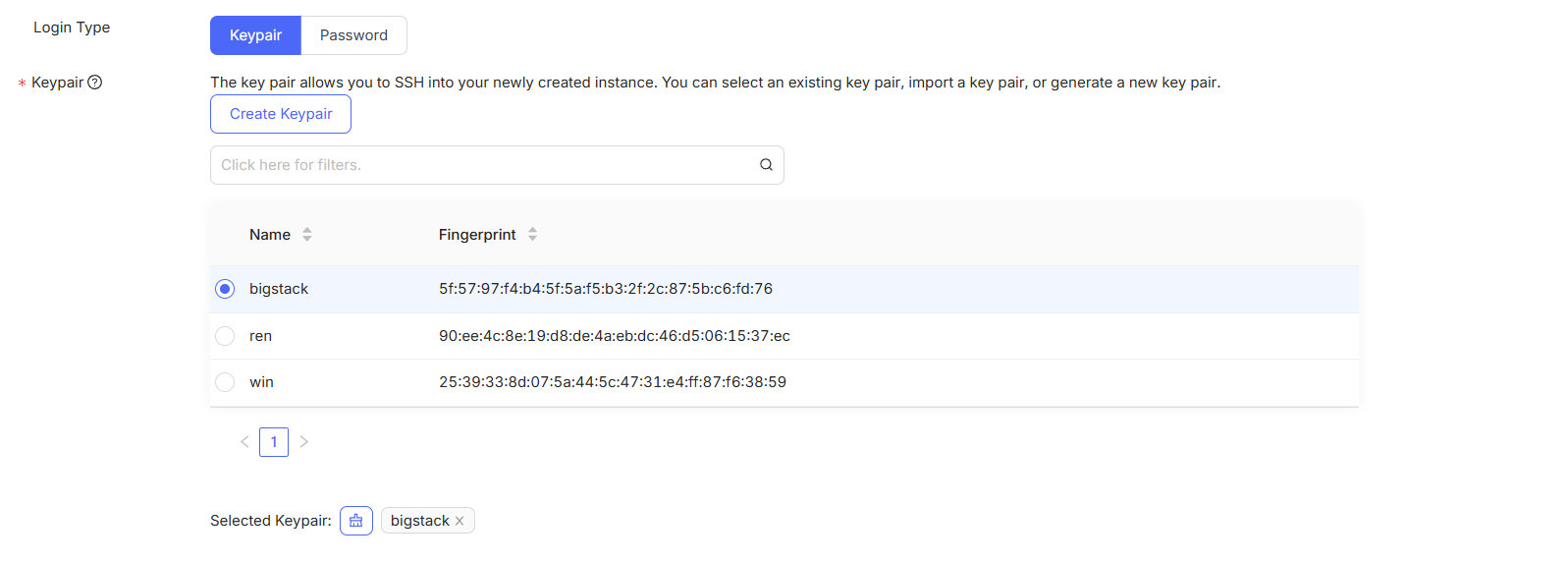
    - **\*Login Type** :
      - **\*Keypair** : Log in to instances using a key pair. Key pairs can be created directly or through the `Key Pairs` feature. See **[Create Keypairs](create_keypair.md)** for more info.

        ![/assets/compute/create_ins_4-1.png](/assets/compute/create_ins_4-1.png)

      - **\*Password** : Login Name is binding with `OS Admin` attribute of Image

        ![/assets/compute/create_ins_4-2.png](/assets/compute/create_ins_4-2.png)

    - **Example setting of selecting Keypair for Login Type :**

      ![/assets/compute/create_ins_4.png](/assets/compute/create_ins_4.png)

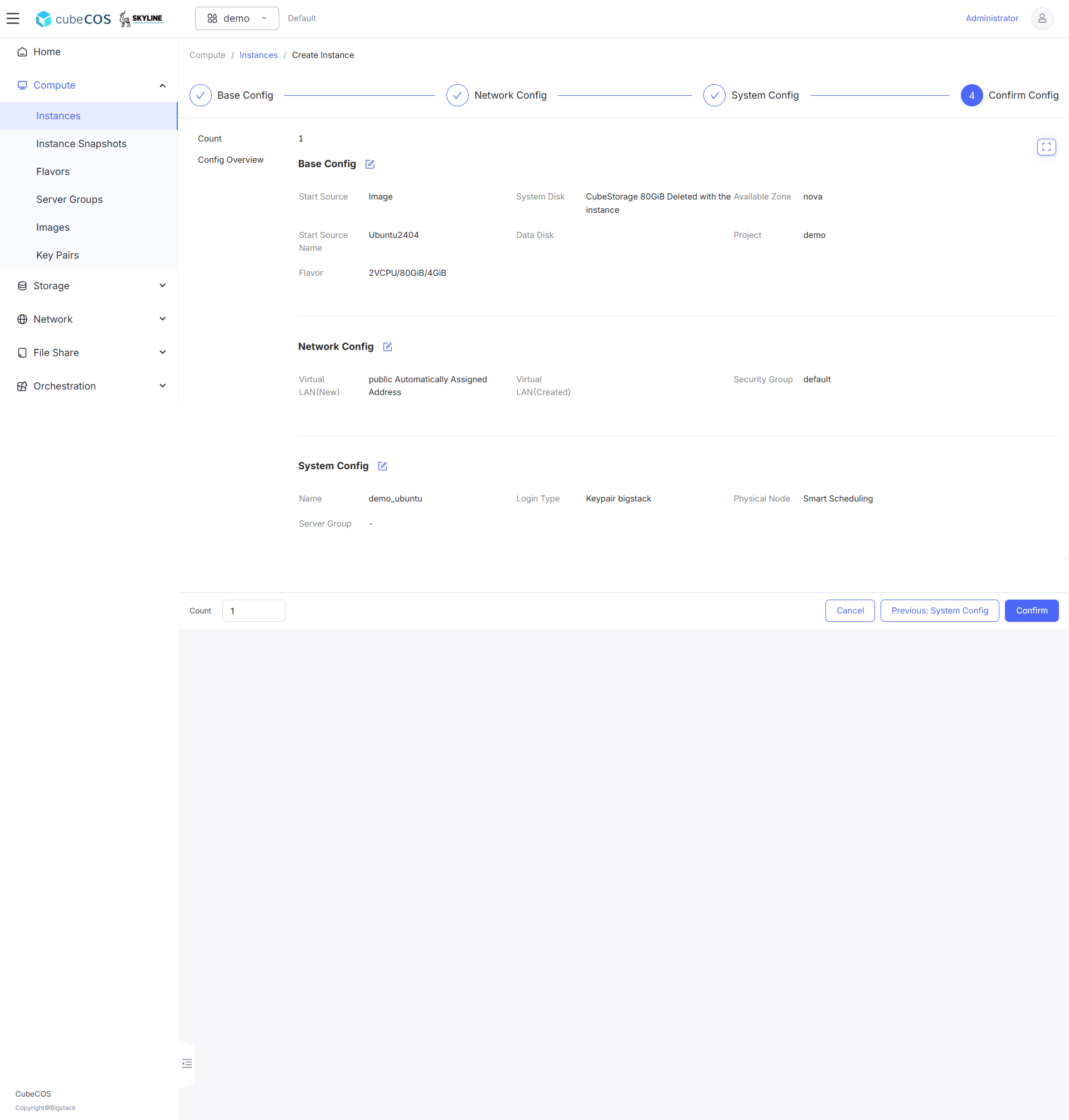
6.  Confirm Config :

    Confirm settings of current instances before starting instances launch by clicking `Confirm` button. You can modify this step by clicking `Previous : [Step]` button.

    ![/assets/compute/create_ins_5.png](/assets/compute/create_ins_5.png)

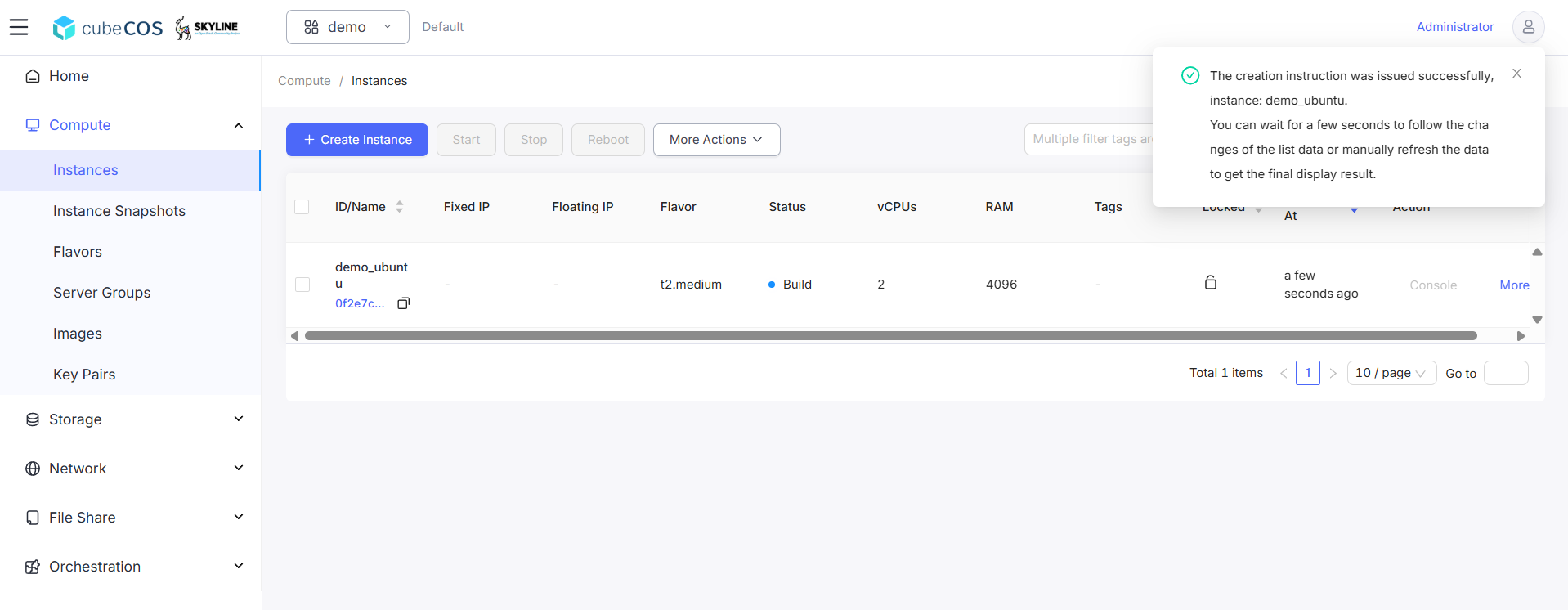
7.  Launch the instance, wait until the instance status changes to `Active`.

    ![/assets/compute/create_ins_6.png](/assets/compute/create_ins_6.png)