# Navigate to the CubeCOS administrator view to manage cluster resources

> Learn how to switch between project-level and administrator views in the management onsole, including how to access and exit the administrator view.

By default, the console displays the management view by project.

To access the administrator view, ensure your account has administrator privileges (the default admin account includes this access).

## Enter the administrator view {#enter-the-administrator-view}

1. Log into the CubeCOS management interface at `https://<your-cluster-ip-address>`.

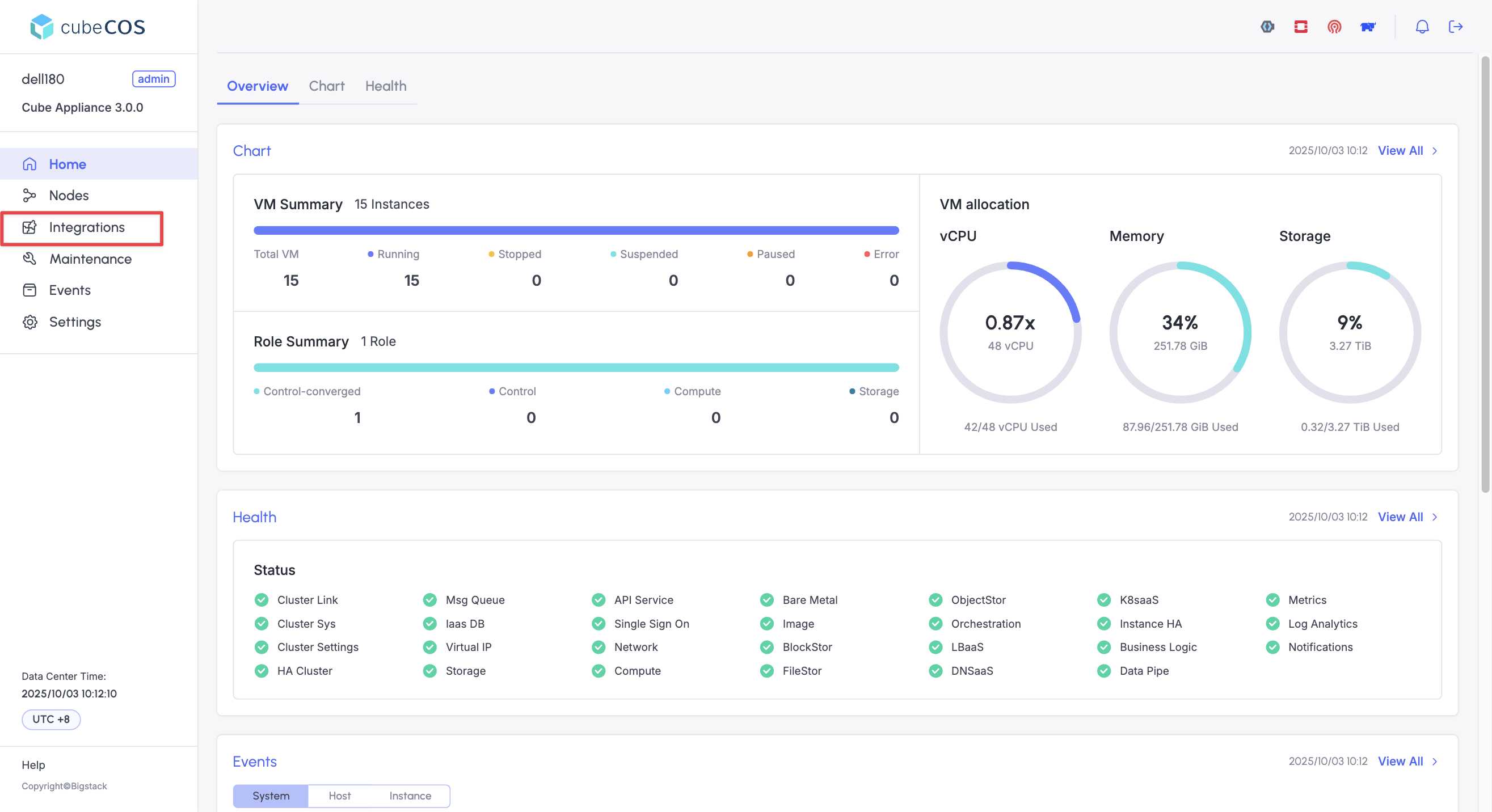
2. Navigate to `Integration > OpenStack` to enter OpenStack management.

   ![/assets/identity/admin-identity-home-page-1.png](/assets/identity/admin-identity-home-page-1.png)

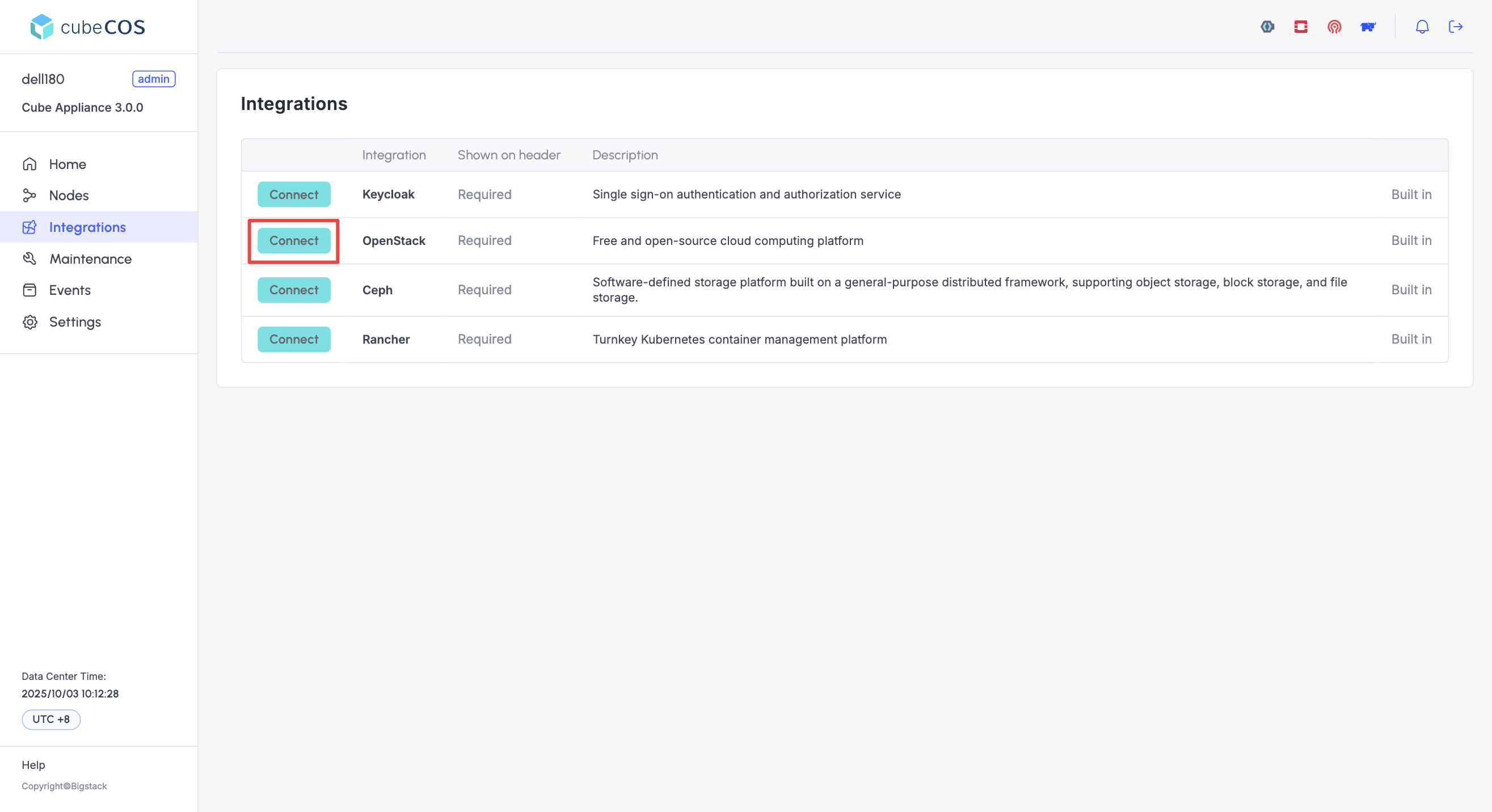
3. Click on `Connect` for the OpenStack integration.

   ![/assets/identity/admin-identity-integration-nav-2.png](/assets/identity/admin-identity-integration-nav-2.png)

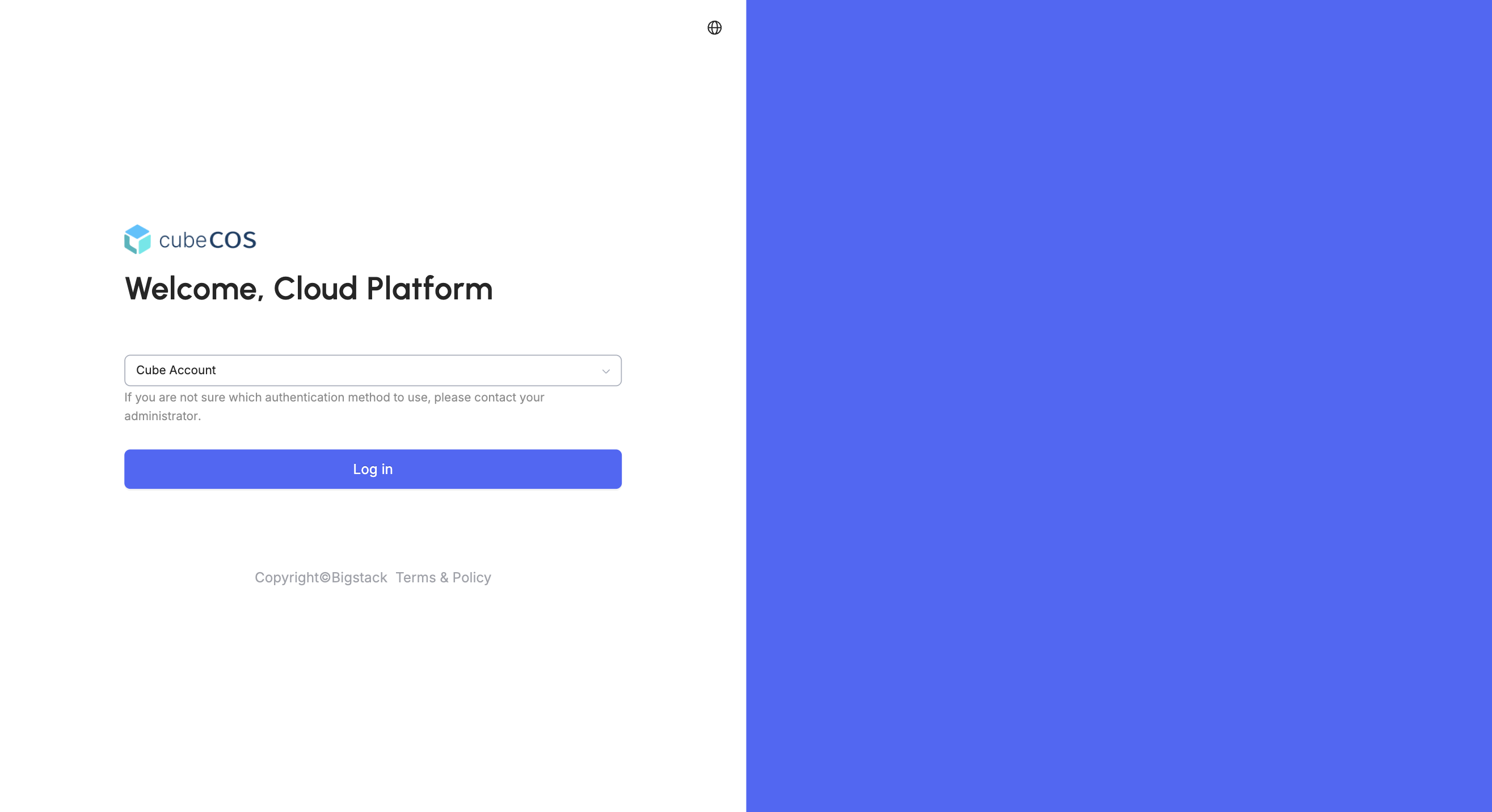
4. A new management interface will open in a new tab, click on `Login` when prompted.

   ![/assets/identity/admin-identity-login.png](/assets/identity/admin-identity-login.png)

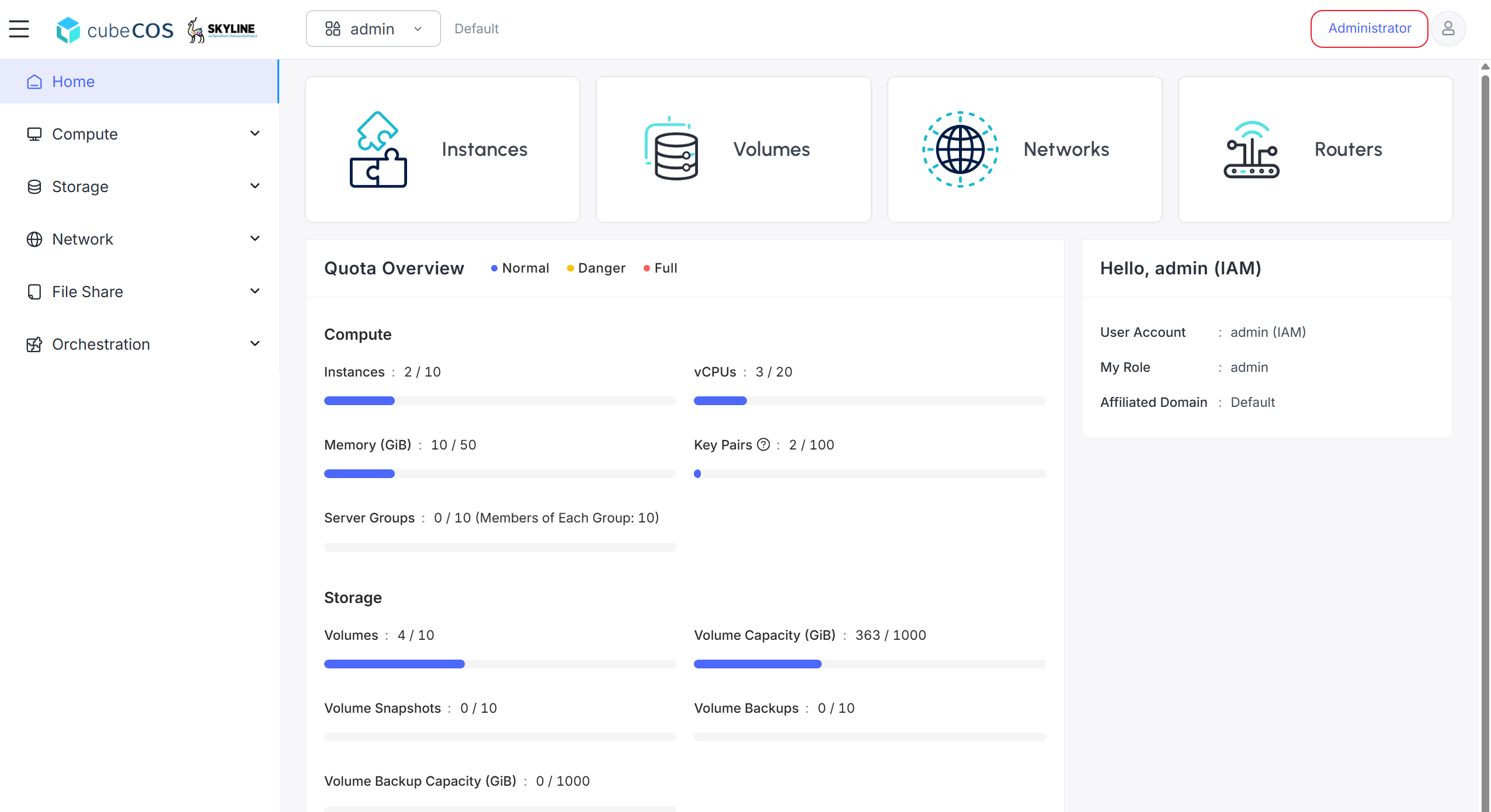
5. Click `Administrator` in the top-right corner of the console to switch to the administrative panel.

   ![/assets/identity/administration_1.png](/assets/identity/administration_1.png)

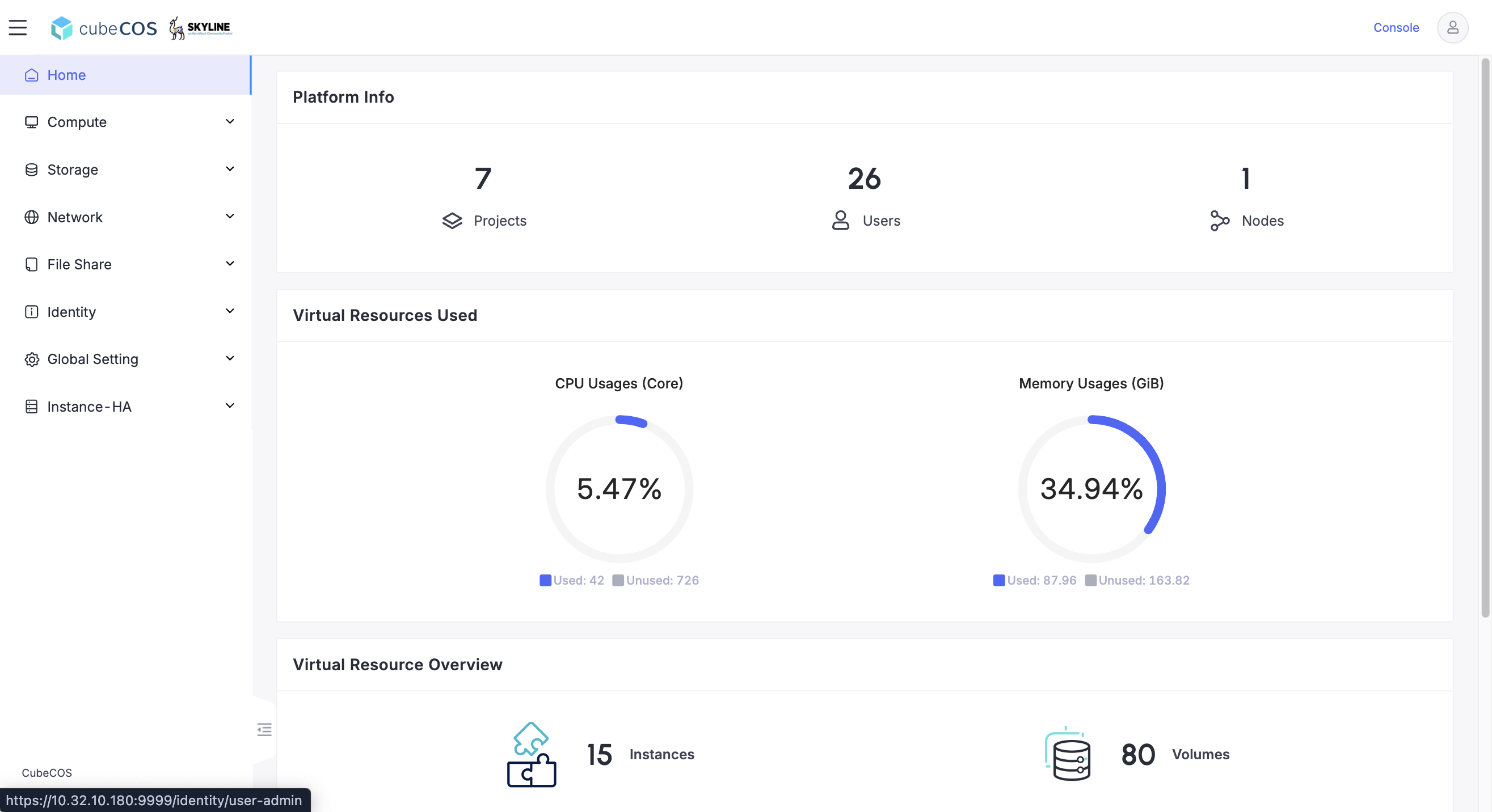
6. Verify that the top right toggle now displays `Console`. Administrative panel provides additional configuraiton options, such as:
   - Identity: Manage projects, groups, users, and user permissions.
   - Global Setting: Global cluster configuration for core services and metadata definitions.
   - Instance-HA: Additional configurations available for cluster high availability configuration.

   ![/assets/identity/admin-entered-administrative-view.png](/assets/identity/admin-entered-administrative-view.png)

## Exit the administrator view {#exit-the-administrator-view}

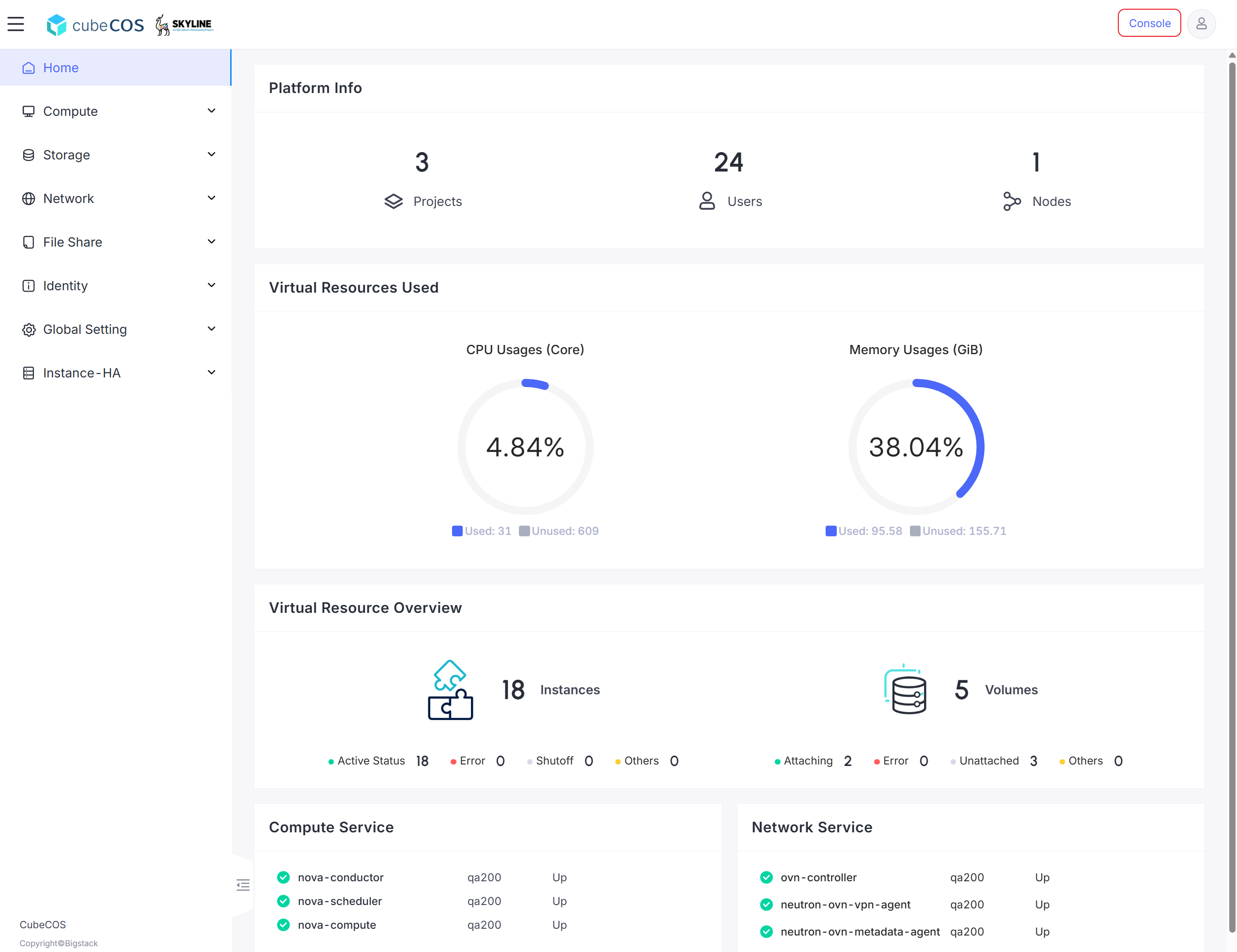
1. Click `Console` on the top right to exit administrative panel.

   ![/assets/identity/administration_2.png](/assets/identity/administration_2.png)