テナント共有を作成する
USBストレージデバイスは、デフォルトでブロックされています。 USBデバイスへのアクセスが必要な場合は、管理者としてログインした後、CLI > tuning > configure を使用して、チューニングオプション cubesys.probeusb を true に設定してください。
共有サーバーを作成し、そのボリュームを同じネットワーク上の他のVMと共有する
タスク前
- manila-service-image_yoga を
/mnt/cephfs/glanceにアップロードしてください - CLI を使用して
import_fsをインポートする
  cc1> iaas image import_fs
  1: usb
  2: local
  Enter index: 2
  1: manila-service-image-yoga.qcow2
  Enter index: 1
  Importing...
  [16:54:04] Converting image to RAW format ...
      (100.00/100%)
  [16:54:07] Creating image manila-service-image ...
  [=============================>] 100%
  669320d1-7b8e-4a7e-85a0-79e5ea54abe6
  [16:54:57] Finished creating image manila-service-image
  Importing  complete. It is safe to remove the local image file.
共有ネットワークを作成する
-
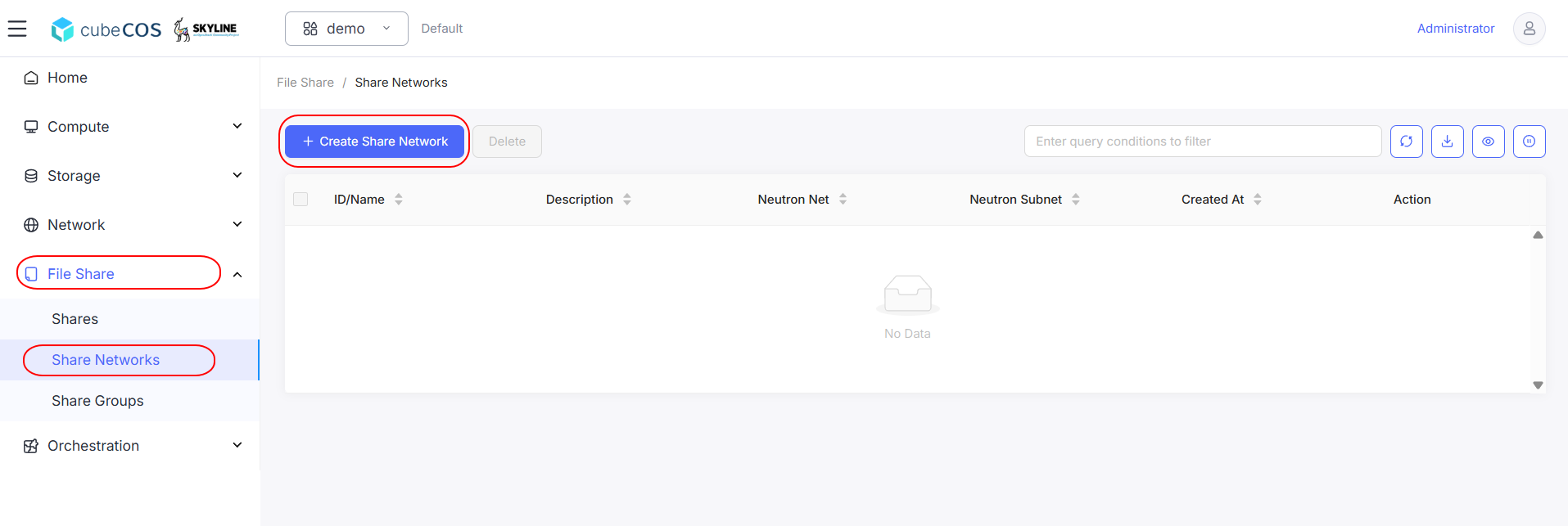
「プロジェクト」>「ファイル共有」>「共有ネットワーク」>「+ 共有ネットワークを作成」の順に選択します。
-
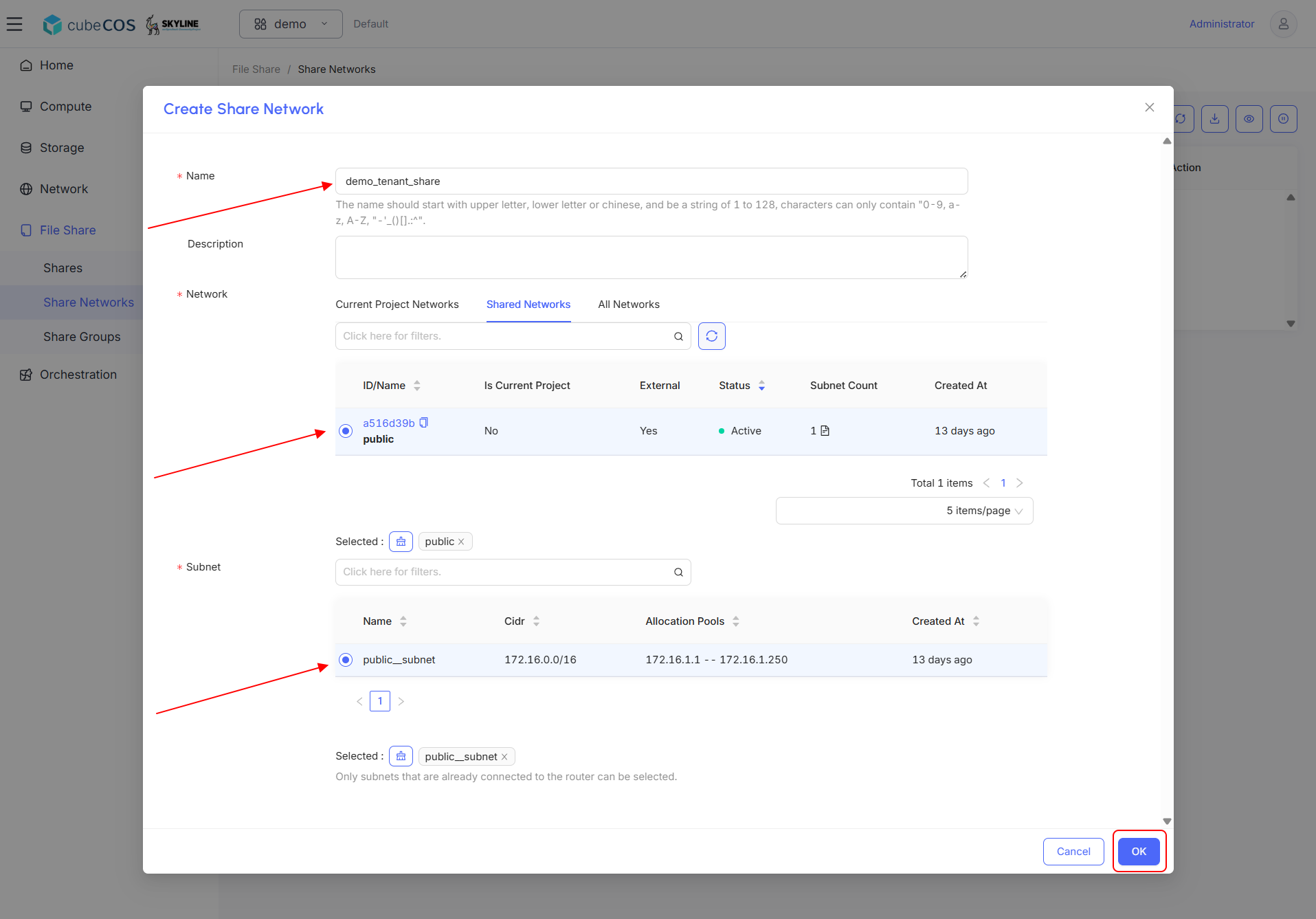
「SHARE NETWORK」に名前を付け、共有するネットワークとサブネットを選択してください。 「OK」をクリックして次に進んでください。
-
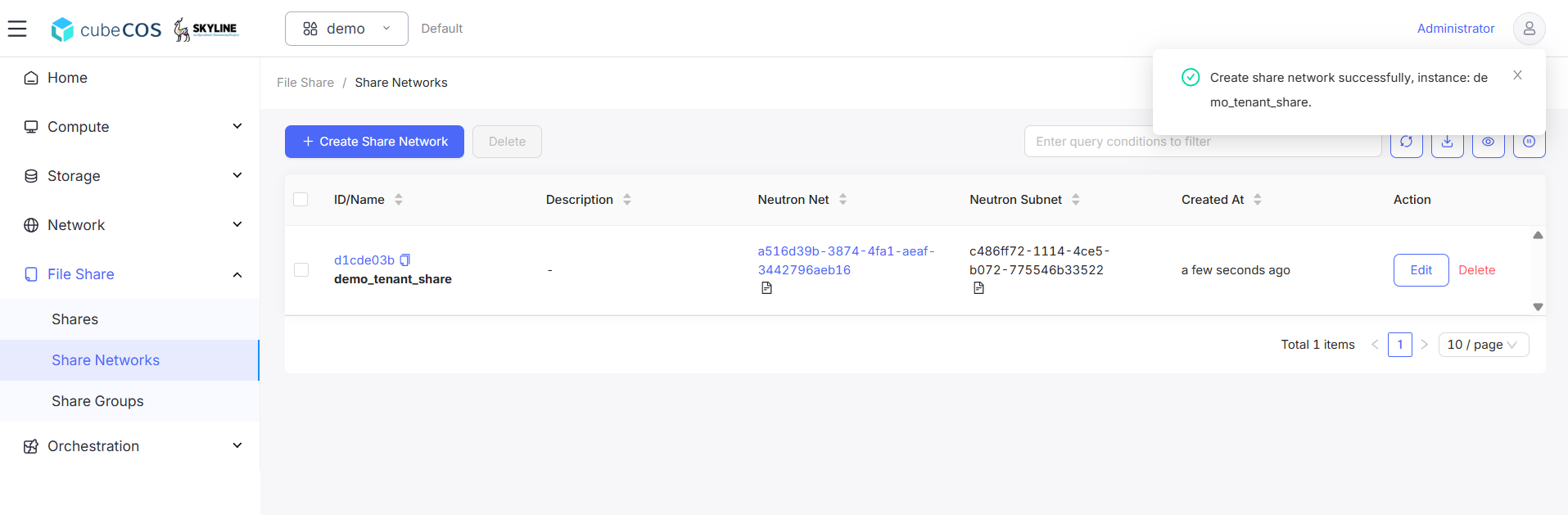
ダッシュボードを確認して、Share Networkを検証してください。
{#create-a-share---tenant-share-type} のテナント共有タイプを使用して共有を作成する
-
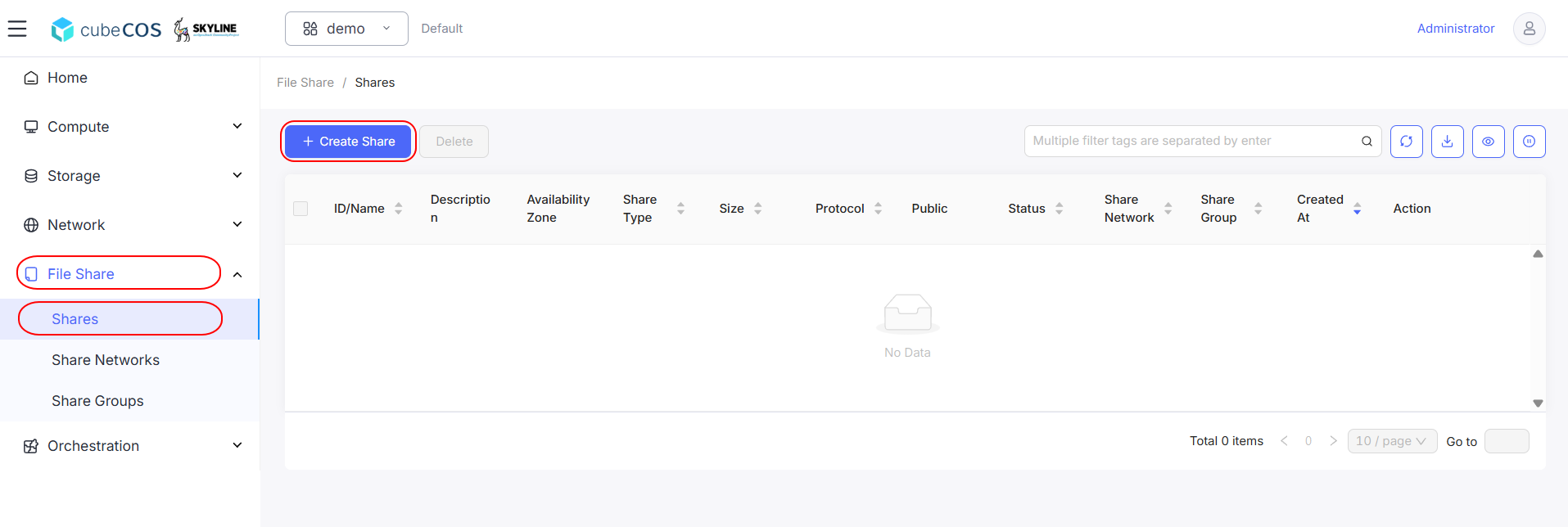
「プロジェクト」>「ファイル共有」>「共有」>「+ 共有を作成」の順に選択します。
-
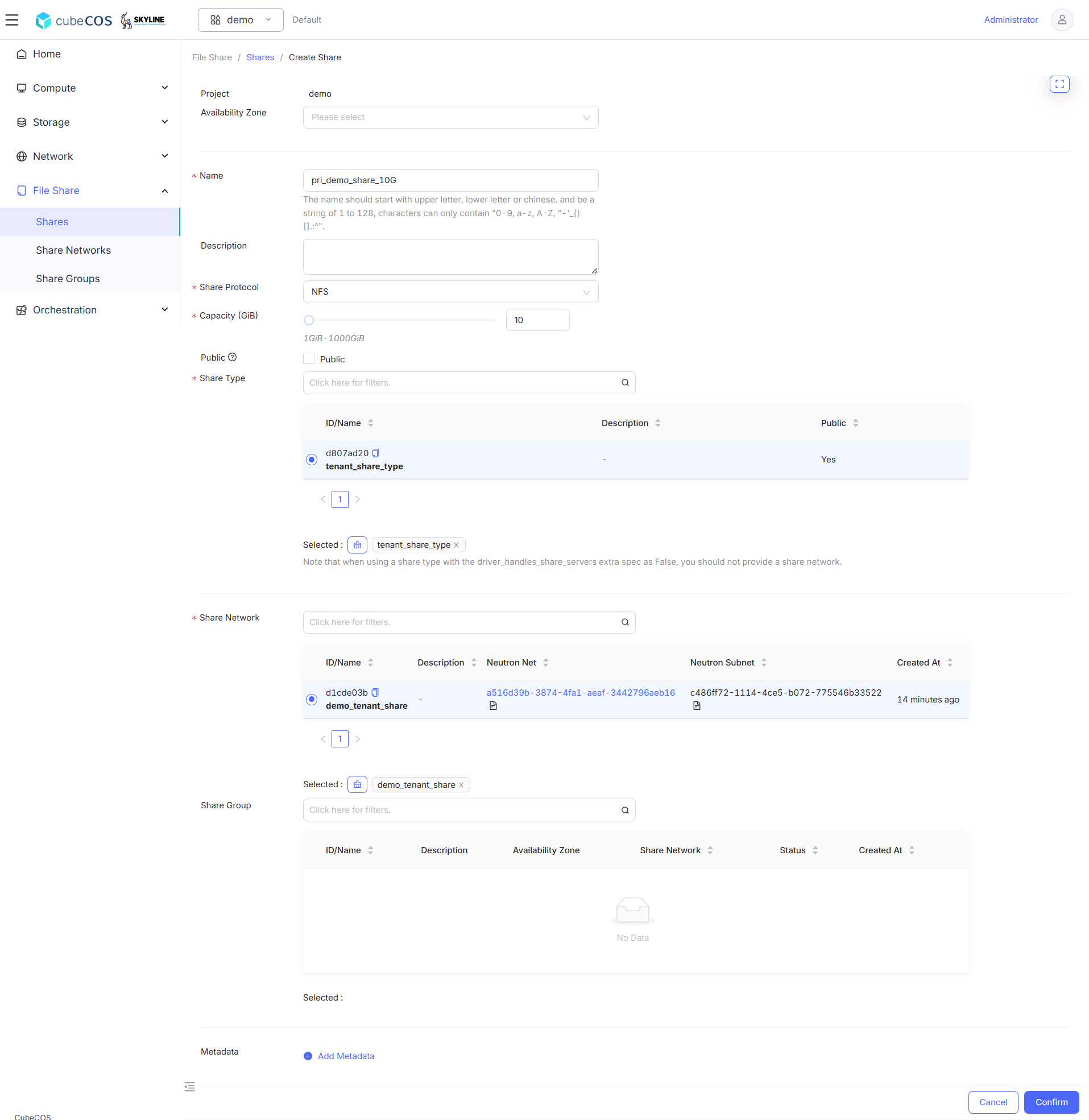
この作成において、以下の項目を入力してください:
-
利用可能なゾーン: 作成するボリュームの利用可能なゾーンを指定します。割り当てる対象が明確でない場合は、「選択しない」を選択してください。「利用可能ゾーン」は必須ではなく、デフォルトでは「なし」に設定されています
-
*名前 : 共有の希望する名前を入力してください。
-
*共有プロトコル: 以下の共有プロトコルがサポートされています
- NFS
- CIFS
-
*容量 (GiB): 共有ボリュームの容量を設定します(GiB単位、最小値は1)。
-
*共有タイプ: tenant_share_type を選択してください。
-
*共有ネットワーク: 上記で作成した共有ネットワークを選択してください。
上記のすべての項目を入力したら、「確認」をクリックして共有の作成を確定してください。
以下のデモでは、共有プロトコルとしてNFSを使用します
-
-
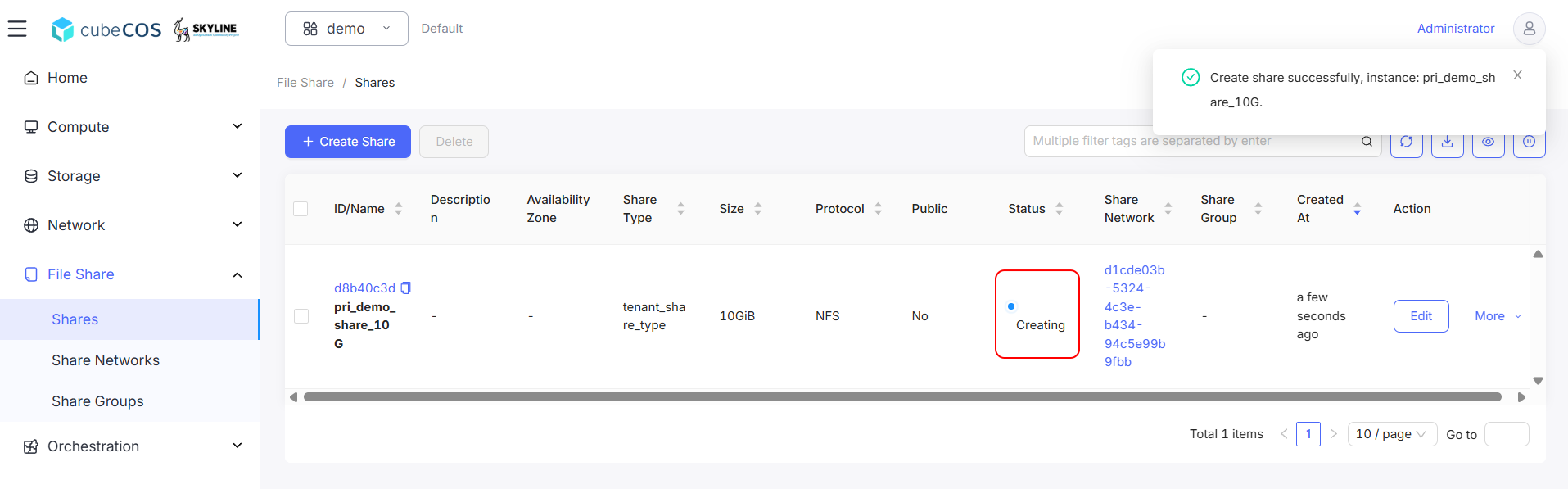
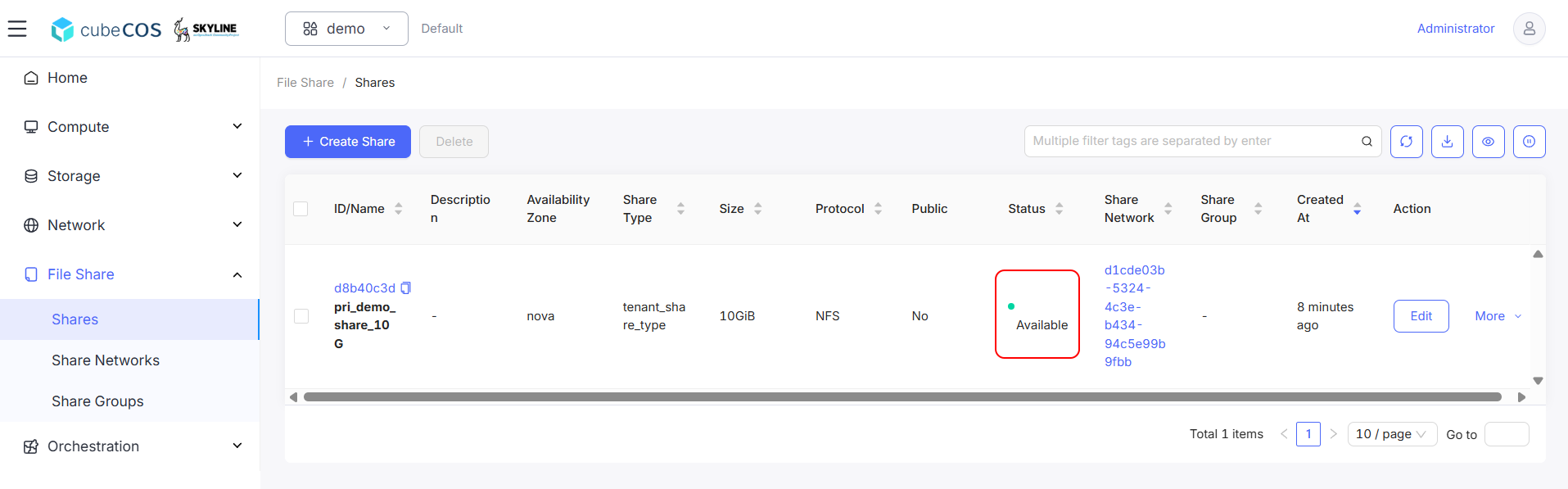
シェアの作成中は、ステータスに「作成中」と表示されます。作成が完了すると、ステータスは「利用可能」に変わります。
ルールの作成
-
上記で作成した共有を選択し、
その他にカーソルを合わせ、ドロップダウンメニューからアクセスルールの管理をクリックします。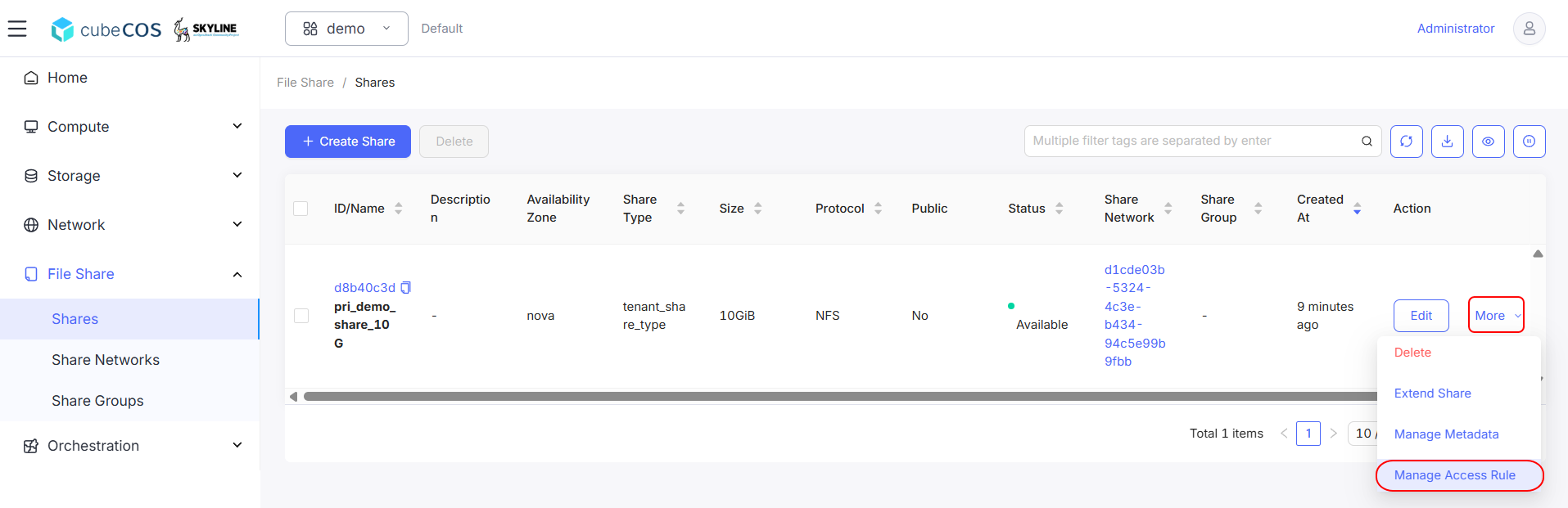
-
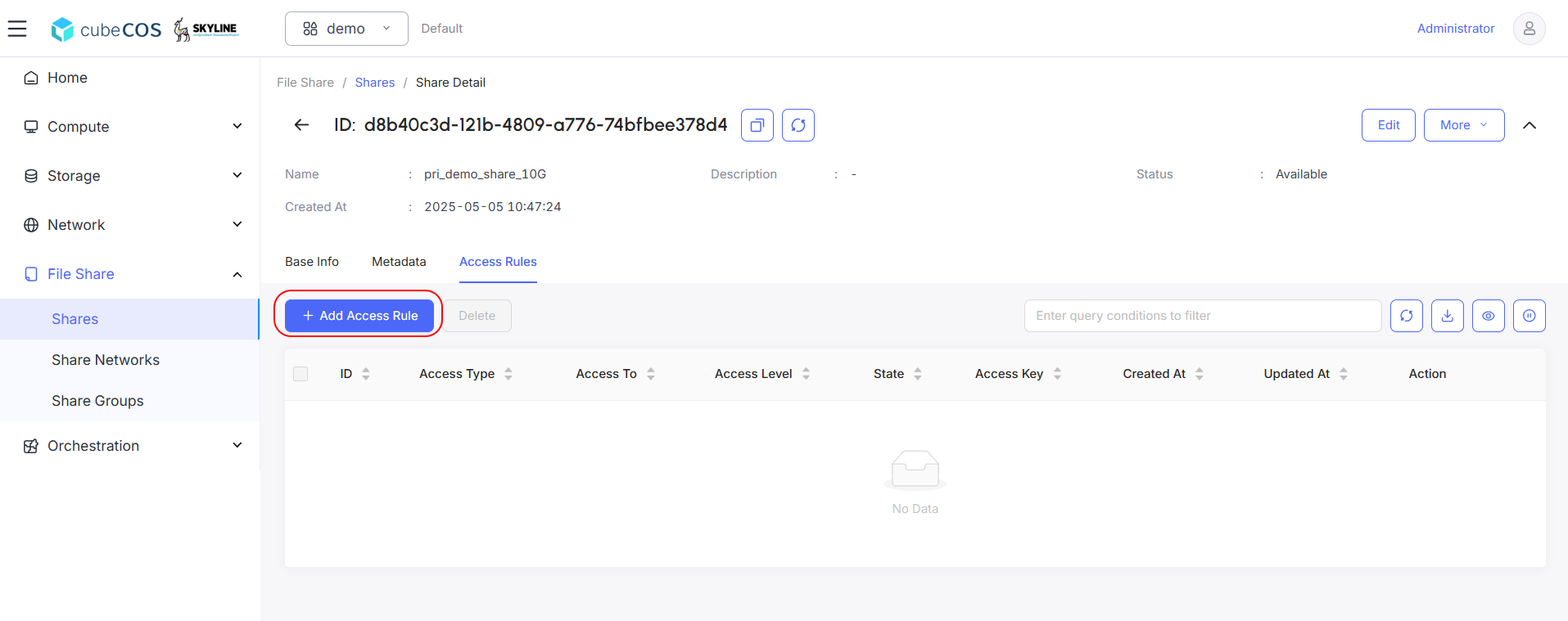
「アクセスルールを追加」をクリックします。
-
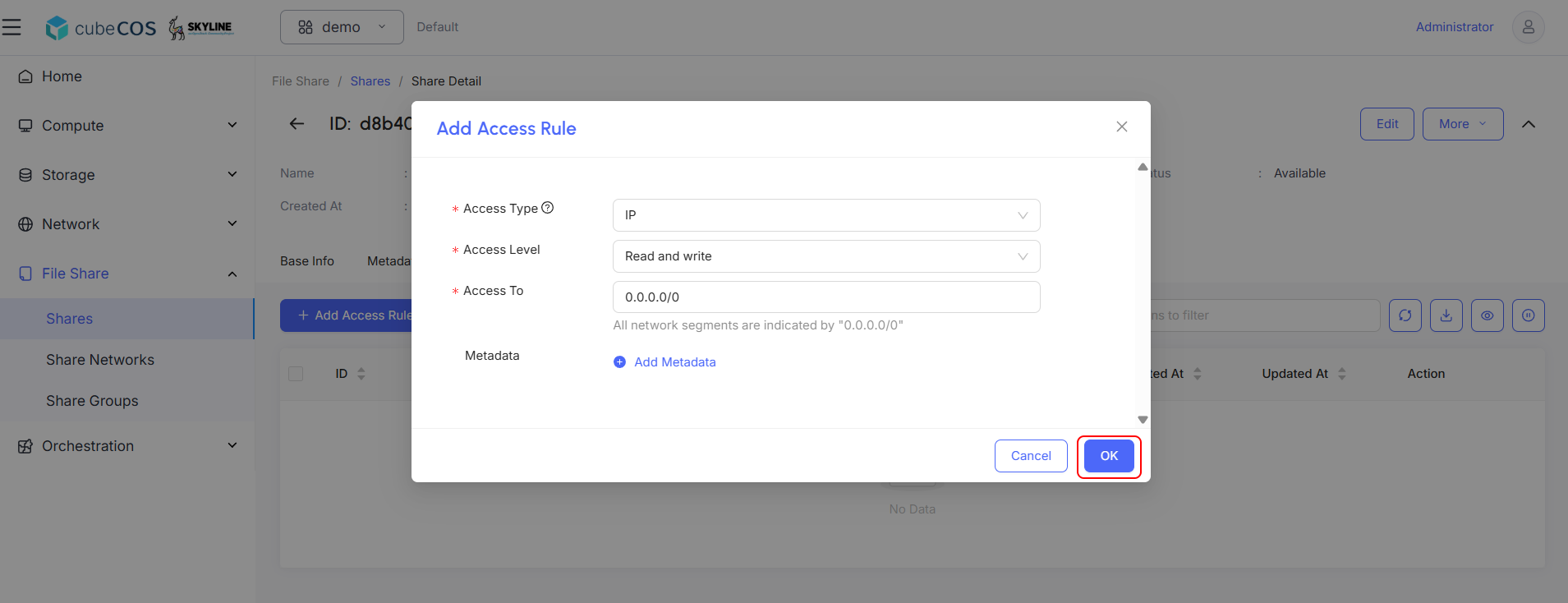
この作成において、以下の項目を入力してください:
-
*アクセス方式:以下の共有プロトコルがサポートされています
- IP:IPアドレスによる認証を行います。
- Cert:TLS証明書を使用してインスタンスの認証を行います。
- ユーザー:指定されたユーザー名またはグループ名で認証を行います。
- Cephx:Cephシステムを通じて認証を行います。
-
*アクセス権限:
読み書きまたは読み取り専用のいずれかを選択してください。 -
*アクセス権: 上記で選択したアクセス権の種類に応じて、この属性を入力する必要があります:
- IP:有効な形式は XX.XX.XX.XX または XX.XX.XX.XX/XX です。たとえば、0.0.0.0/0。
- 証明書:有効な値とは、証明書の共通名(CN)に含まれる、最大64文字までの任意の文字列を指します。
- ユーザー名:特殊文字を含むことができ、4文字から32文字までの英数字の文字列。
- Cephx : Ceph バックエンドによる共有へのアクセスに対して、認証および承認が必要な Ceph 認証 ID を指定します。有効な値は、空欄であってはならず、ASCIIの表示可能文字で構成され、ピリオドを含まないものでなければなりません。
上記のすべての項目を入力したら、「確認」をクリックしてユーザー登録を確定してください。
以下のデモでは、アクセス種別としてIPを使用します
-
-
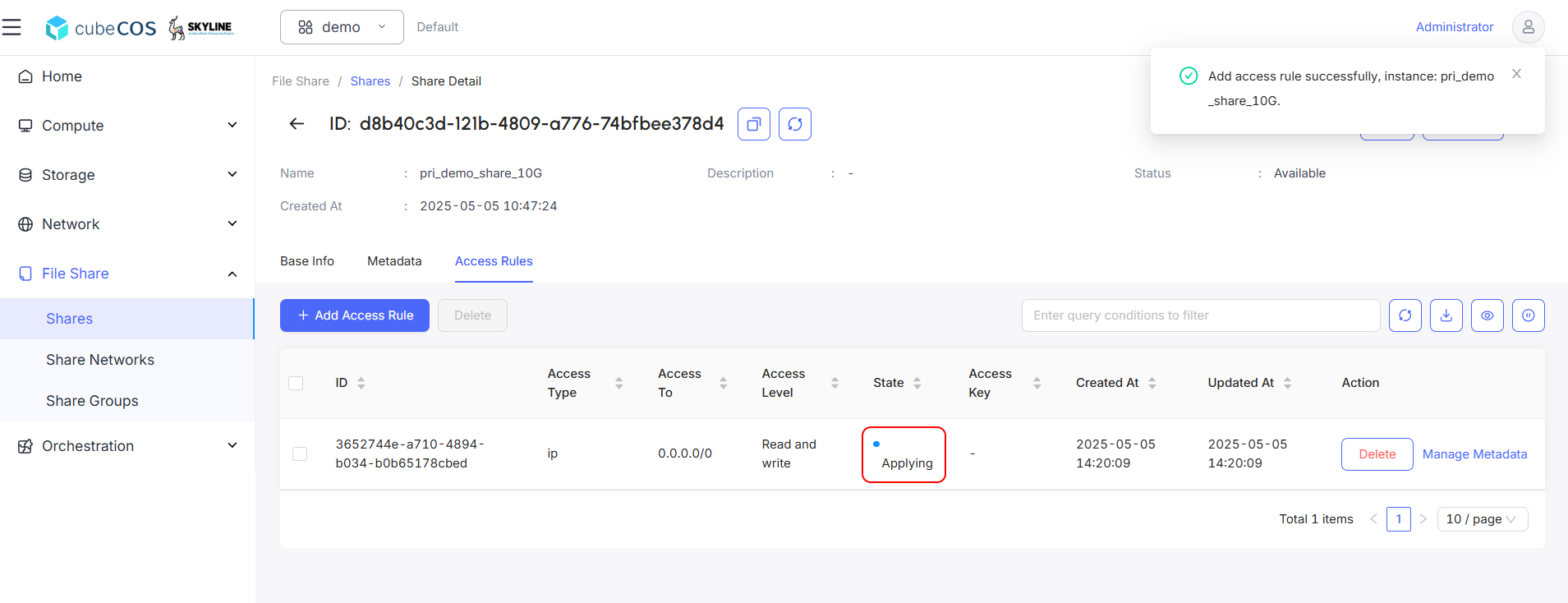
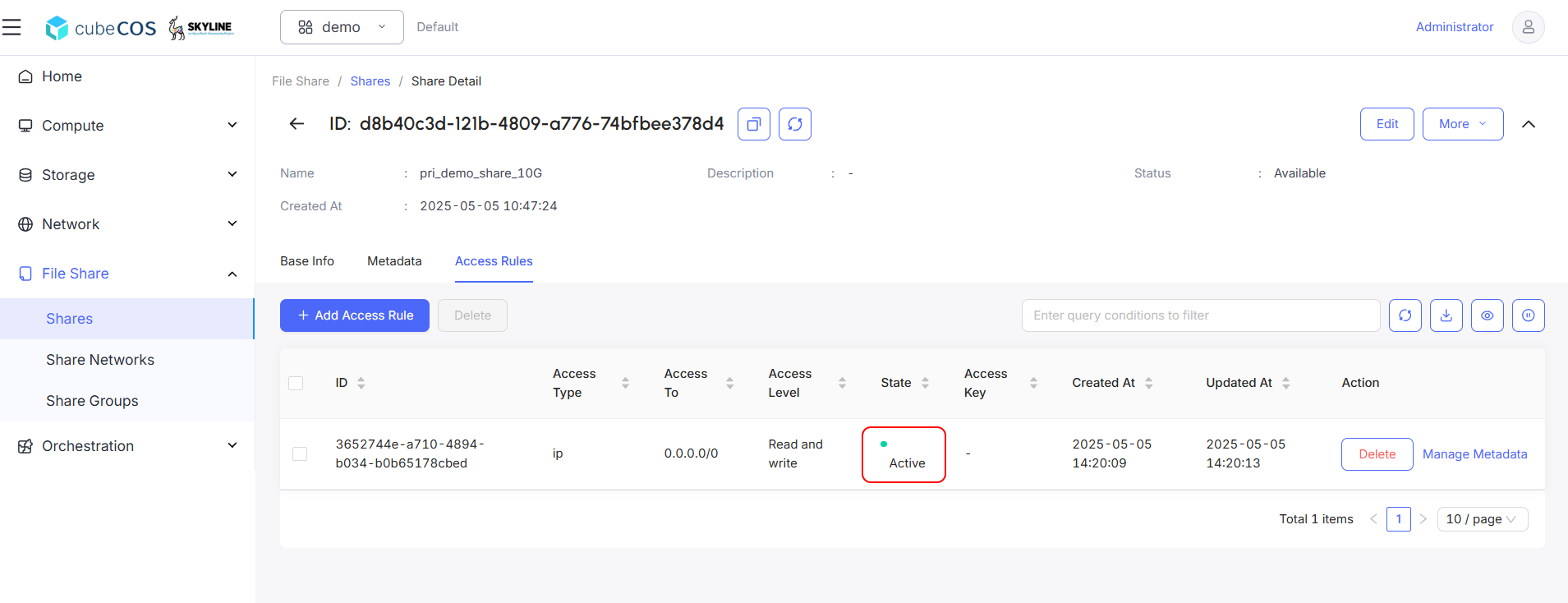
ルールの適用中は、ステータスに「適用中」と表示されます。申請が完了すると、ステータスは「Active」に変わります。
共有リンクを取得する
-
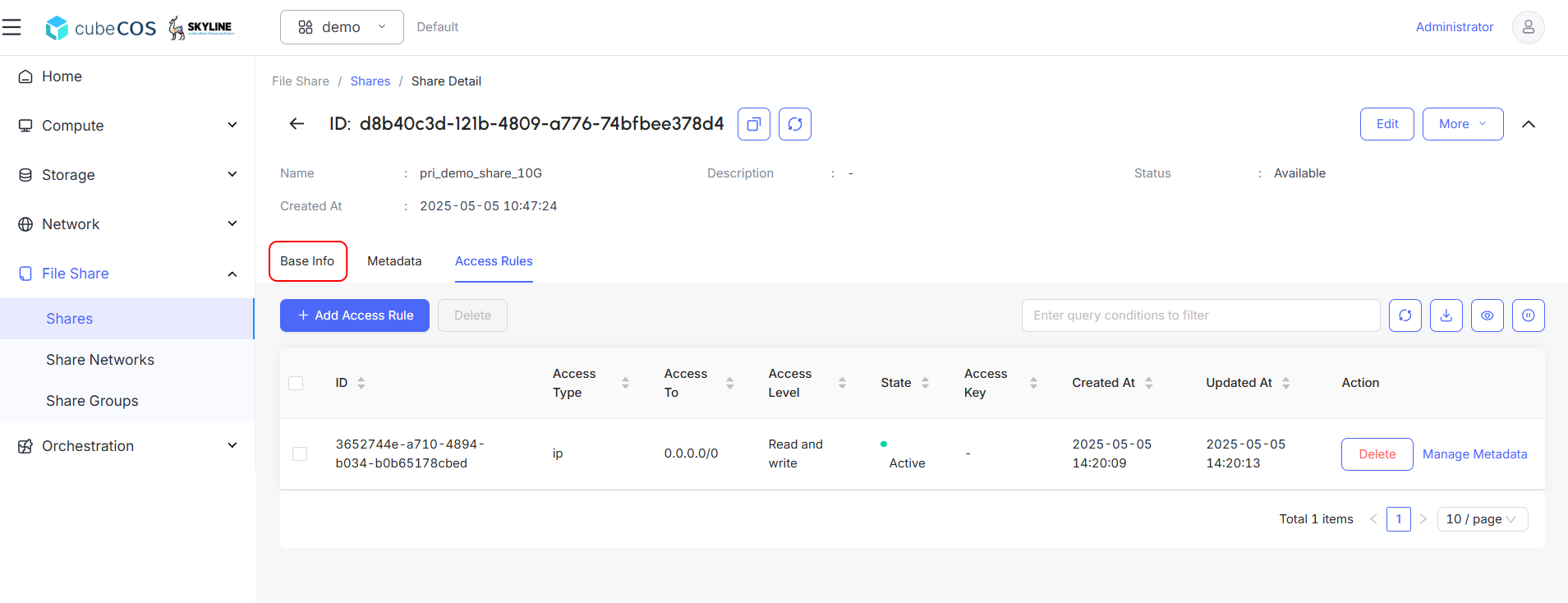
ルールが「有効」になったら、「基本情報」をクリックしてください。
-
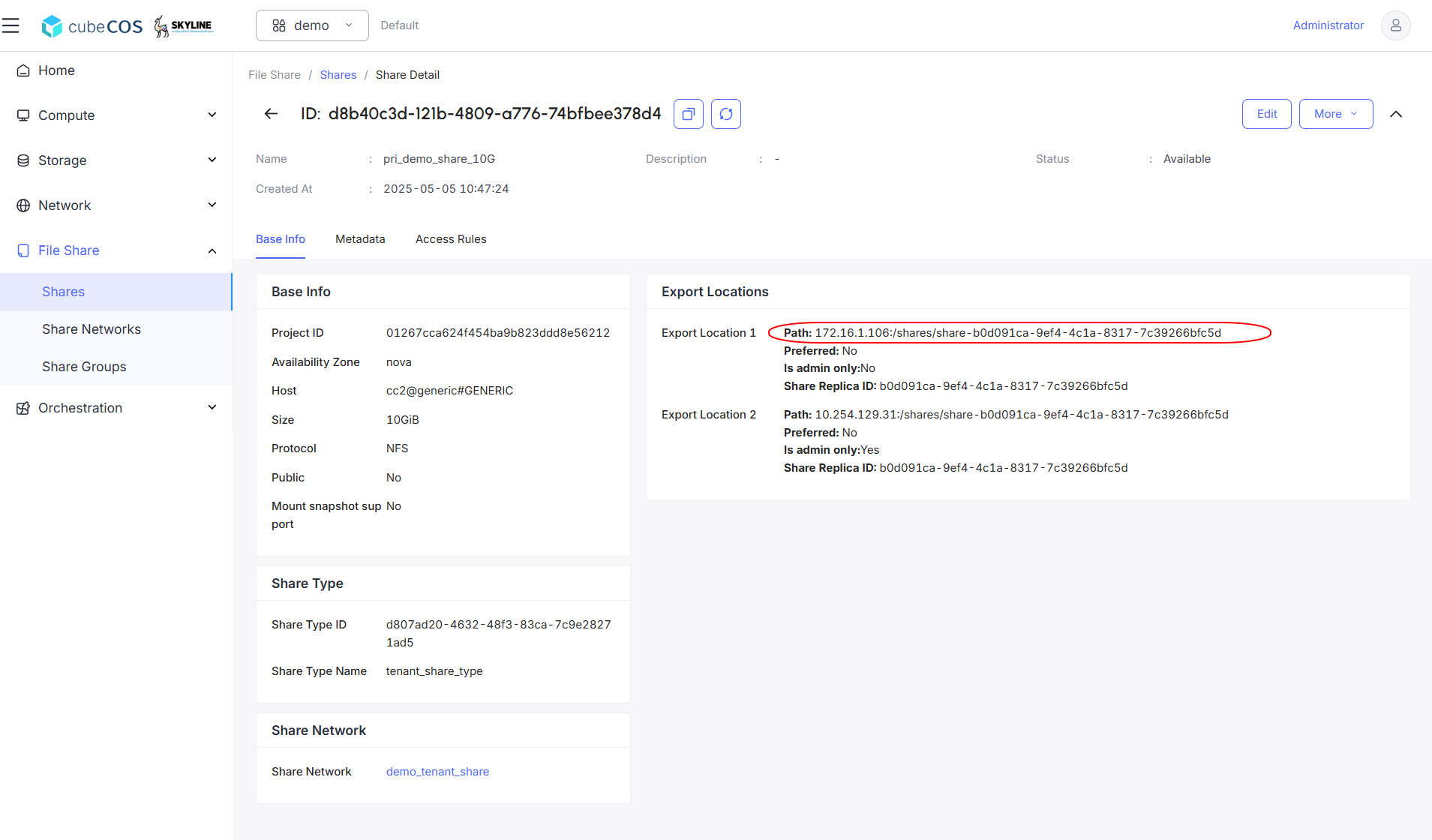
「エクスポート先」属性から「Path」をコピーします。これは、各インスタンスで認識される共有リンクです。
共有領域を仮想マシンにマウントする
- ファイル共有へのアクセスが必要なインスタンスに接続し、マウント用のフォルダを作成します。
ubuntu@demo-ubuntu:~$ mkdir nfs-share
ubuntu@demo-ubuntu:~$ ls
nfs-share
- 作成したフォルダに共有サーバーをマウントします。
ubuntu@demo-ubuntu:~$ sudo mount -t nfs 172.16.1.106:/shares/share-b0d091ca-9ef4-4c1a-8317-7c39266bfc5d nfs-share/
df -hコマンドでマウント状況を確認してください
ubuntu@demo-ubuntu:~$ df -h
Filesystem                                                       Size  Used Avail Use% Mounted on
tmpfs                                                            392M  1.1M  391M   1% /run
/dev/vda1                                                         96G  1.9G   94G   2% /
tmpfs                                                            2.0G     0  2.0G   0% /dev/shm
tmpfs                                                            5.0M     0  5.0M   0% /run/lock
/dev/vda16                                                       881M   61M  758M   8% /boot
/dev/vda15                                                       105M  6.1M   99M   6% /boot/efi
/dev/vdb                                                          20G   24K   19G   1% /mnt/disk20g
tmpfs                                                            392M   12K  392M   1% /run/user/1000
172.16.1.106:/shares/share-b0d091ca-9ef4-4c1a-8317-7c39266bfc5d  9.8G  128K  9.3G   1% /home/ubuntu/nfs-share
- ファイルを作成して、アクセス可能かどうかを確認してください。
ubuntu@demo-ubuntu:~$ ls nfs-share/
lost+found
ubuntu@demo-ubuntu:~$ touch nfs-share/bigstack.co.txt
ubuntu@demo-ubuntu:~$ ls nfs-share/
bigstack.co.txt  lost+found