パブリックコンテナ(バケット)を作成し、ファイルを追加する
バケットを作成する
-
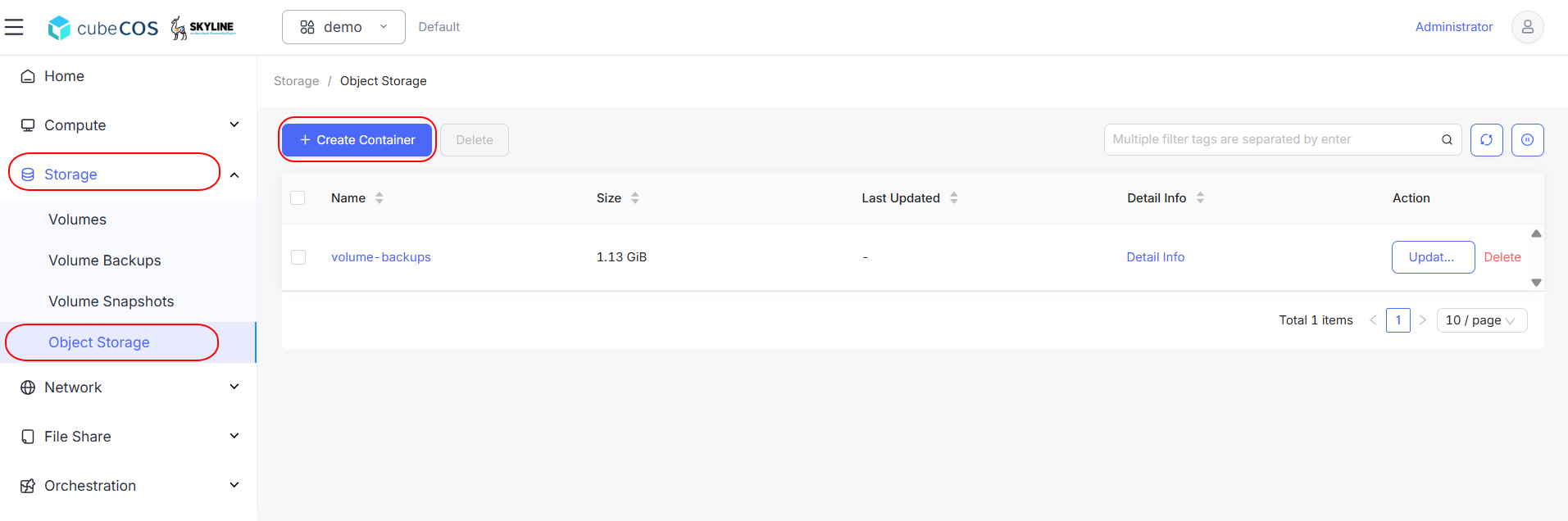
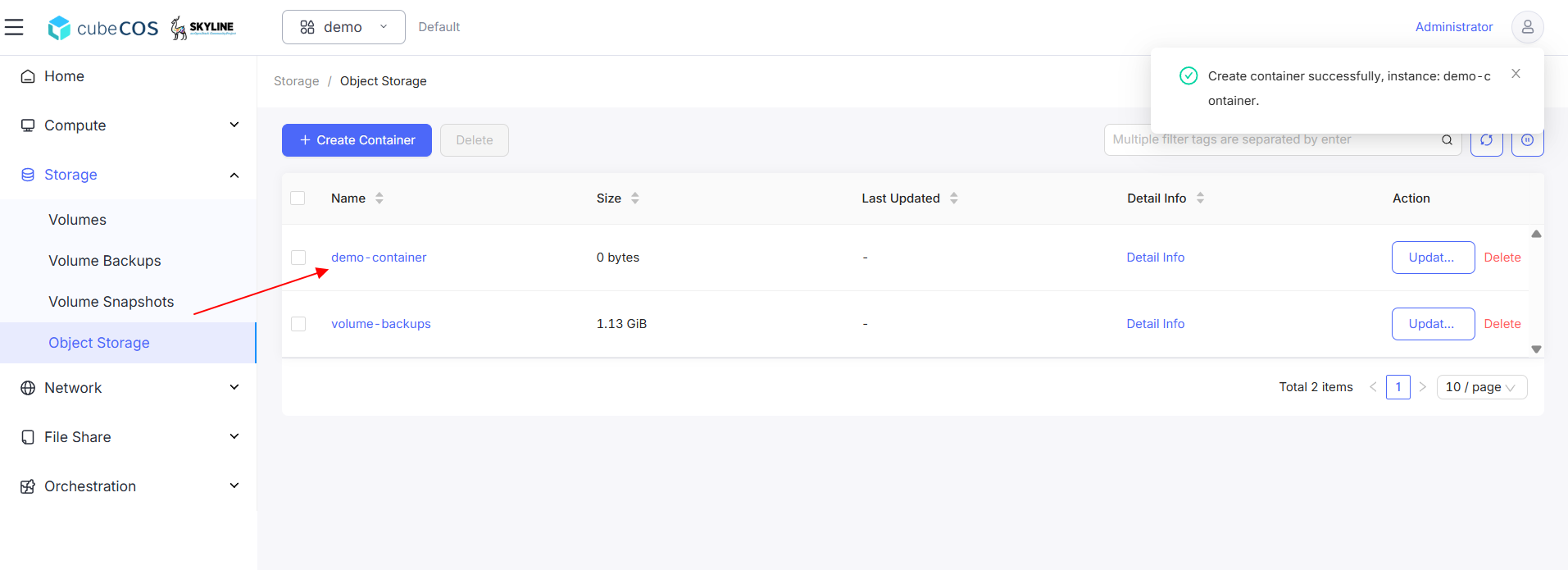
「プロジェクト > ストレージ > オブジェクトストレージ」に移動し、「+ コンテナを作成」を選択します
-
コンテナに名前を付け、[公開アクセス] のスイッチを切り替えて
ONに設定します。 「OK」をクリックして次に進んでください。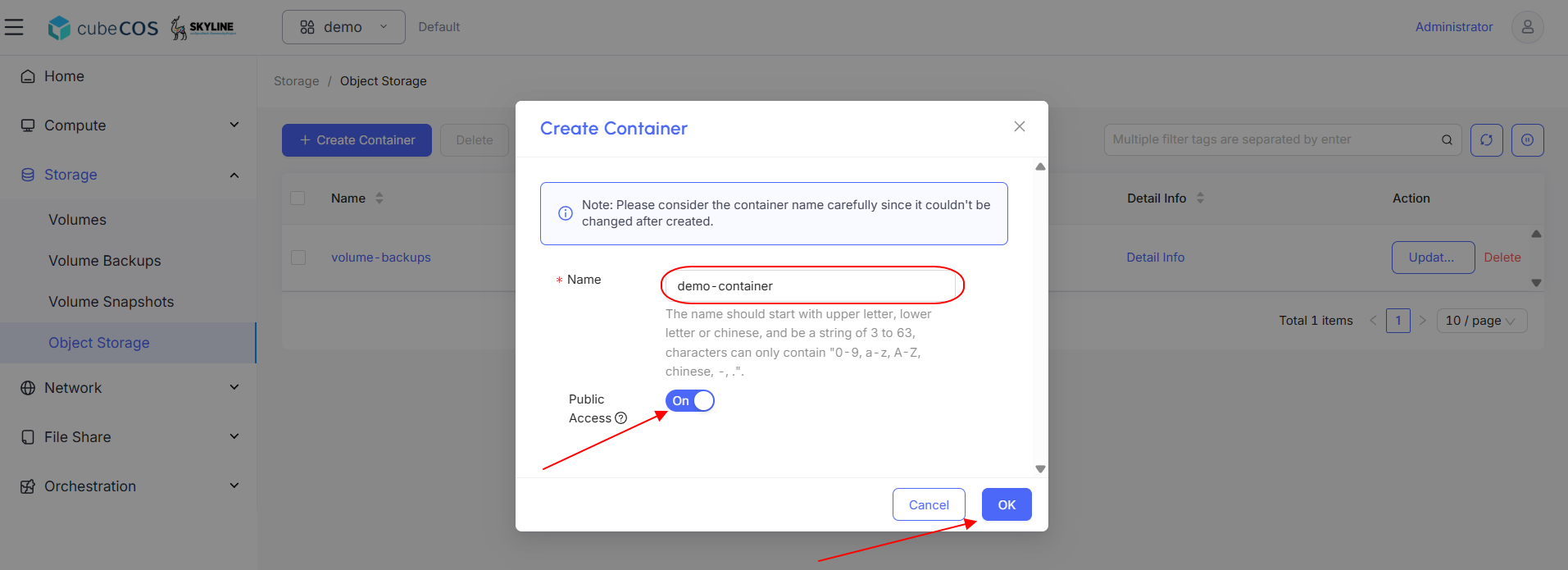
-
先ほど作成したコンテナをクリックしてください。
-
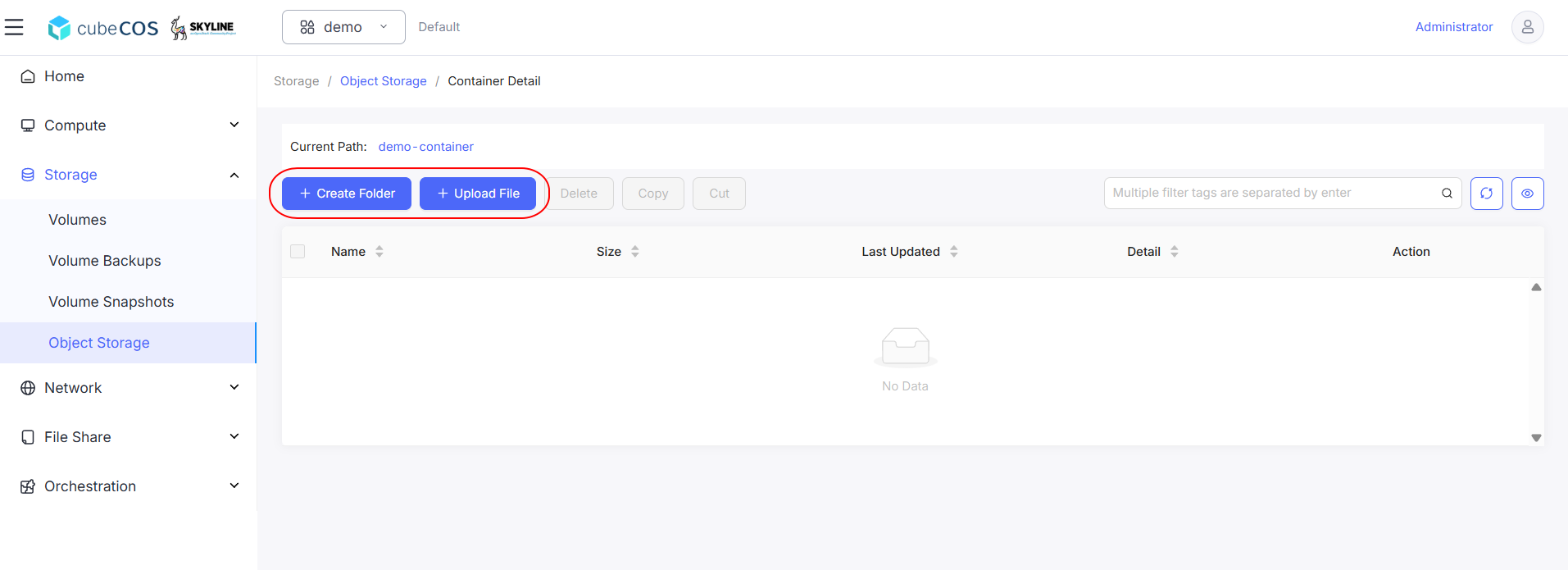
コンテナ内では、「フォルダを作成」または「ファイルをアップロード」を選択できます。
以下の手順では、フォルダを作成し、その中にファイルをアップロードします
-
新しいフォルダを作成するには、
+ フォルダを作成ボタンを選択してください。フォルダに名前を付けて、「OK」をクリックします。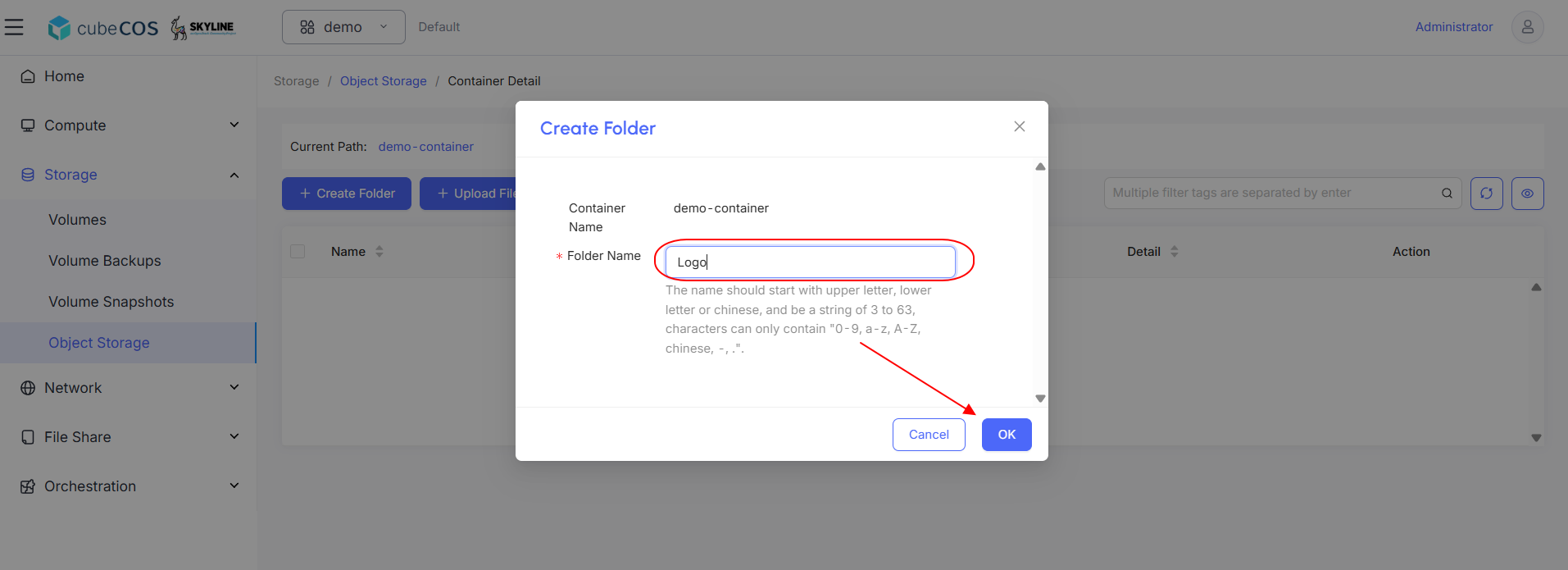
-
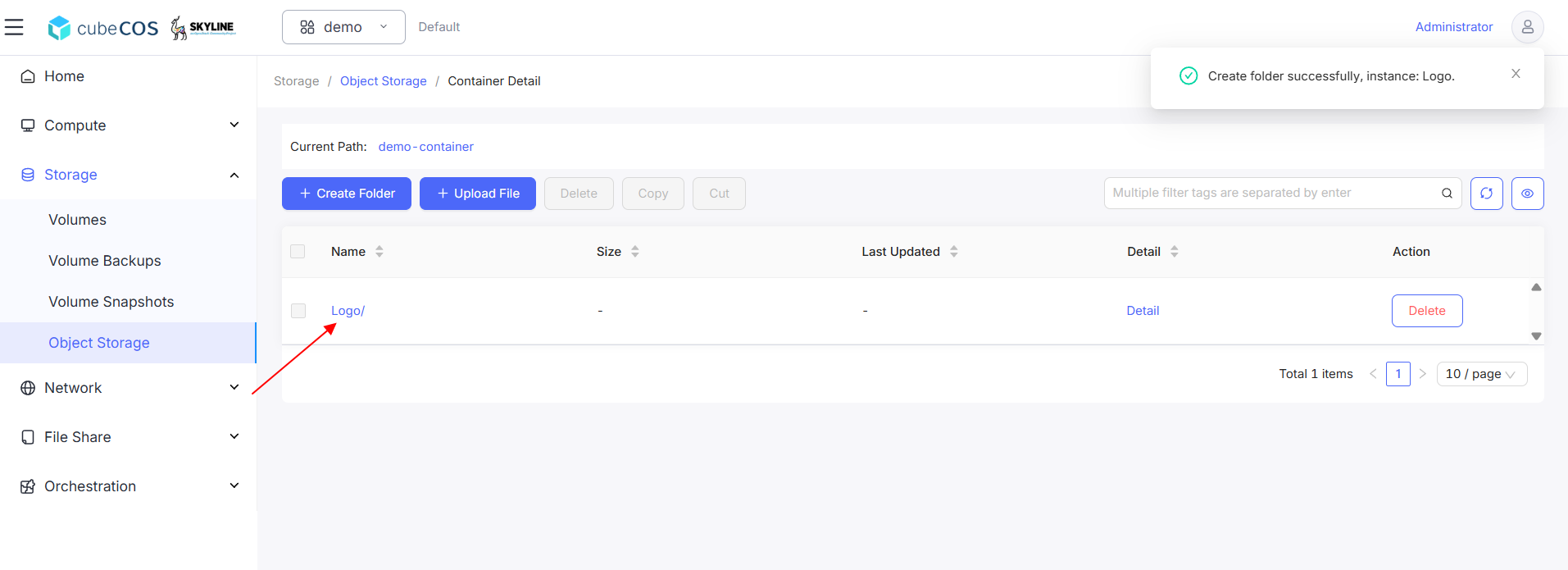
新しく作成したフォルダをクリックしてください。
-
新しいファイルをアップロードするには、「+ ファイルをアップロード」ボタンを選択してください。必要なファイルをアップロードし、
OKをクリックしてください。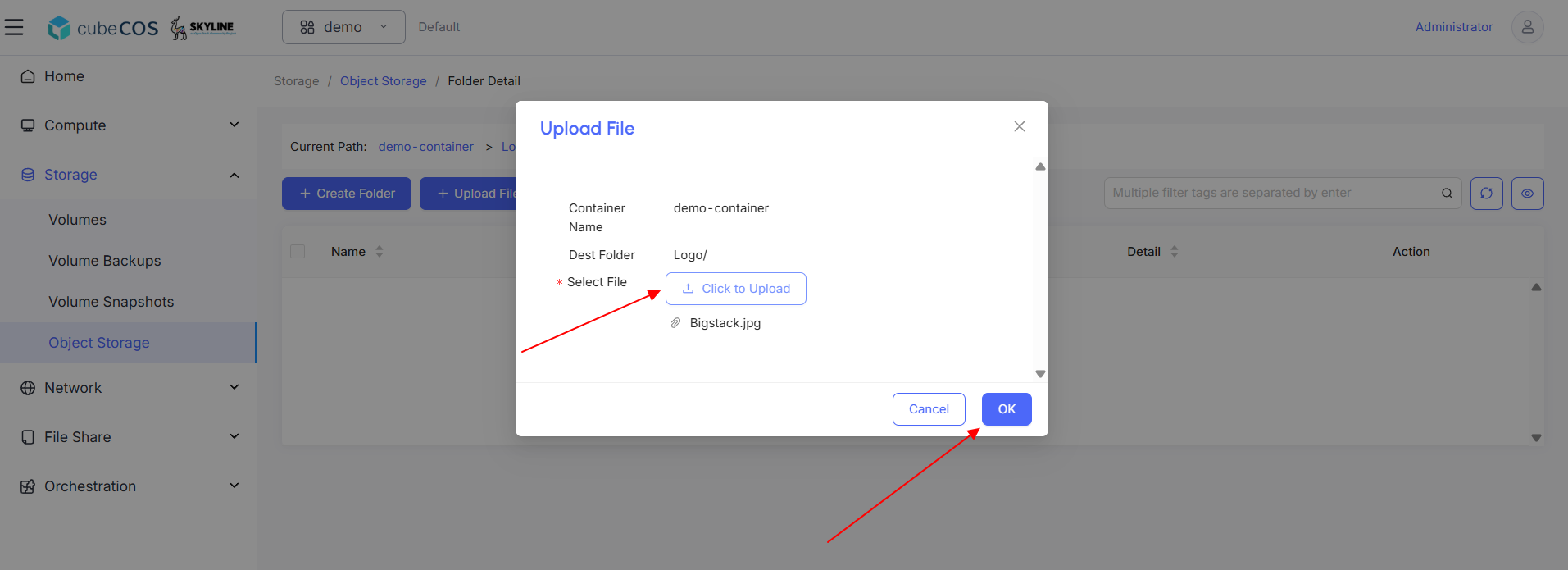
-
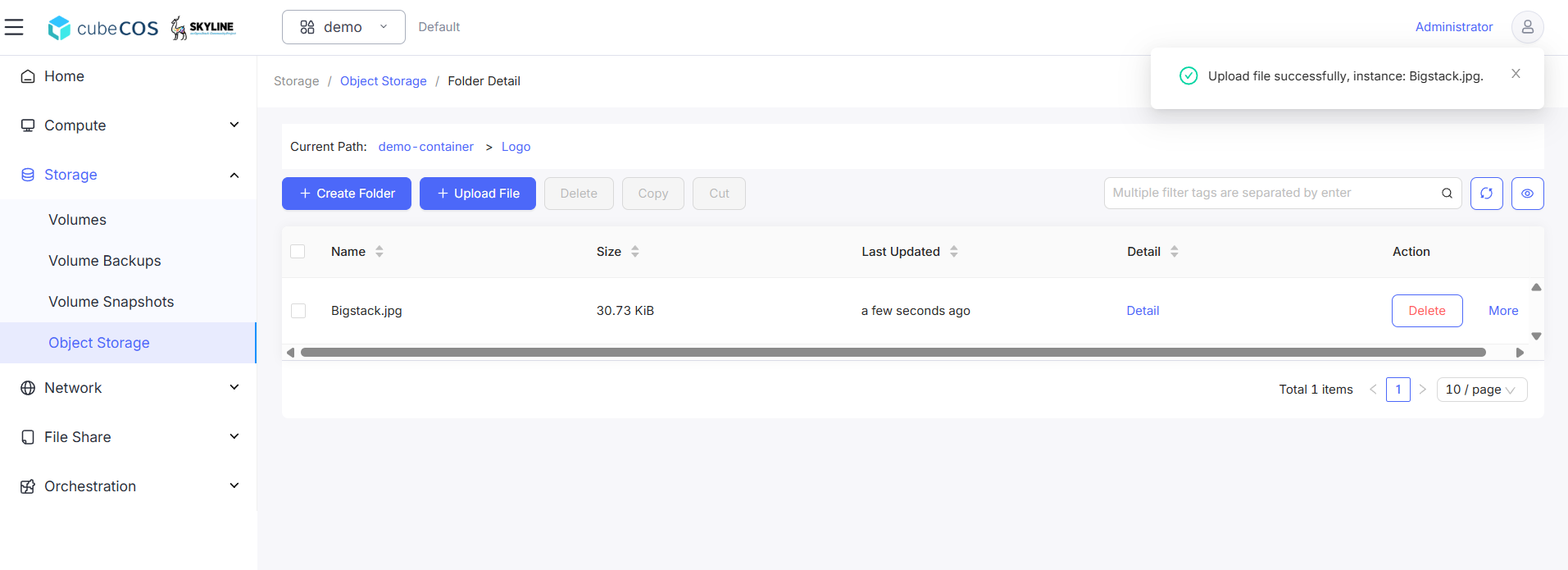
アップロードを確認するには、ダッシュボードに移動し、ファイルがリストに表示されていることを確認してください。
Swift API
- SSH経由でCubeCOSクラスタのVIPにアクセスし、
Auth Tokenを取得します。コマンドswift -v stat<container_name>を実行してください
[cc1 ~]# swift -v stat demo-container
   URL: http://172.16.0.10:8888/swift/v1/c0978a86e3b242da9ba549acf5178266/demo-container
   Auth Token: gAAAAABoFW_tJ9w8jM8UOPtjgDYbgmEotngLx2JPn-6SKFtQ4Dyc9C1nNP6U-5Unto1AEvllmhiH0SCUxgovGQc_V6TpILw9blS3OsClS1icyE6qZfZRHRs8Ej8LDfgxZ9y8CnC0TMUjklFISs06jBAGjzzGtESzChh9sWnp7AcuXrvaq63i0Q8
   Account: c0978a86e3b242da9ba549acf5178266
   Container: demo-container
   Objects: 2
   Bytes: 31471
   Read ACL: .r:*,.rlistings
   Write ACL:
   Sync To:
   Sync Key:
   X-Timestamp: 1746168693.62838
   X-Container-Bytes-Used-Actual: 32768
   X-Storage-Policy: default-placement
   X-Storage-Class: STANDARD
   Cache-Control: no-cache
   Last-Modified: Fri, 02 May 2025 06:51:34 GMT
   X-Trans-Id: tx00000eb28d971e117f44d-0068156fed-1525fe-default
   X-Openstack-Request-Id: tx00000eb28d971e117f44d-0068156fed-1525fe-default
   Accept-Ranges: bytes
   Content-Type: text/plain; charset=utf-8
   Connection: Keep-Alive
-
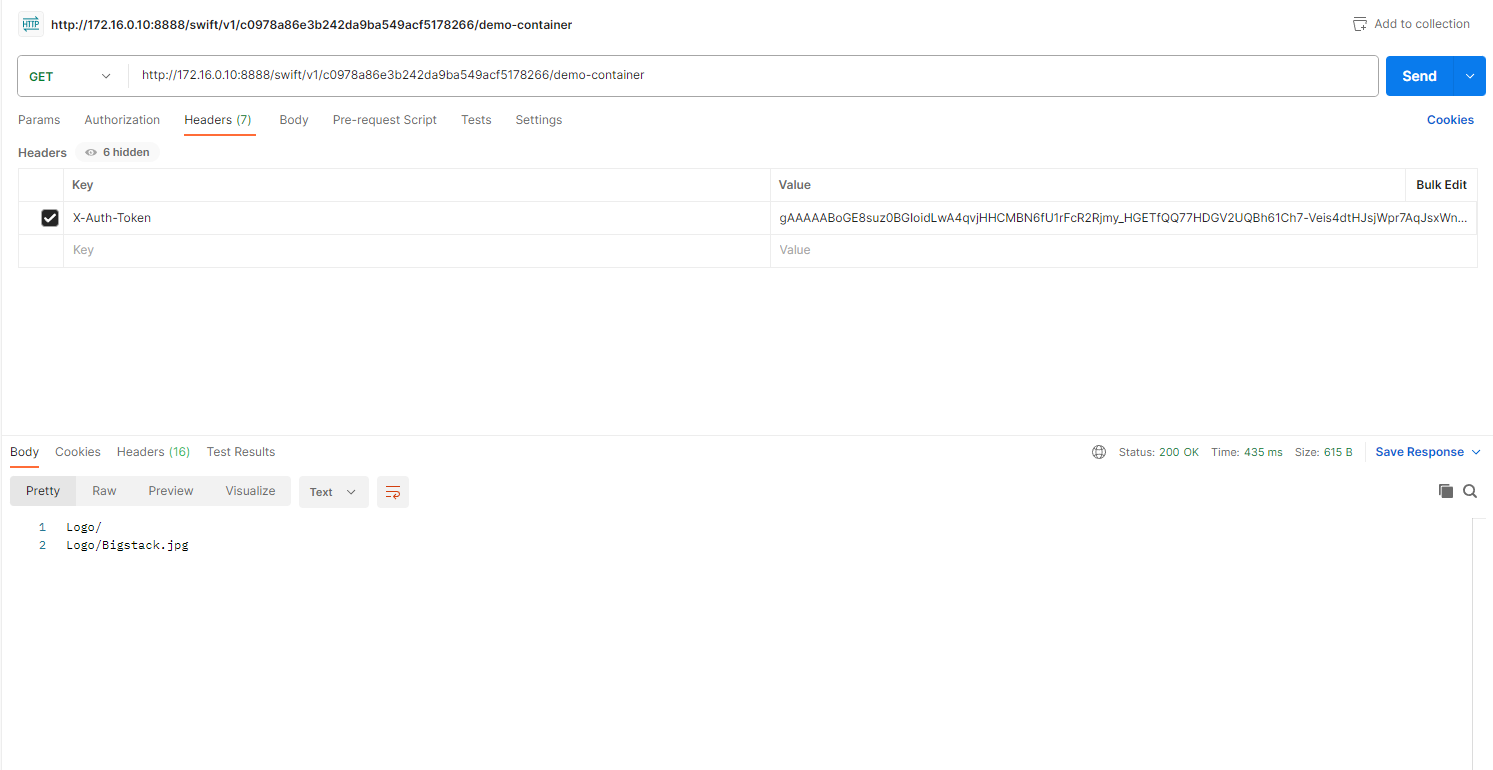
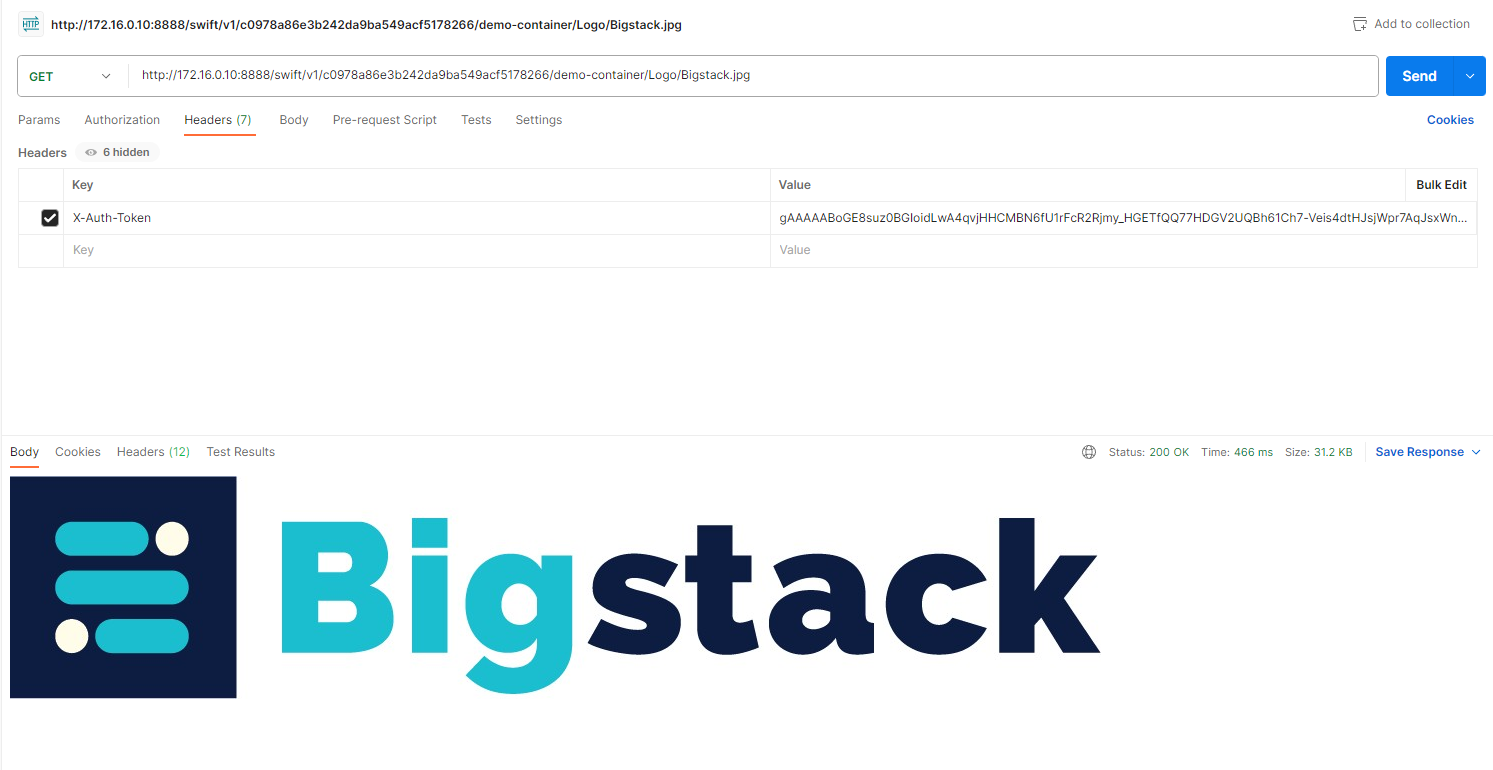
Postmanを使用してSwift APIへのアクセスを確認し、GETリクエストで以下のヘッダーを追加してください:{ key = "X-Auth-Token", value = 上記の「Auth Token」 }
_ステップ1に表示されているURLは、バケットのURLです。それを取得すると、そのファイルツリーが得られます。特定のファイルを取得するために、フォルダとファイル構造を追加してください。