How to apply custom scripts to triggers
Summary
CubeCOS 3.1.0 enables custom actions to be triggered when certain events occur.
Details
Issue description
Configure scripts to respond to event triggers to enable customised actions and automated behaviour when events occur in the cluster. Event scripts can be used to send custom notifications, perform cluster actions or integrate with external services.
Currently, custom scripts are supported in Bash format and are executed within an Alpine Linux environment. The configuration will be carried out via the CubeCOS management interface.
Applicable versions
CubeCOS 3.1.0 and above.
This article applies to environments running CubeCOS version 3.1.0 or above.
Resolution
Configure custom scripts to run on event triggers
-
Log into the CubeCOS management interface.
-
To begin trigger configuration, navigate to
Events > Triggers > Create Trigger.
-
Click on
Add Attributesand select the attributes you want to associate with the trigger to set trigger conditions.
The following attributes are available:
- Alert Type: Set trigger by alert types
All,System,Host, orInstance. - Severity: Set trigger by severity
INFO,WARNING, orCRITICAL. - Category: Select event category to be associated with the trigger.
- Event Id: Associate a specific event id with the trigger.
- Alert Type: Set trigger by alert types
-
Once selected, click Next.
-
Upload and test your personalized scripts.
infoAlpine Linux is used as the execution environment for customized scripts.
Sample scripts are available in the Sample script and enviornment information section
On the
Set Responsepage, click+ Personalized Scriptsto open the upload and test window. ClickUpload Bash Scriptand select your custom script, then clickTest Runningto execute it.
-
Verify run result and setting trigger response.
infoYou must complete the test run before the trigger can be saved.
Verify that the test run response matches your desired behaviour, click
Set Responseto set the trigger, andNextto the final step.
After
Set Responseverify the information in the Set Response page as image below.
-
Enter the name and description for your custom trigger.
Enter a name and description for your custom trigger, click
Create.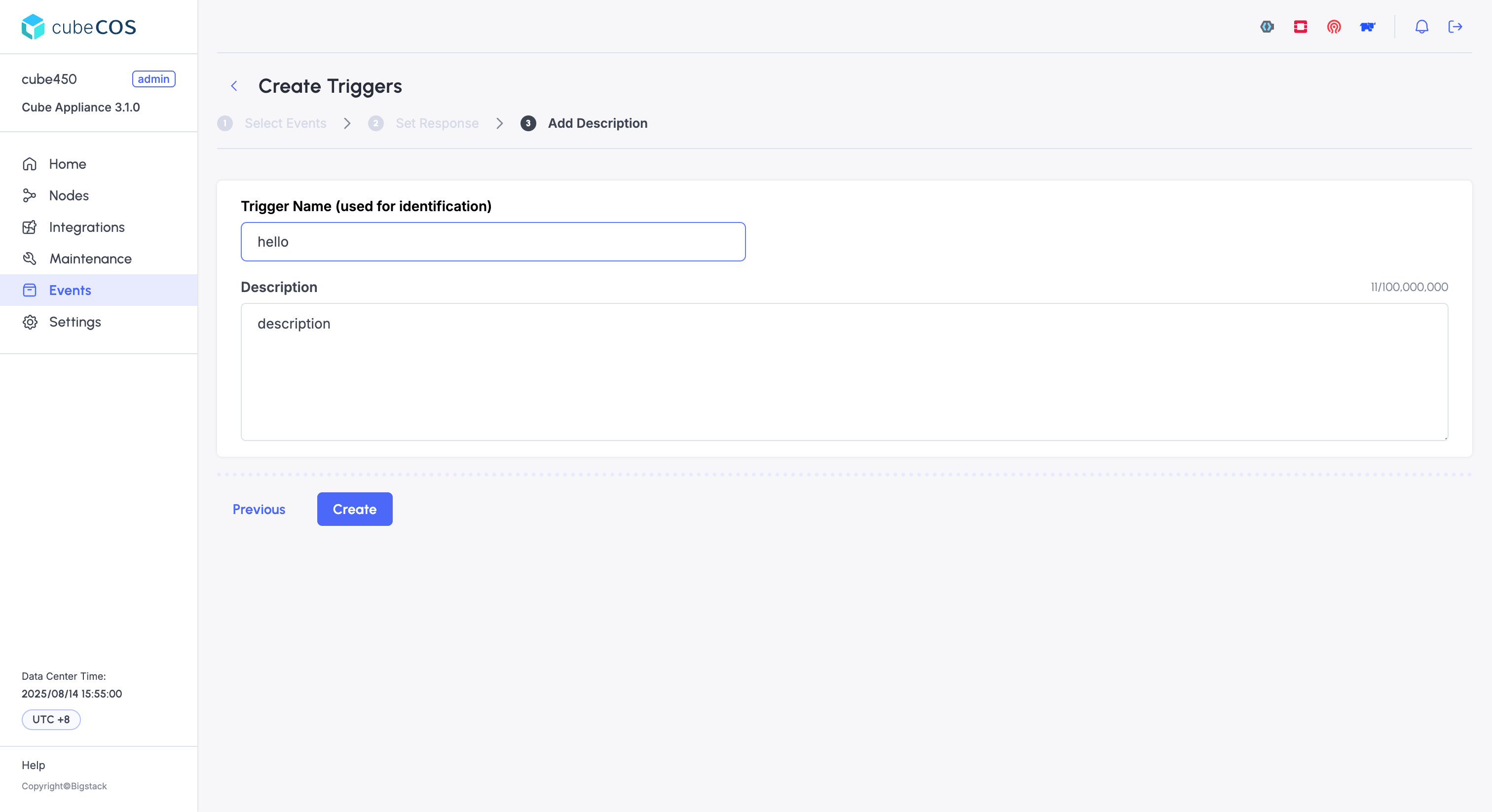
-
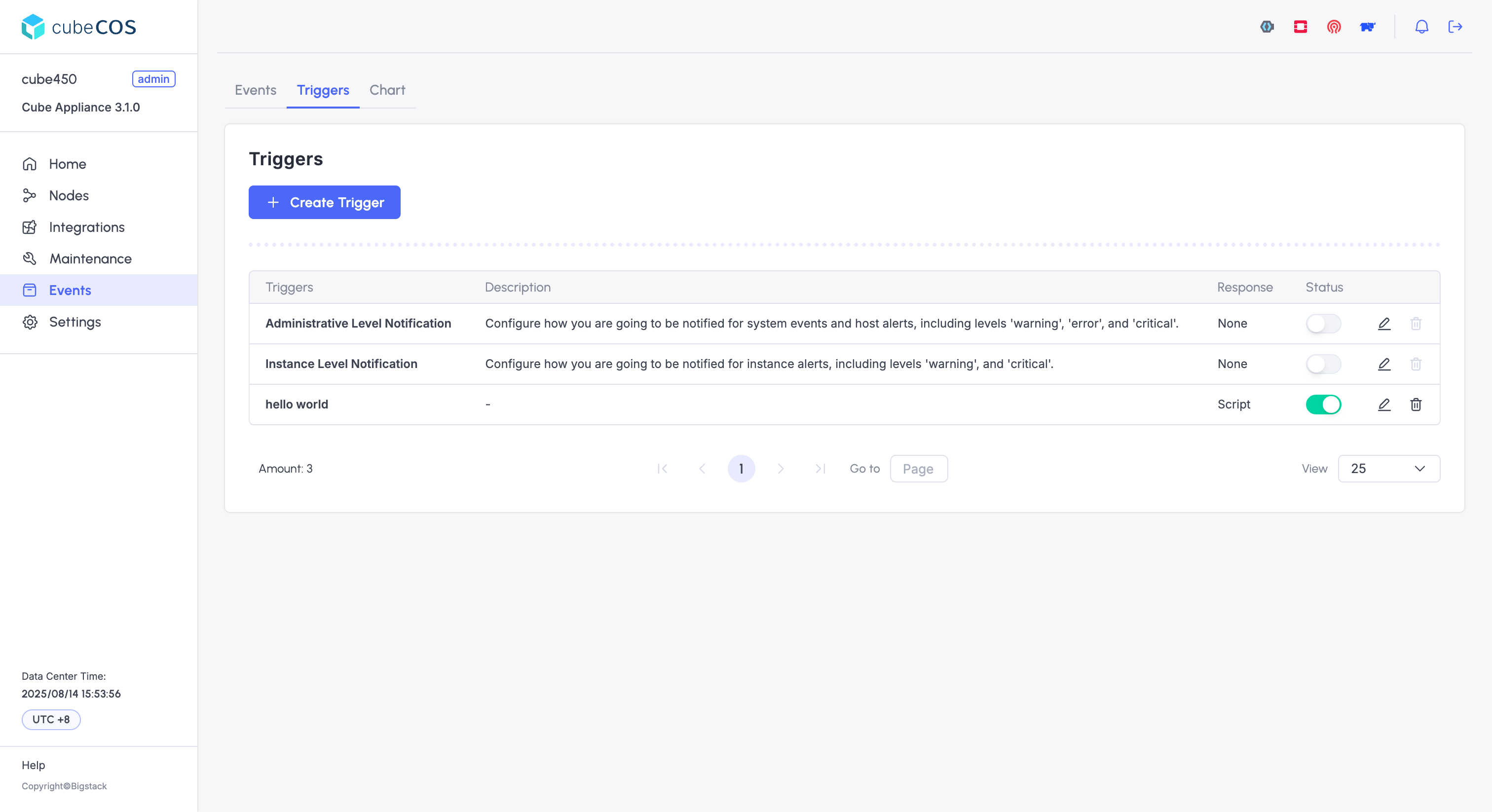
Verify trigger creation.
During creation, the custom trigger appears greyed out in the trigger list, accompanied by a spinning progress indicator. Once the trigger is successfully created and propagated to all CubeCOS nodes, the status toggle changes to solid green.
Sample script and enviornment information
Custom functionality can be defined to execute within the cluster when event conditions are met. These scripts can trigger alerts to monitoring platforms, initiate repair services, or invoke other user-defined actions.
Use the #!/usr/bin/env bash shebang.
Sample 1: Send Custom Webhook Alert to Slack
Use the following script to send a notification to Slack via a custom webhook URL.
#!/usr/bin/env bash

curl -i -X POST -H 'Content-Type: application/json' -d '{"text": "hello from CubeCOS alert response jail"}' https://hooks.slack.com/services/XXX/XXXXXX
Sample env output from the shell execution environment
Environment variables of the CubeCOS cluster is automatically passed into the script execution environment that operators can utilize with their custom scripts. The output is provided in JSON format for easier parsing and verification. You can query the environment variables specific to your cluster by uploading a env retrieve script.
env retrieve script
#!/usr/bin/env bash

echo ${EVENT}
Sample return of the retrieve script
The json output would be displayed under the Test Results section when you execute the environment retrieve script.
The event environment variable can be accessed during an actual event trigger.
    {
          "name": "EVENT",
          "type": "object",
          "description": "the 'case sensitive' event env variable that triggered the action",
          "value": {
            "data": {
              "fields": {
                "field_key_1": "some integer value",
                "field_key_2": "some string value"
              },
              "group": "group by tags concatenated",
              "name": "measurement name",
              "tags": {
                "tag_key_1": "tag value 1",
                "tag_key_2": "tag value 2"
              },
              "time": "YYYY-MM-DDTHH:MM:SSZ"
            },
            "details": "user-defined HTML content for a more detailed message",
            "duration": "an integer value in seconds",
            "id": "alert id string",
            "level": "OK or INFO or WARNING or CRITICAL",
            "message": "alert message, from the TICKscript",
            "previousLevel": "OK or INFO or WARNING or CRITICAL",
            "recoverable": "bool value like true or false",
            "time": "YYYY-MM-DDTHH:MM:SSZ"
          }
        }
      },