Override the Default Docker Network
Summary
The default CubeCOS Docker bridge network may conflict with the existing network configuration.
Details
Issues description
During installation, CubeCOS automatically creates a Docker bridge network that uses the 172.17.0.0/16 subnet. This default configuration enables container-to-container communication on the local Docker network.
In some environments, this subnet can conflict with existing private network ranges and cause network issues, including:
- Containers cannot reach external services.
- Communication between containers and the host fails.
- Overlapping routes lead to unpredictable network behavior.
These conflicts typically occur when one of the following conditions is true:
- The existing network infrastructure already uses the
172.17.0.0/16subnet. - The CubeCOS cluster management network is assigned the same subnet.
To prevent IP address conflicts, override the default Docker bridge configuration and assign a custom subnet that does not overlap with your existing network ranges.
Applicable versions
CubeCOS 2.4 and later
This article applies to environments running CubeCOS version 2.4 or newer.
Resolution
This fix must be applied before starting the installation of CubeCOS nodes.
It must be implemented before any internet connectivity is configured, as CubeCOS nodes will not have external access at this stage.
To apply the fix, use USB media to manually transfer the configuration tool or patch file to each node before installation. This ensures the Docker bridge network is correctly overridden and avoids subnet conflicts during deployment.
The Docker IP change tool uses the following new Docker subnets:
- Base network:
172.31.0.0/16 - BIP:
172.30.0.1/24
Prerequisite
- Download the IP change tool: change-docker-ip.zip
- Verify the contents of the tool, the extracted zip contains the following files:
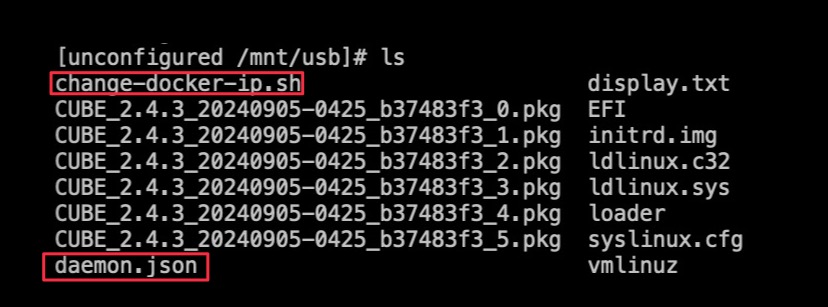
change-docker-ip.sh: The function script that will modify and change the default Docker IP subnet.daemon.json: The Docker subnet configuration file.
Log into each CubeCOS node
    unconfigured login: root
    Password:
    Last login: Thu May  1 23:02:34 on tty1
    Welcome to CUBE_2.4.3_20240905-0425_b37483f3
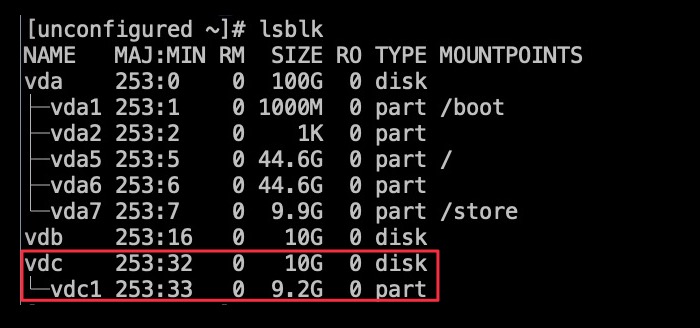
Identify the USB device
lsblk
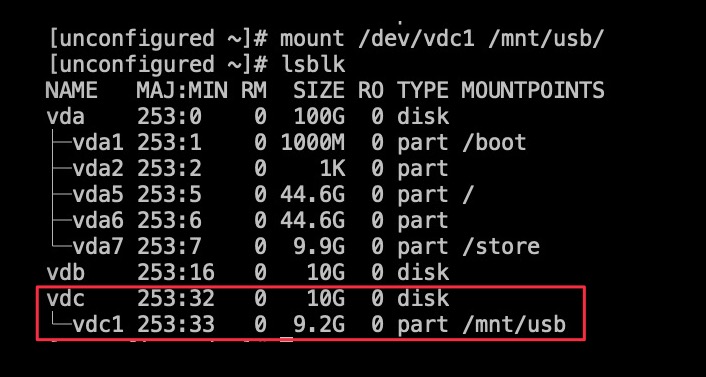
Mount the USB device to the filesystem
    mount /dev/vdc1 /mnt/usb
    lsblk
List and confirm the change tool
    cd /mnt/usb/
    ls
Execute the Docker network change tool
./change-docker-ip.sh

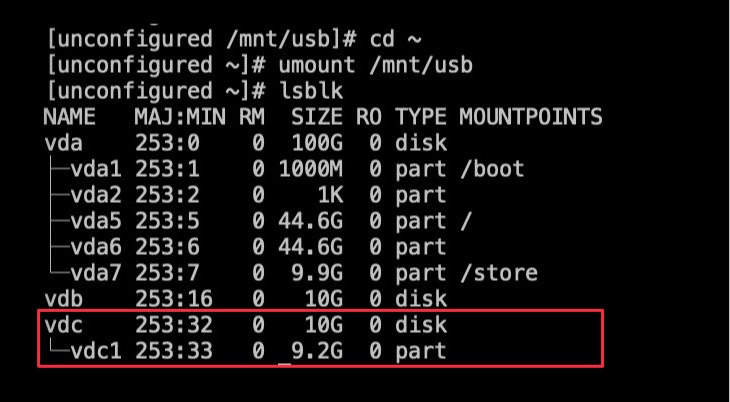
Unmount the USB
    cd ~
    umount /mnt/usb
    lsblk
Continue with CubeCOS installation
Once the network conflict fix is in place, continue with the cluster deployment by following the CubeCOS Installation guide.