Create an External/Internet network
-
Please navigate to Admin > Network > Networks >
+ CREATE NETWORK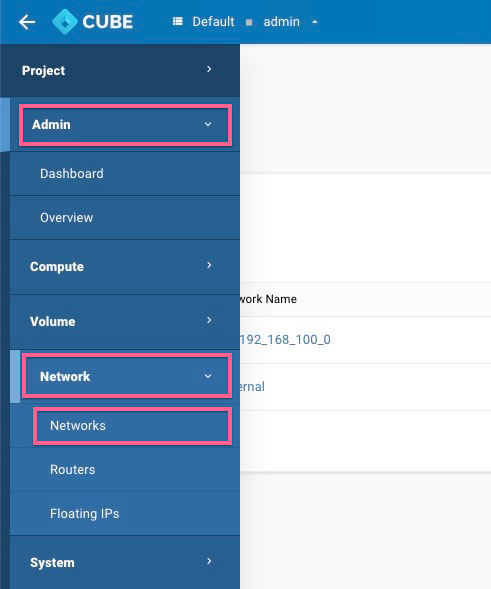
-
Please follow the configuration below, uncheck
shared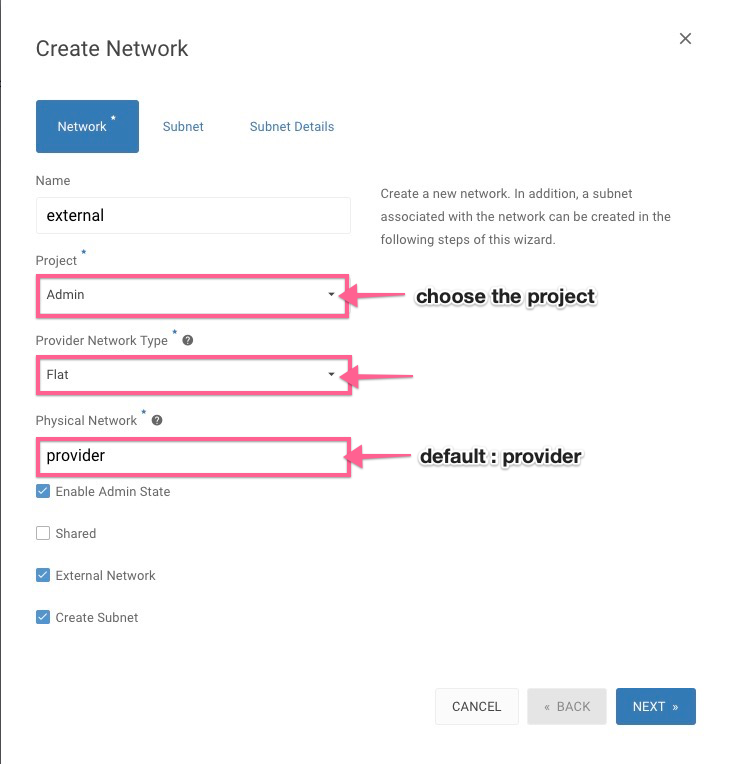
-
Config the Subnet
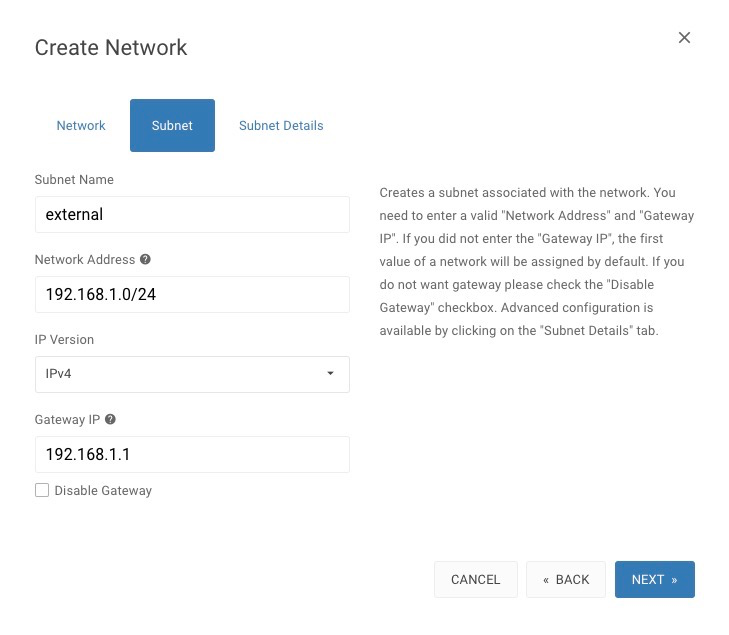
-
DHCP - Enable the DHCP setting, define the Allocation Pools & DNS
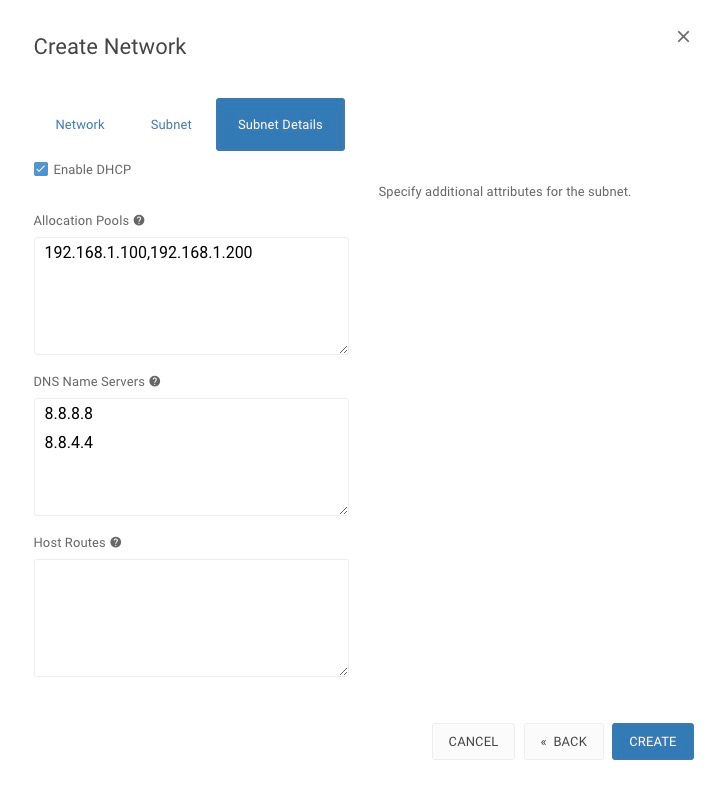
Create Private Network (VLAN/VXLAN)
-
Please follow the configuration below, uncheck
shared&external, VXLAN is recommended.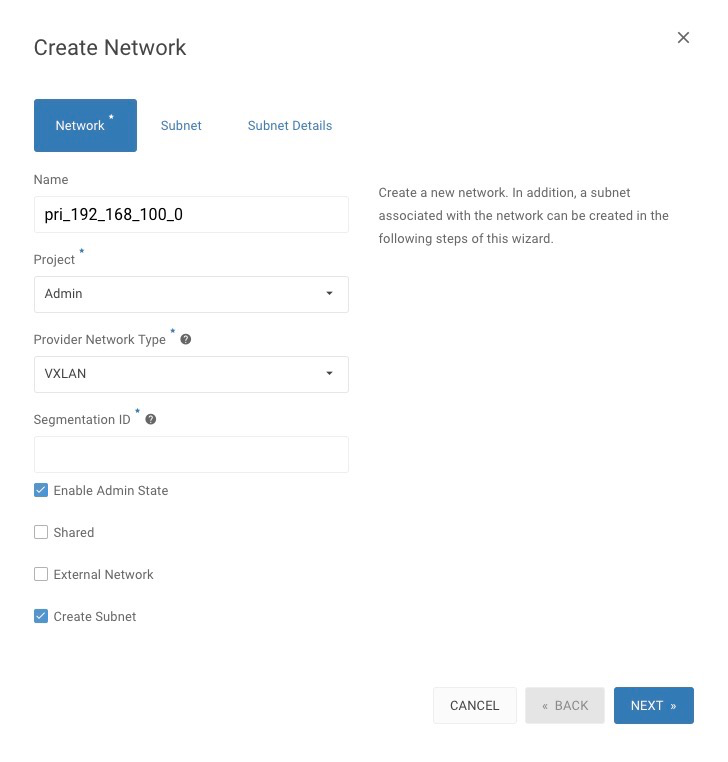
-
Configure the Subnet
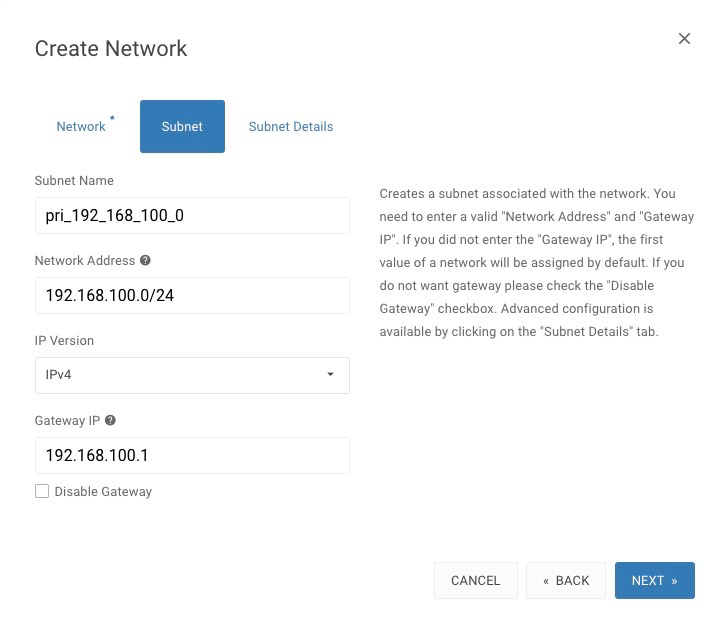
-
DHCP - Enable the DHCP setting, define the Allocation Pools & DNS
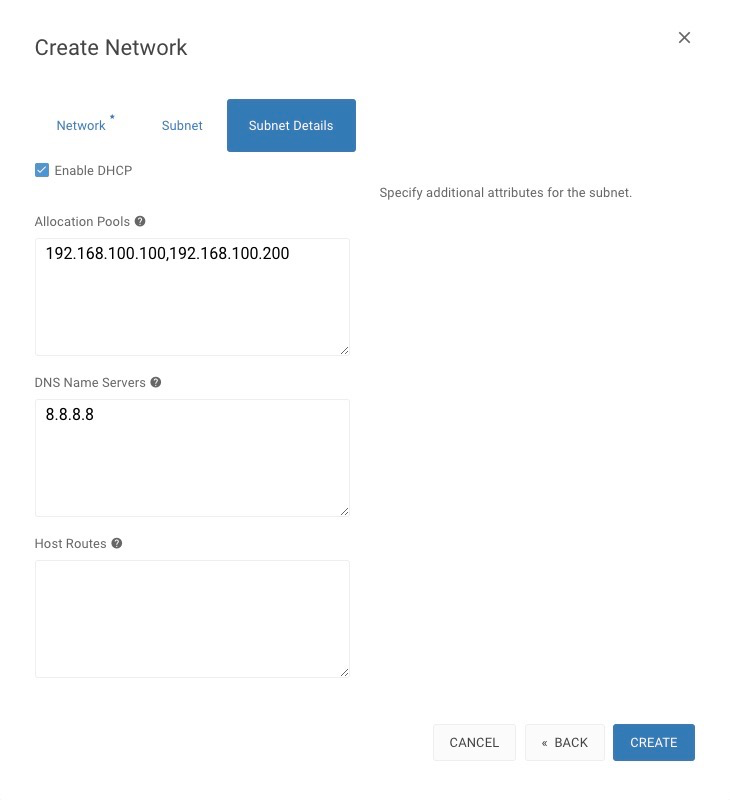
Setting the route
Setting up a router bridging private network and external network, allows the instances can be accessed through
floating ipand the internet-
Please navigate to Project > Network > Routers >
+ CREATE ROUTER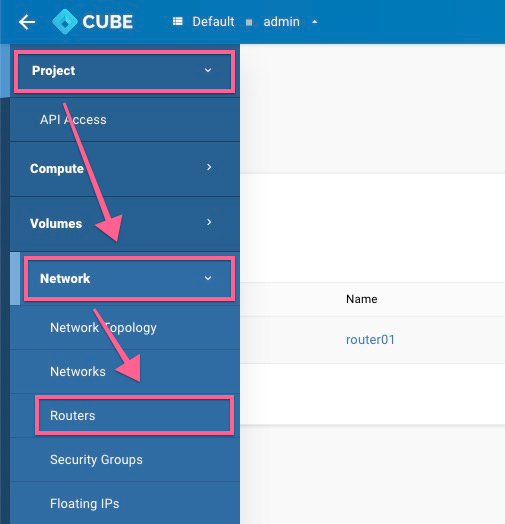
-
Create a Route
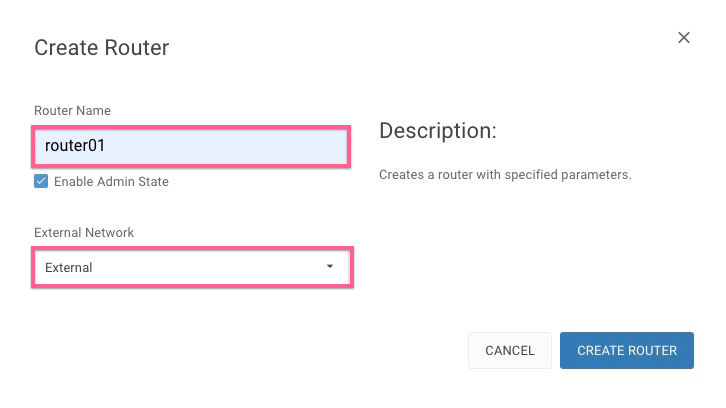
-
Click on newly created
router01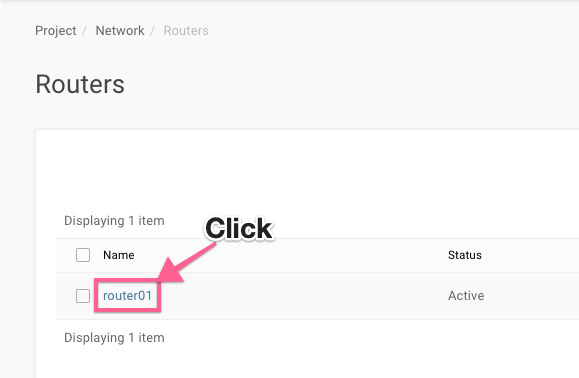
-
+ ADD INTERFACEto the router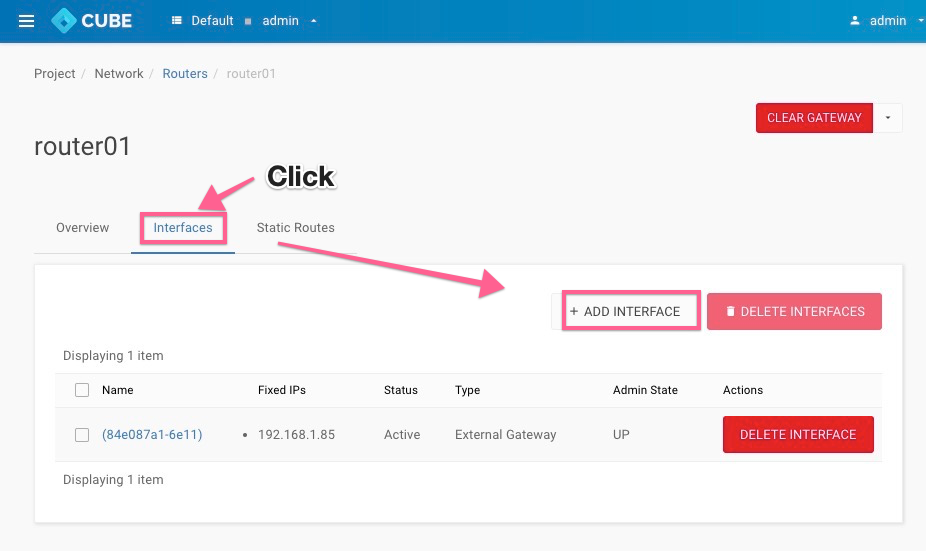
-
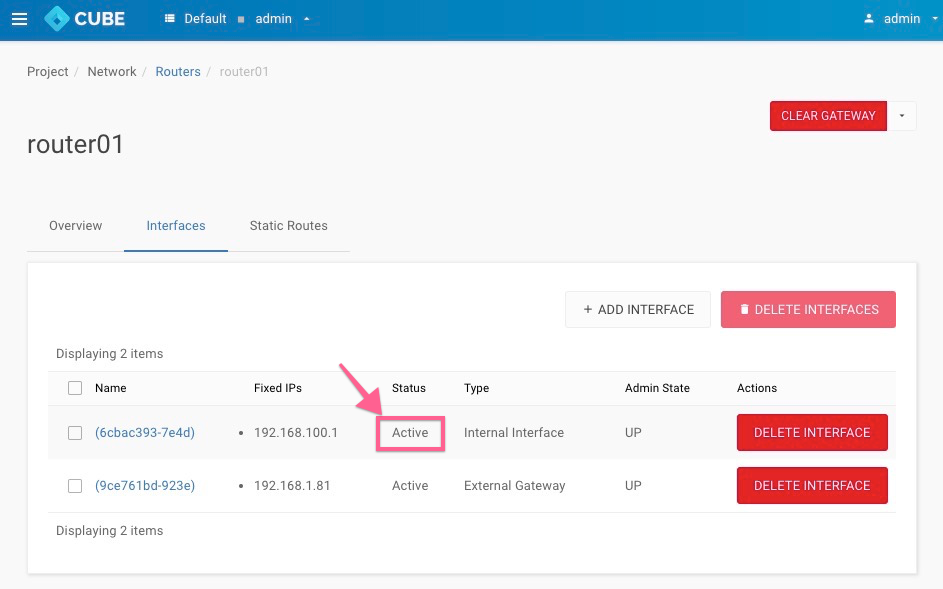
Select the private network(VLAN/VXLAN) , in a few seconds the added interface will show on the list and the status will automatically changed to
Active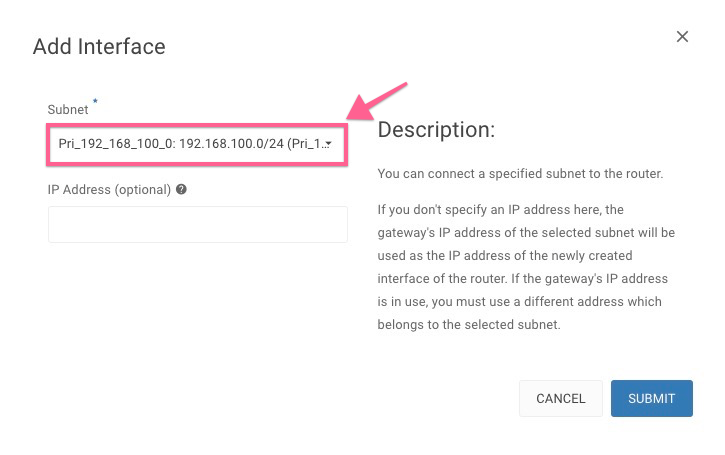
-
Let's preview our network setting at : Project > Network >
Network Topology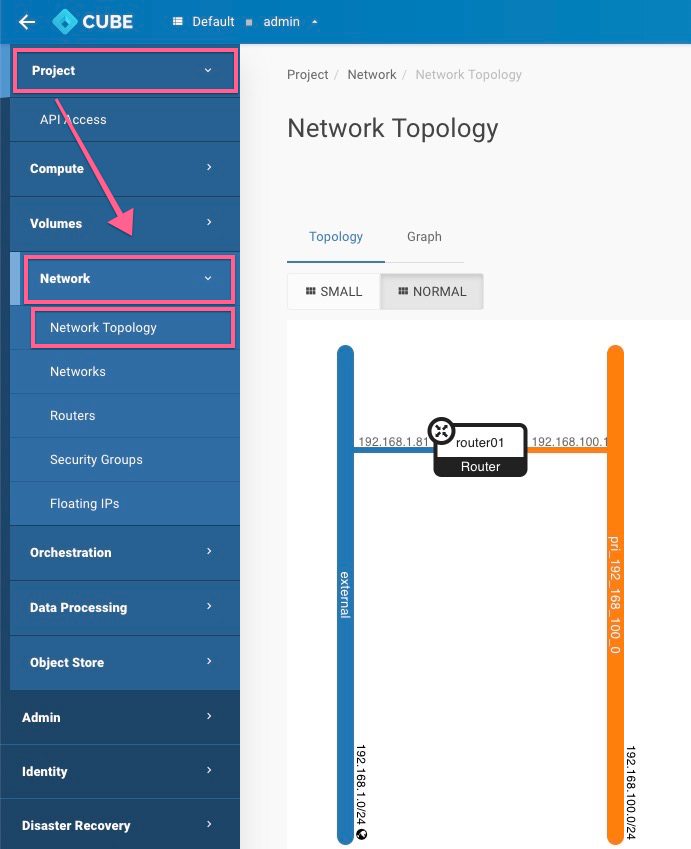
Security Group
Allow SSH/HTTP/HTTPS/MYSQL services(ports) by changing the default security groups
-
Please navigate to Project > Network > Security Groups >
MANAGE RULES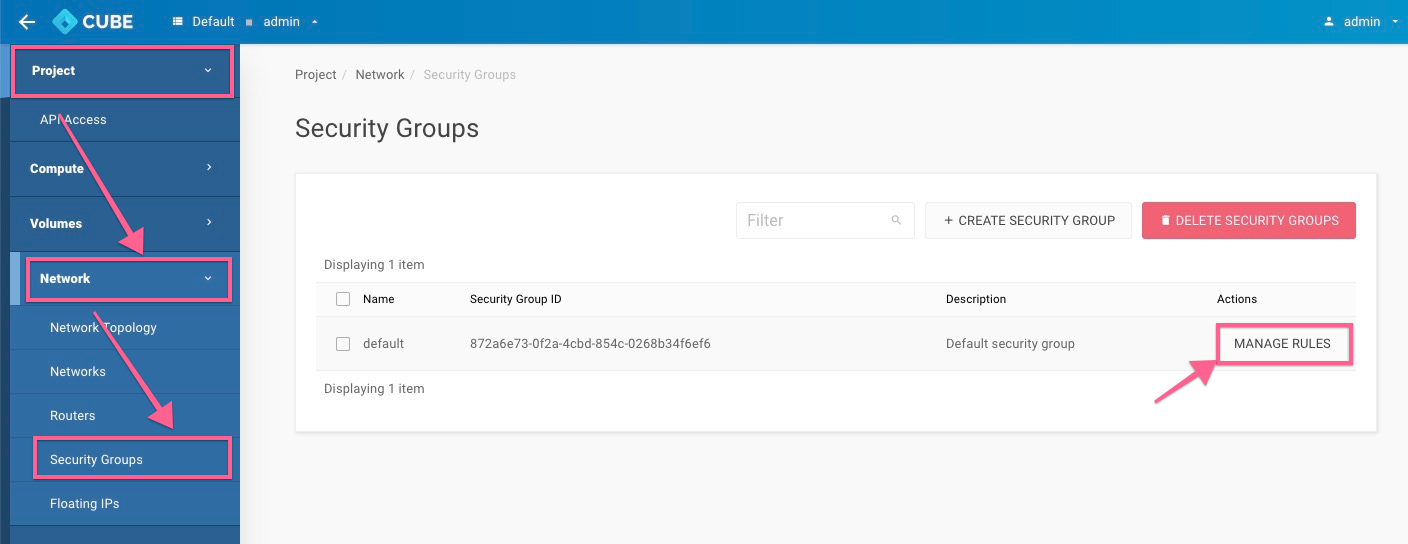
-
Create a new rule by click on
+ ADD RULE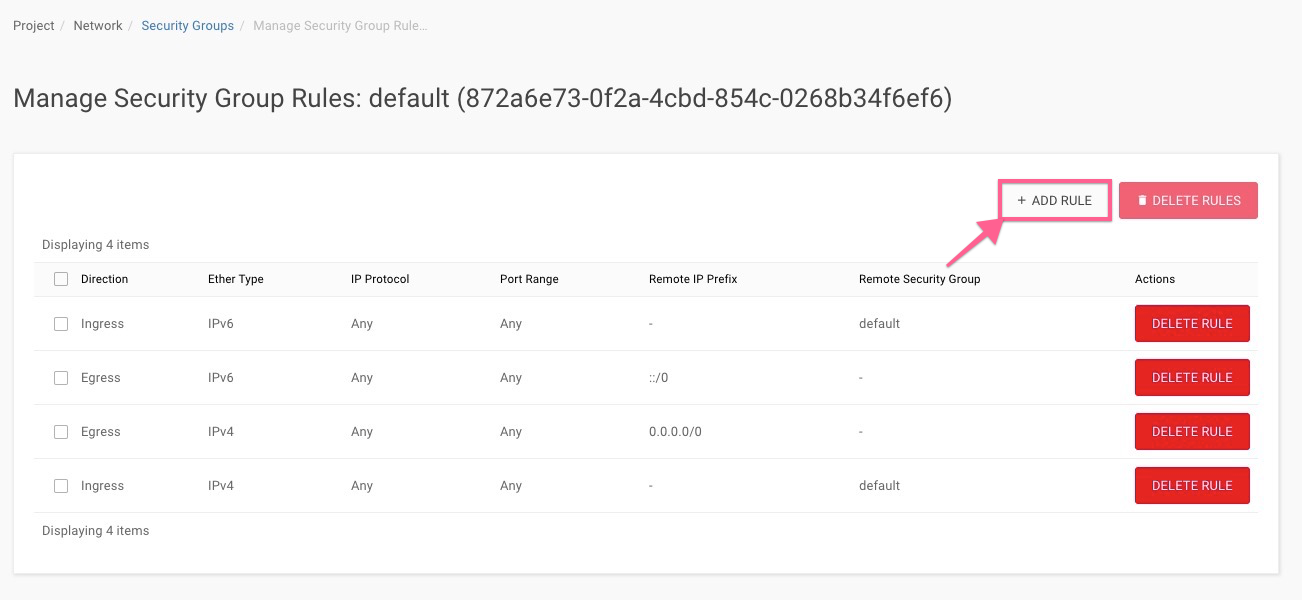
-
A. Create Rule by port range
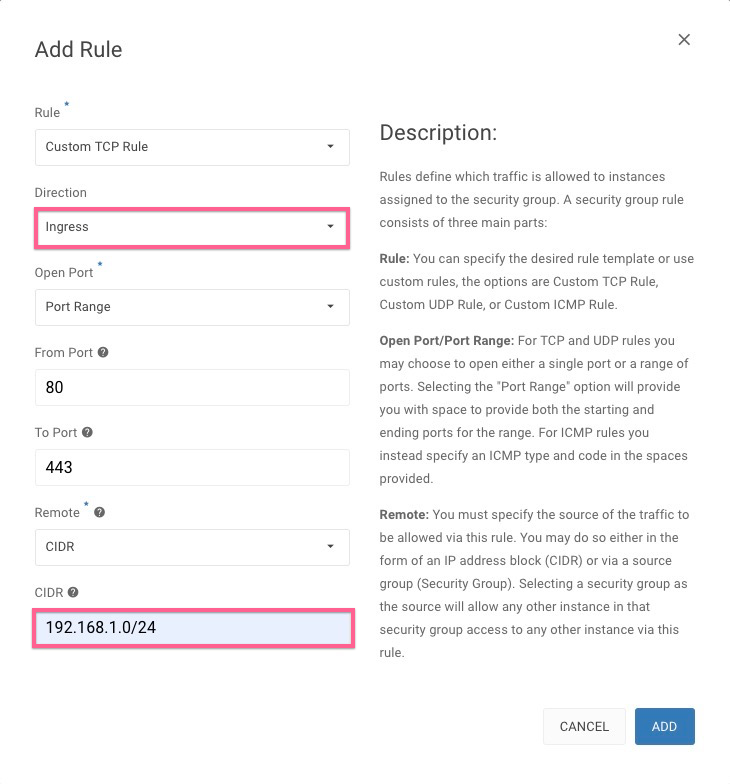
B. Create rule by sevices
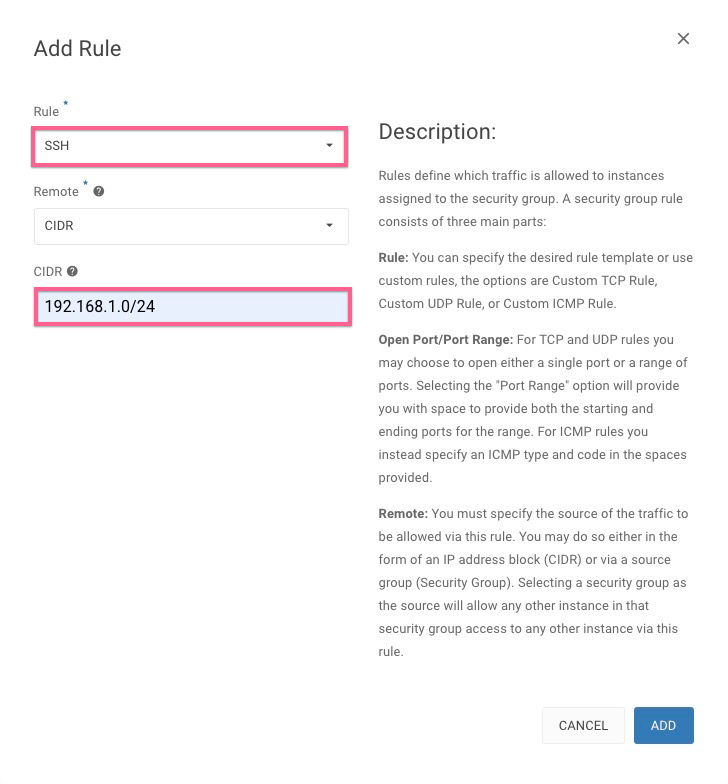
-
Finally the new rules will be added to the
defaultsecurity group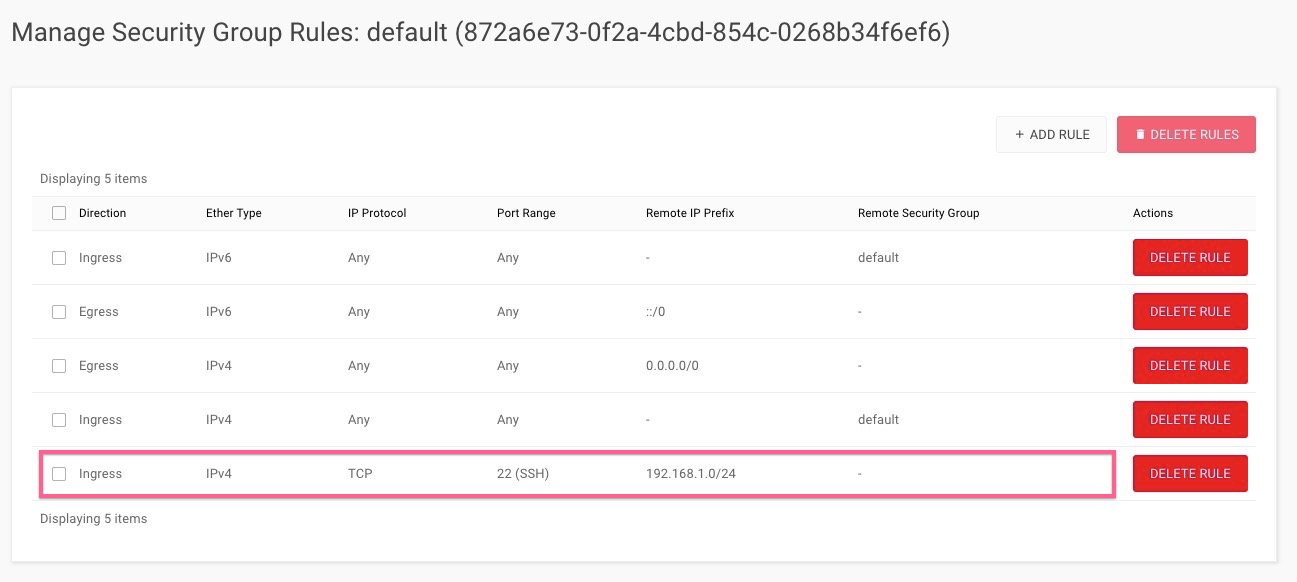
-
-